The Support Dashboard
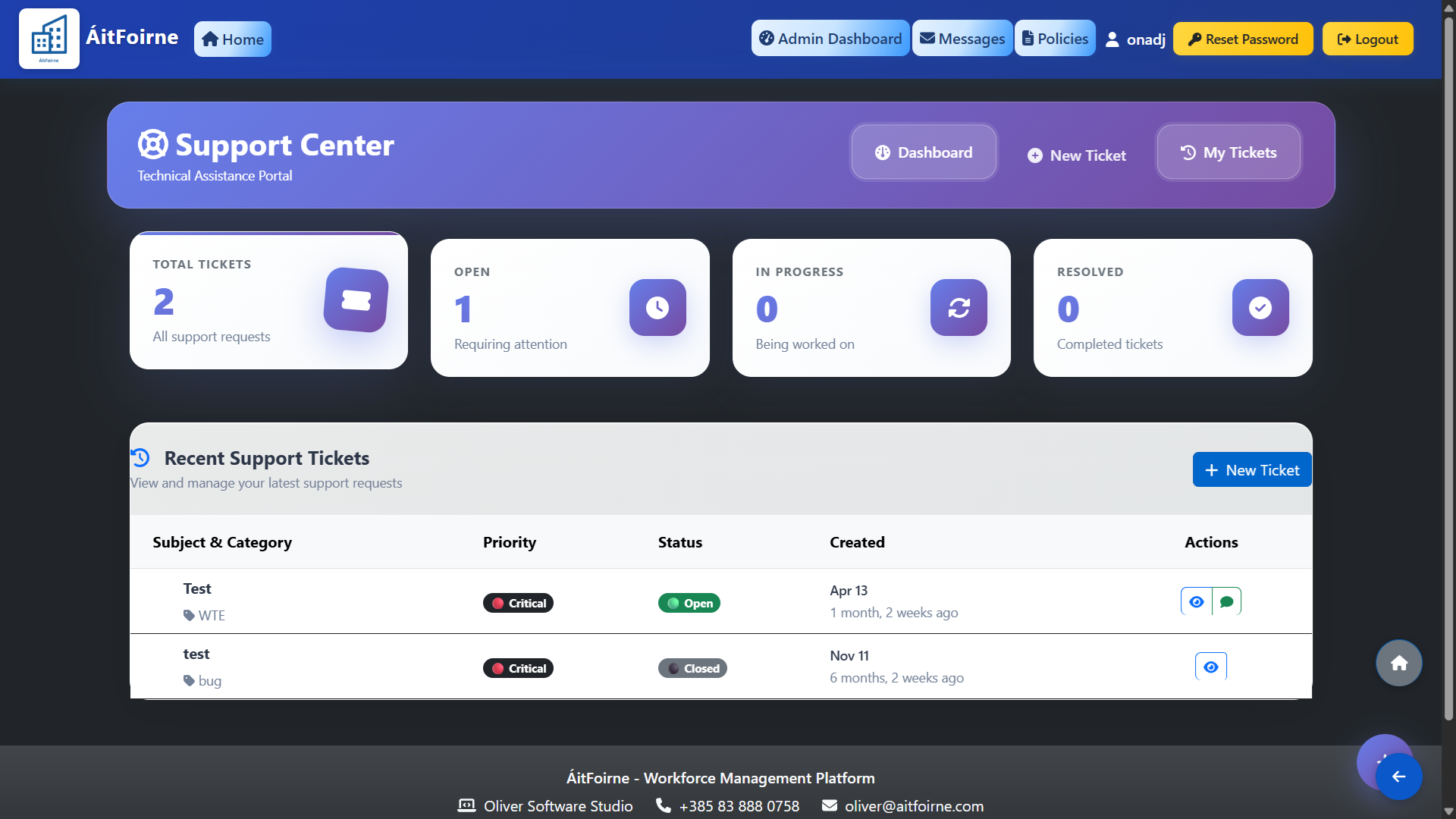
Open the Support Center from the admin navigation. The dashboard gives you an overview of all your support activity:
- Total Tickets — all tickets ever submitted.
- Open — tickets that have been submitted and are awaiting a response.
- In Progress — tickets currently being worked on.
- Resolved — tickets that have been fully addressed and closed.
The Recent Support Tickets table lists all your tickets with their subject, category, priority level, current status and the date they were created. From here you can open any ticket to view its details or add a comment.
Opening a New Ticket
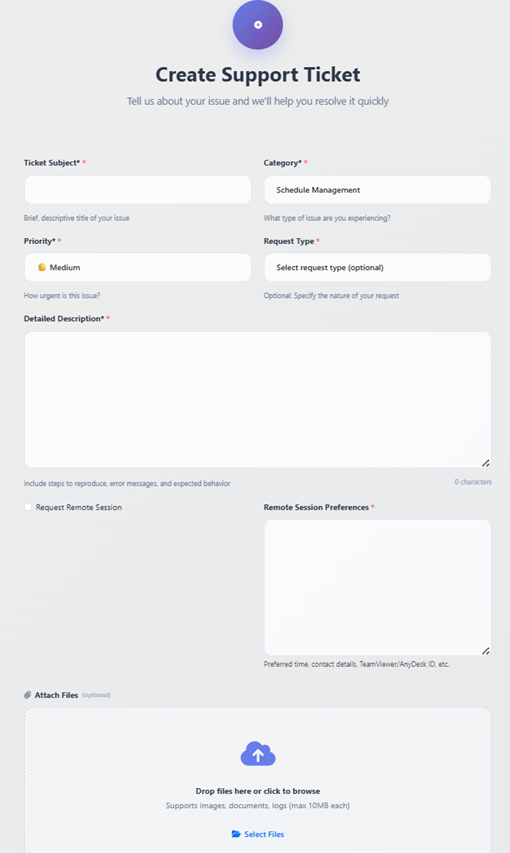
Click New Ticket to create a support request. Fill in the following fields:
- Ticket Subject — a short descriptive title for the issue.
- Category — select the area of the system the issue relates to, such as Schedule Management, WTE, Timeclock or another module.
- Priority — choose Low, Medium, High or Critical depending on how urgently the issue needs to be resolved.
- Request Type — optionally classify the ticket as an Incident Report, Service Request, Change Request, Access Request or General Inquiry.
- Detailed Description — describe the problem in full, including any steps to reproduce it, error messages you see and what you expected to happen instead.
- Request Remote Session — tick this option if you would like the support team to connect remotely to help resolve the issue directly. Set your Remote Session Preferences to indicate your preferred times.
Click Submit to send the ticket. You will be able to track its status and receive responses from the support team through the ticket thread.
Managing and Closing Tickets
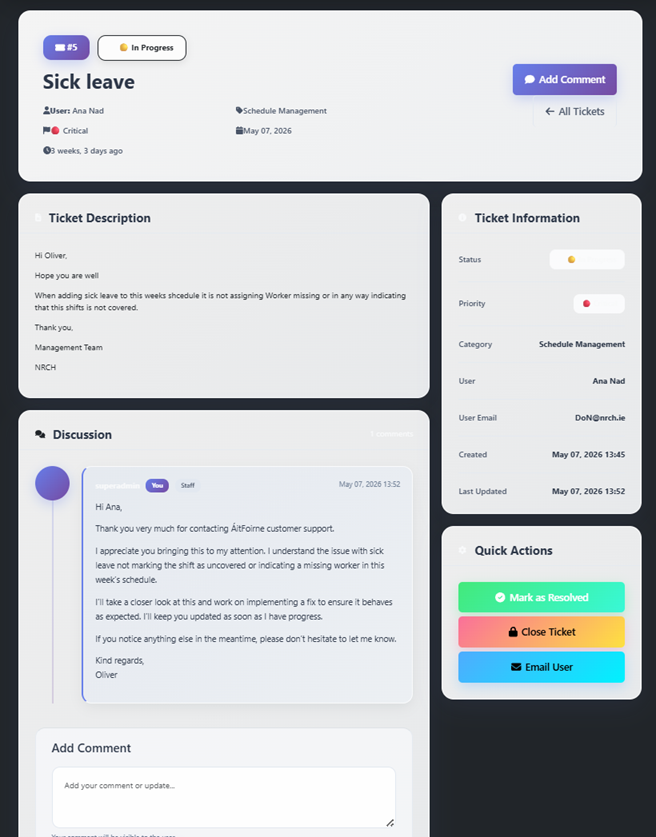
Open any ticket from the dashboard to view its full details — the description, category, priority, dates and the Discussion thread. You can add comments at any time to provide additional information or follow up on a response. Once an issue has been resolved to your satisfaction, the ticket can be closed using the Close Ticket button. Closed tickets remain visible in your history for reference. Use My Tickets in the top navigation to quickly filter and view only your own submitted tickets.