The Survey Dashboard
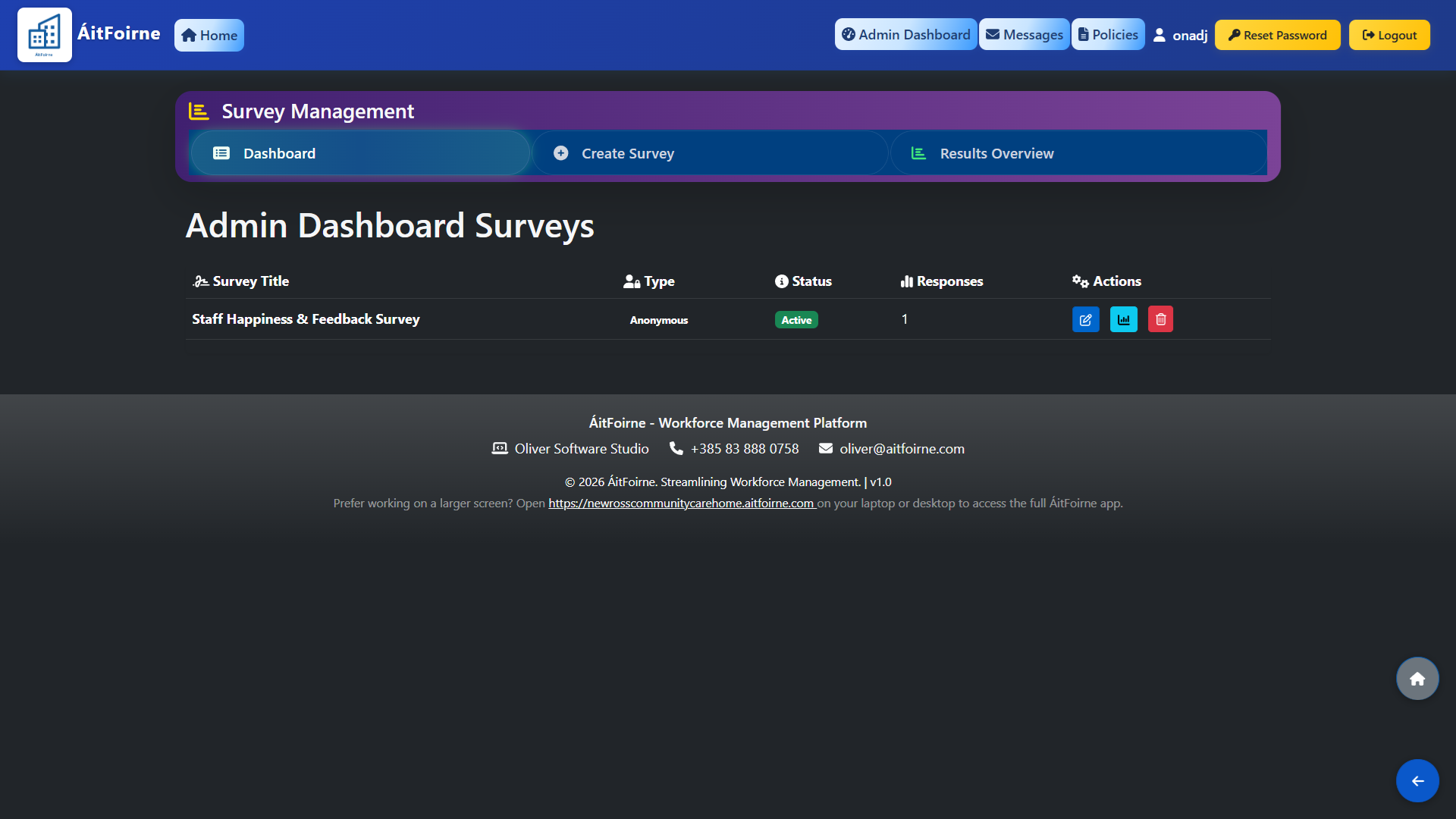
Open Survey Management from the main dashboard to see the Admin Dashboard Surveys. All surveys are listed with their title, type (Anonymous or Public), current status and the number of responses received. From the Actions column you can edit a survey, view its results or delete it.
Employees only see surveys that have been set to Active. Surveys in Draft or Closed status are not visible on the employee portal, giving you full control over timing and readiness before publishing.
Creating a New Survey
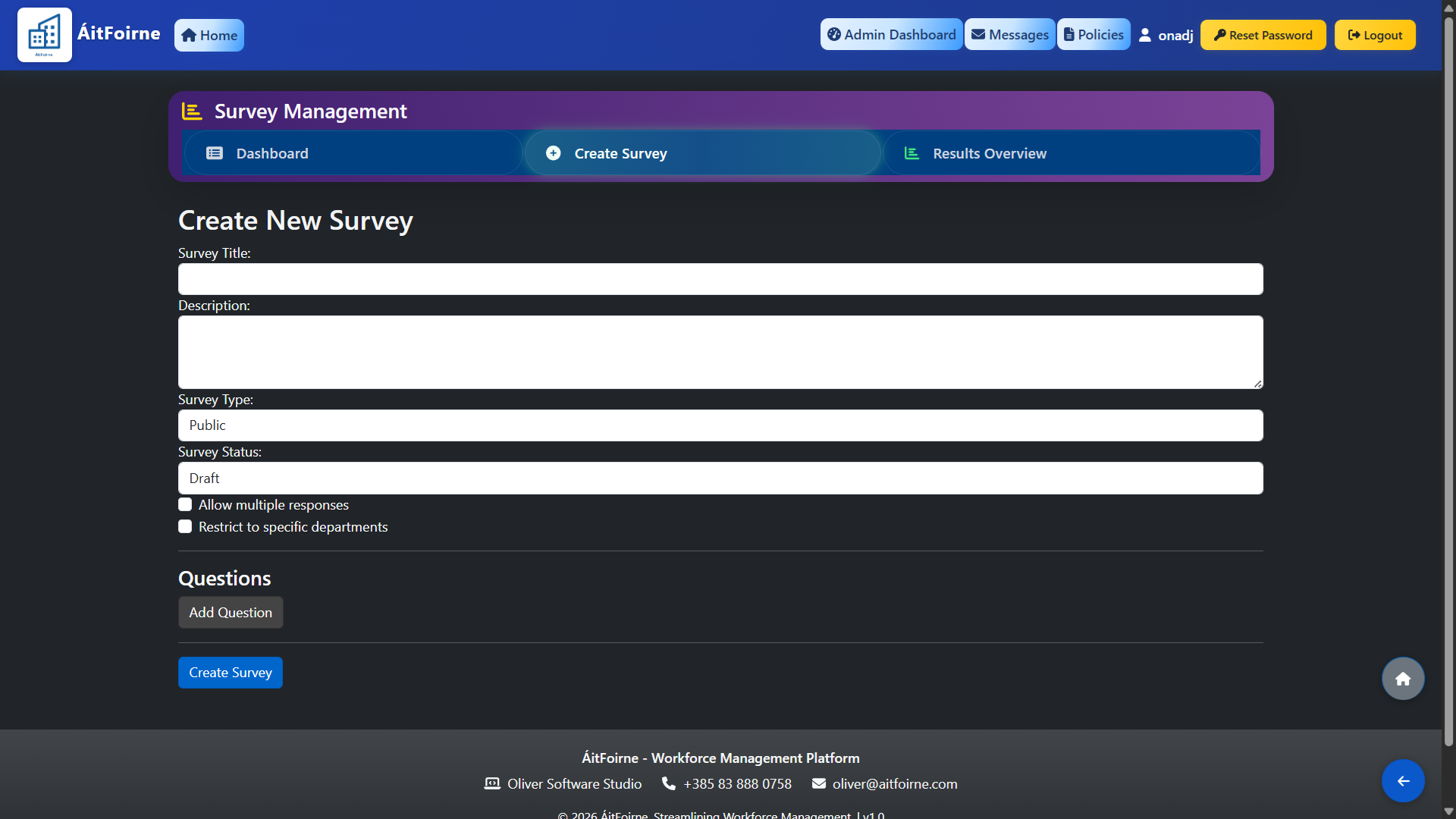
Click Create Survey to open the survey builder. Set the following:
- Title — give the survey a clear name that employees will see.
- Type — choose Anonymous if you want employees to respond without their name being recorded, or Public if responses should be linked to the individual employee. Anonymous surveys encourage more honest feedback, particularly for staff satisfaction or workplace wellbeing topics.
- Status — set to Draft while you are building and reviewing the survey. Change to Active when you are ready for employees to complete it. Set to Closed when you want to stop accepting new responses.
Add your questions, then save. The survey will appear on the employee portal for all staff as soon as its status is set to Active.
Viewing Results
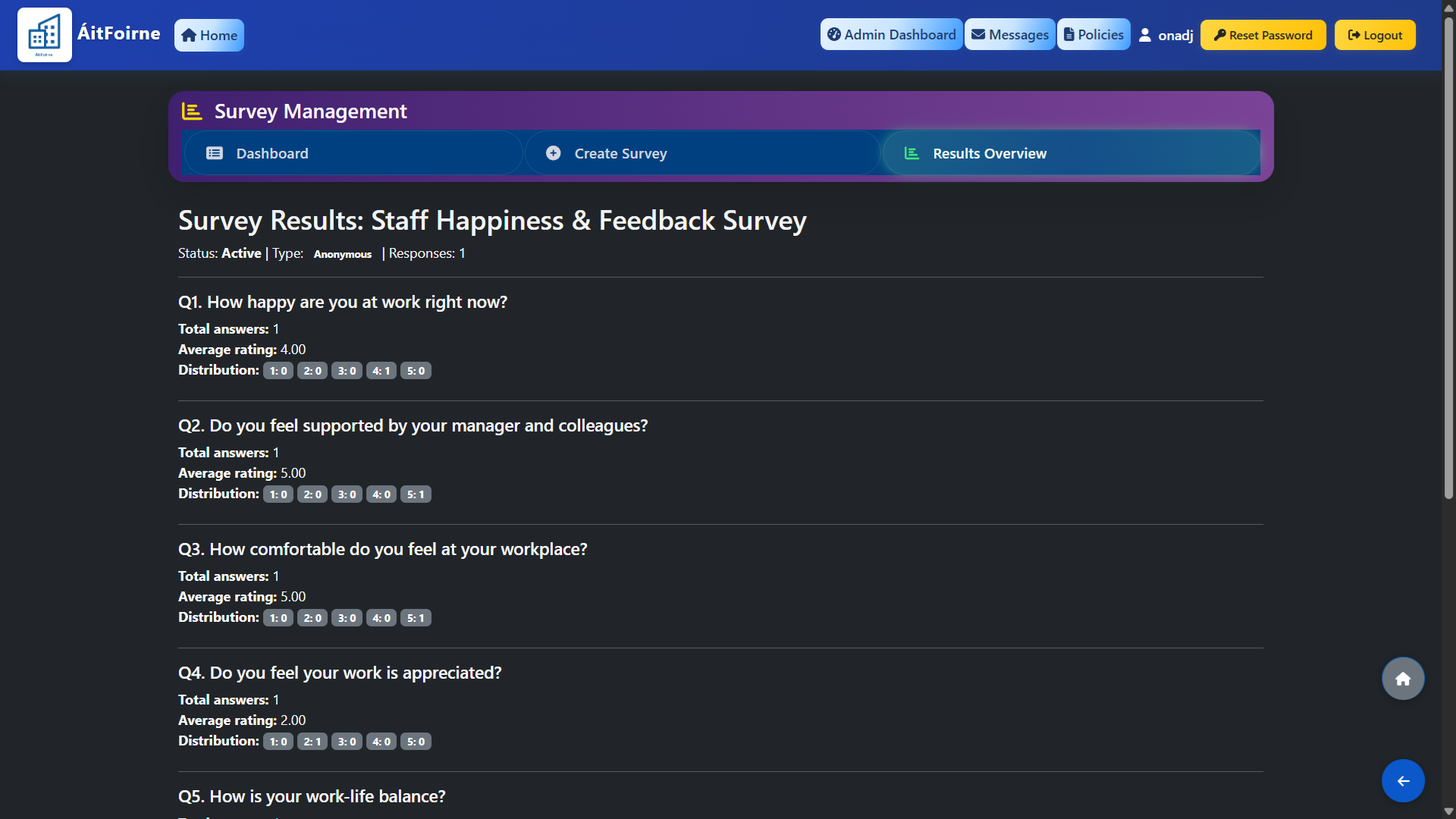
Click the Results button (chart icon) next to any survey to open the results view, or go to Results Overview from the top navigation to see a summary across all surveys. Results show the total number of responses and the breakdown of answers per question. For anonymous surveys, individual respondents are not identified — only the aggregated responses are shown. Use this data to understand staff feedback, identify areas for improvement and track changes in team sentiment over time.