
Directors of Nursing and managers
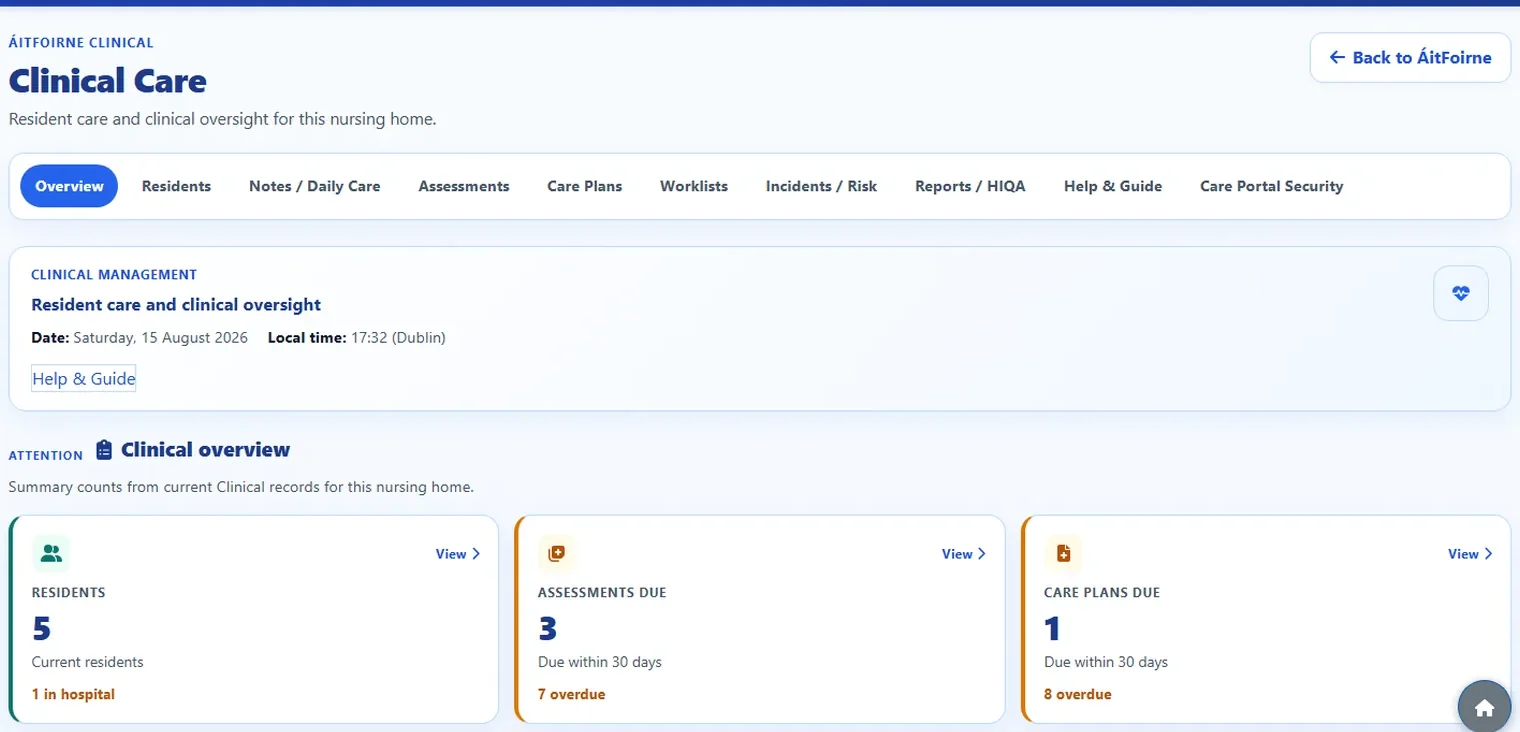
See what has been recorded today, what still needs attention, and what evidence is ready for review.
Clinical helps nurses, healthcare assistants and managers record what happened during the shift, then find it again when they need it — without chasing paper folders or separate systems.
Who it is for
Clinical is written for busy nursing-home teams, not for IT specialists.
See what has been recorded today, what still needs attention, and what evidence is ready for review.
Open one resident and find notes, assessments, care plans, incidents and follow-up work together.
Record daily care on a workplace tablet or phone during the shift, using a simple PIN.
Product tour
Real product screens from the ÁitFoirne demonstration home. Screens shown with fictional demonstration data.
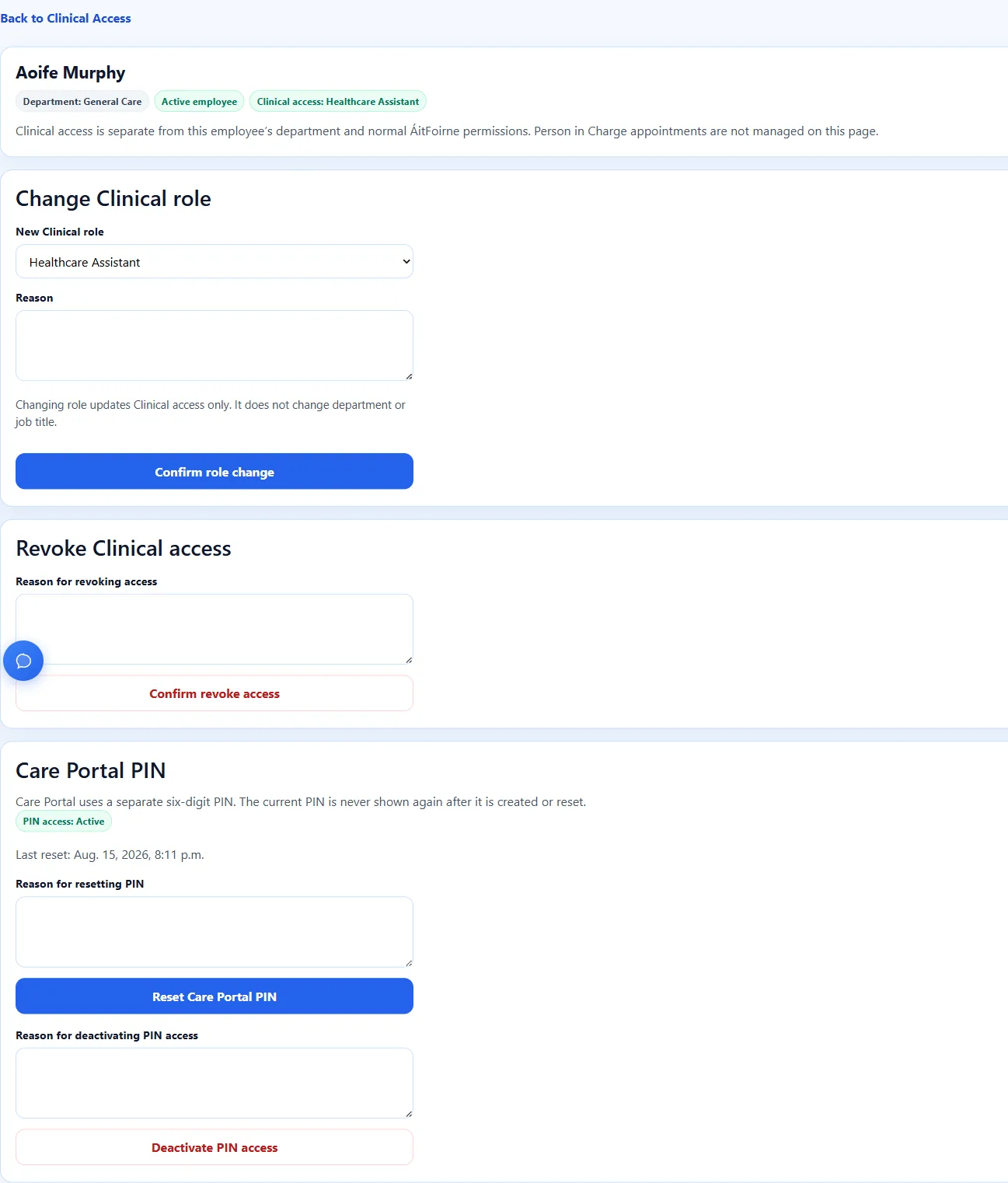
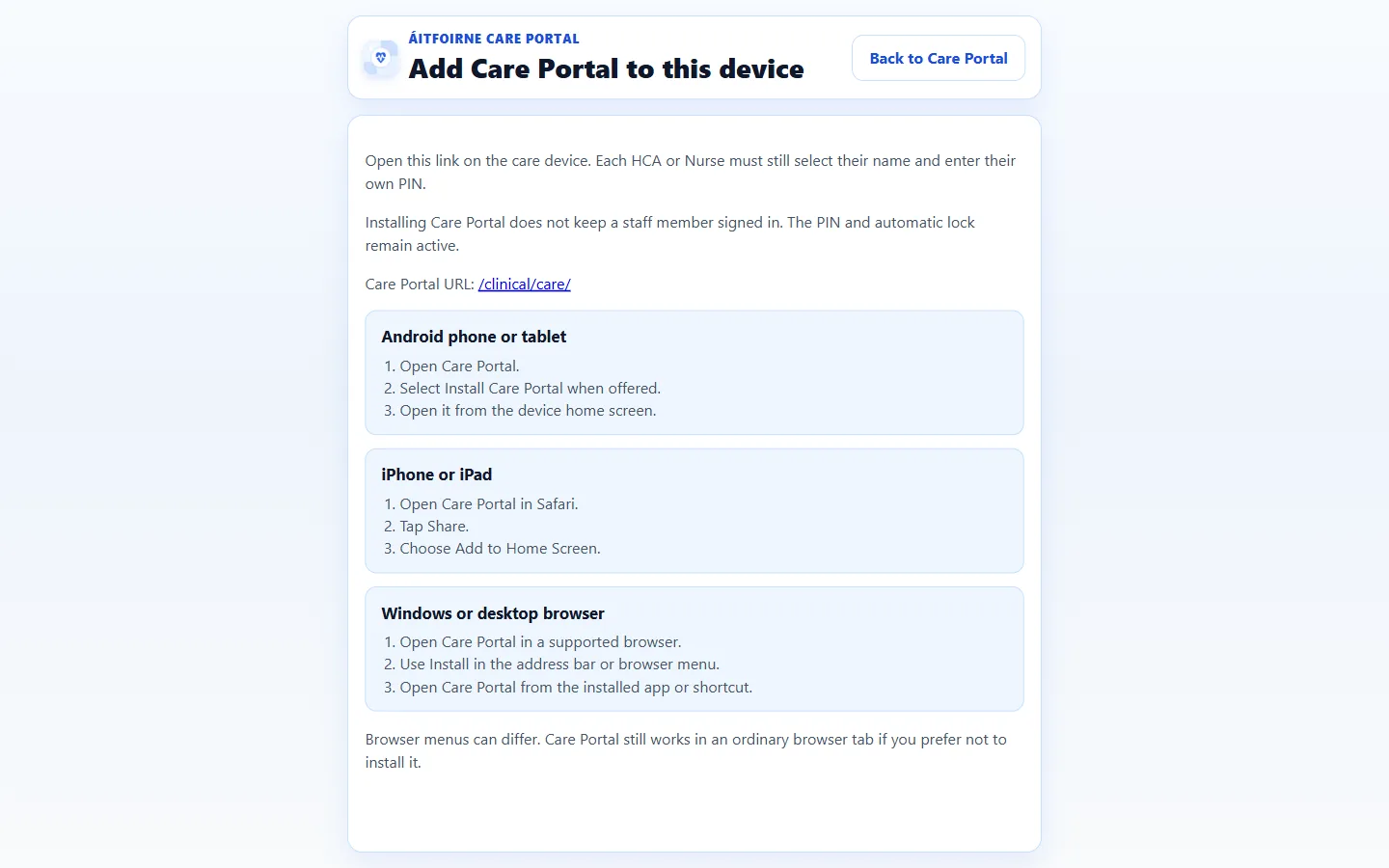
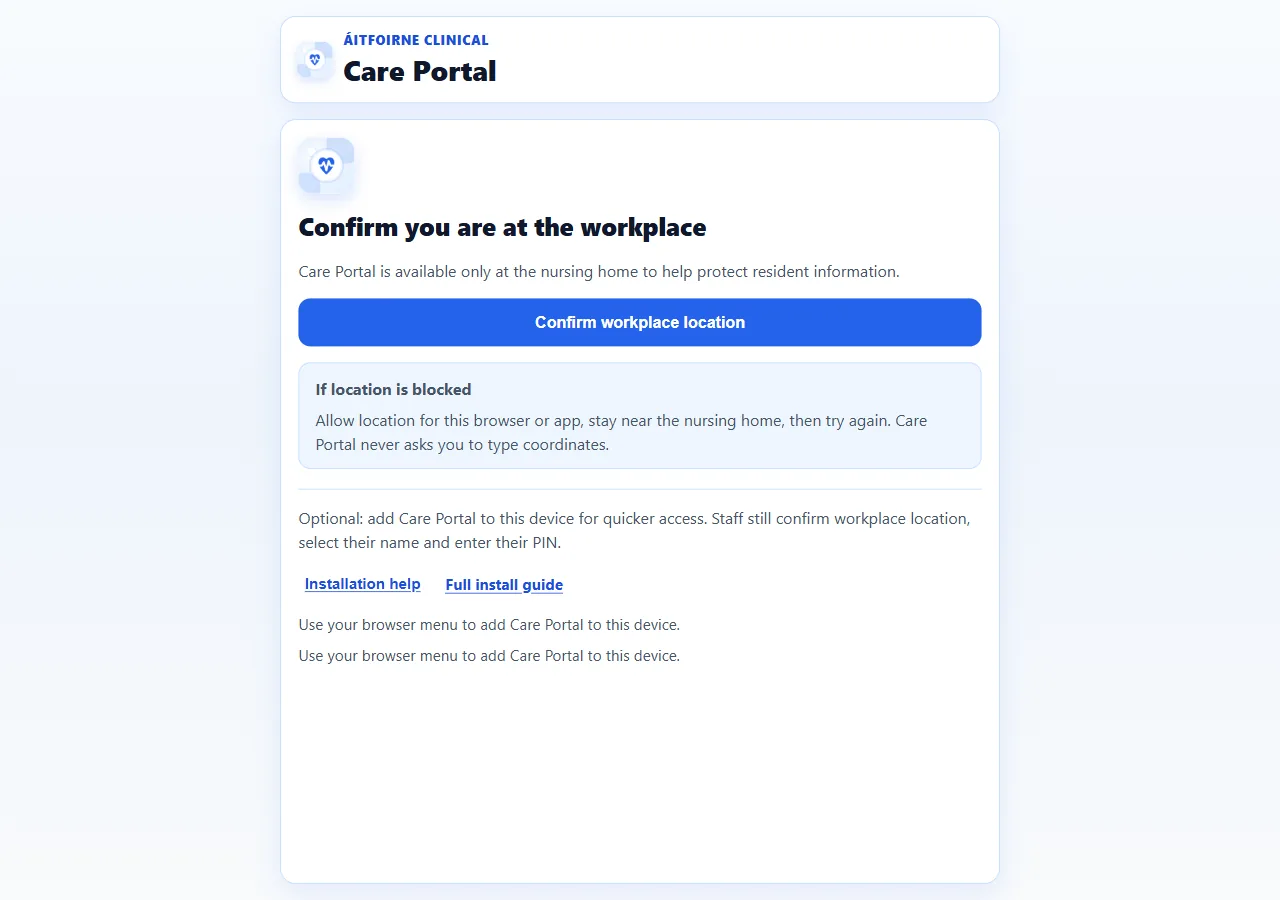
Authorised Clinical managers grant Healthcare Assistant or Nurse access, then the system creates a separate six-digit Care Portal PIN. That PIN is different from the employee’s Time Clock PIN. The home then adds the standard Care Portal shortcut to a workplace tablet or phone.
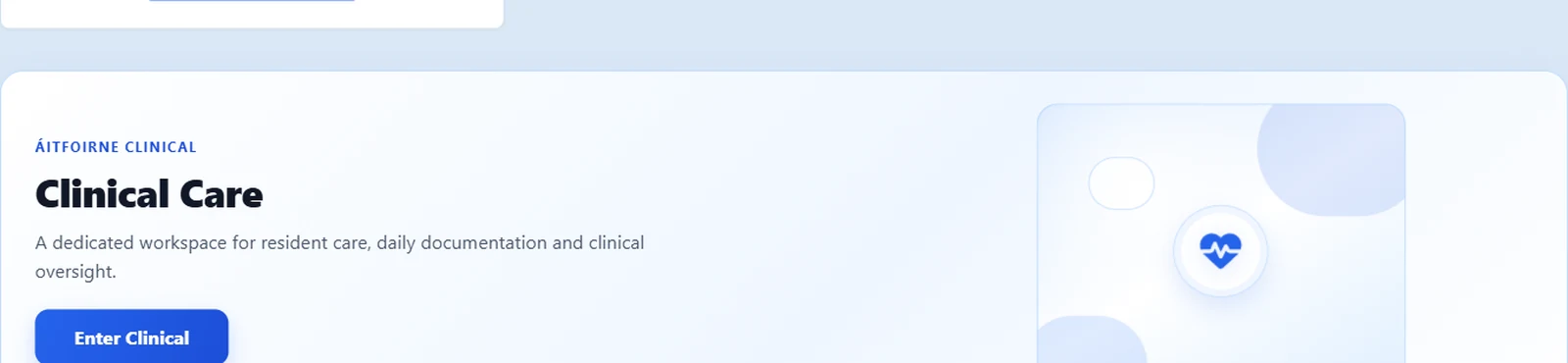
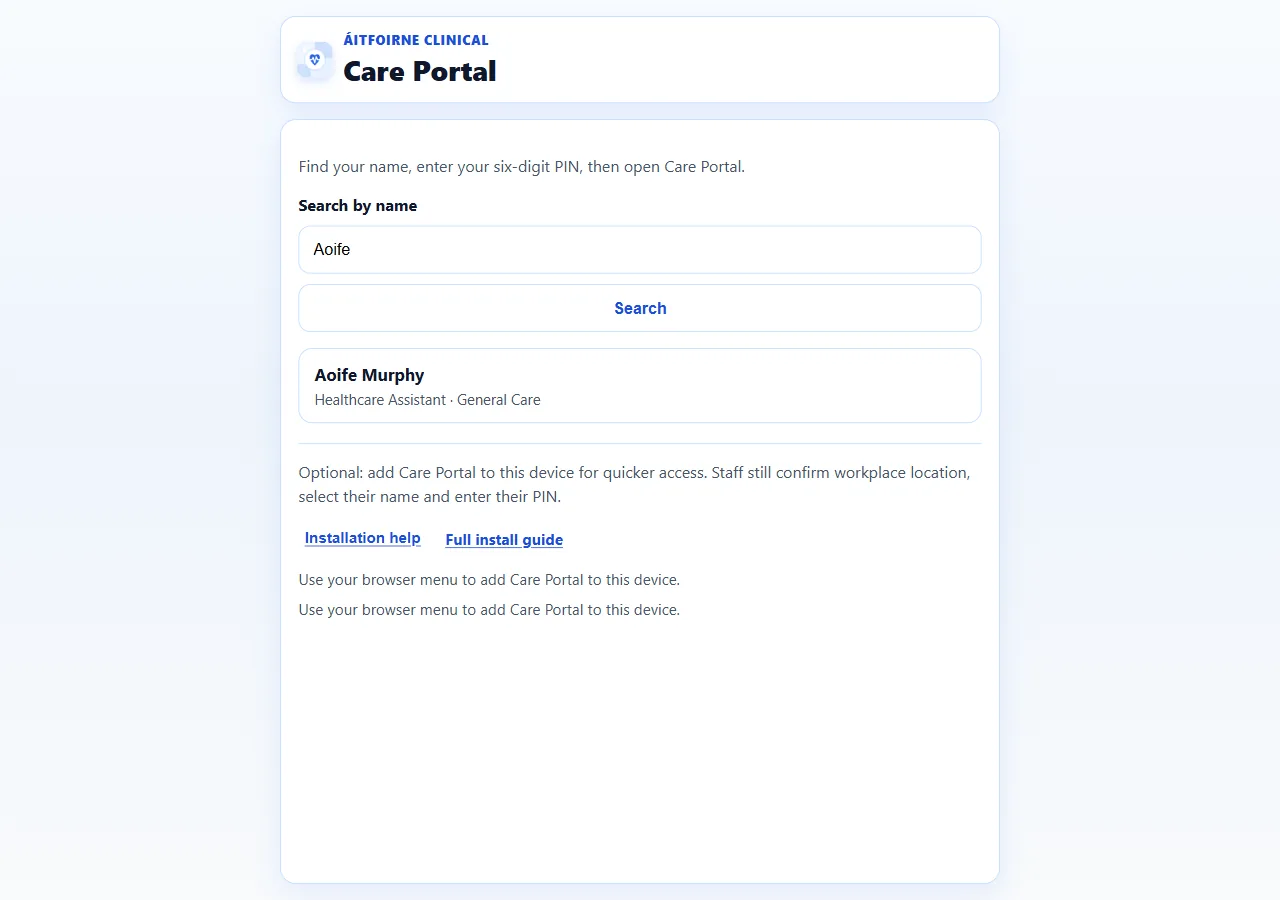
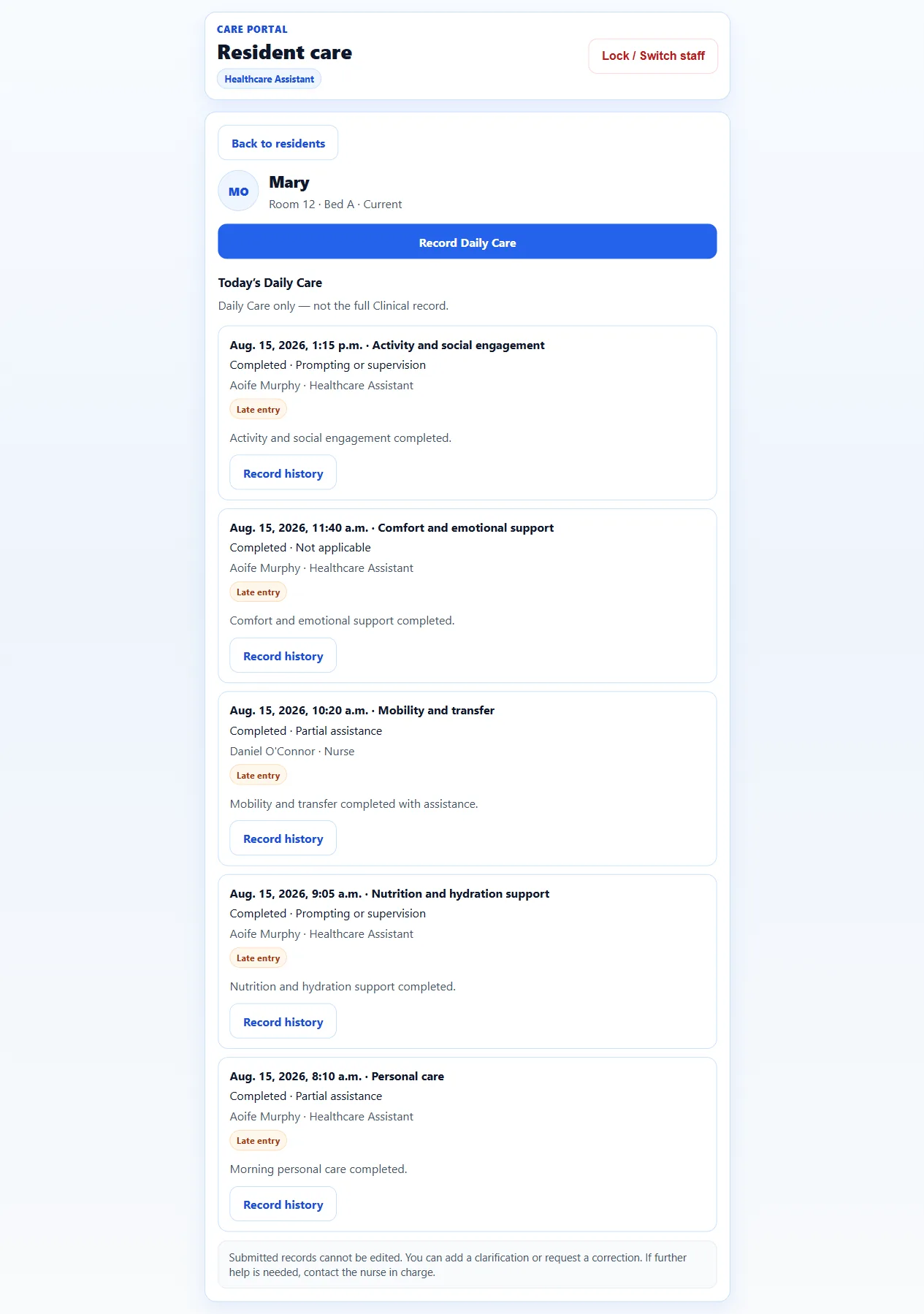
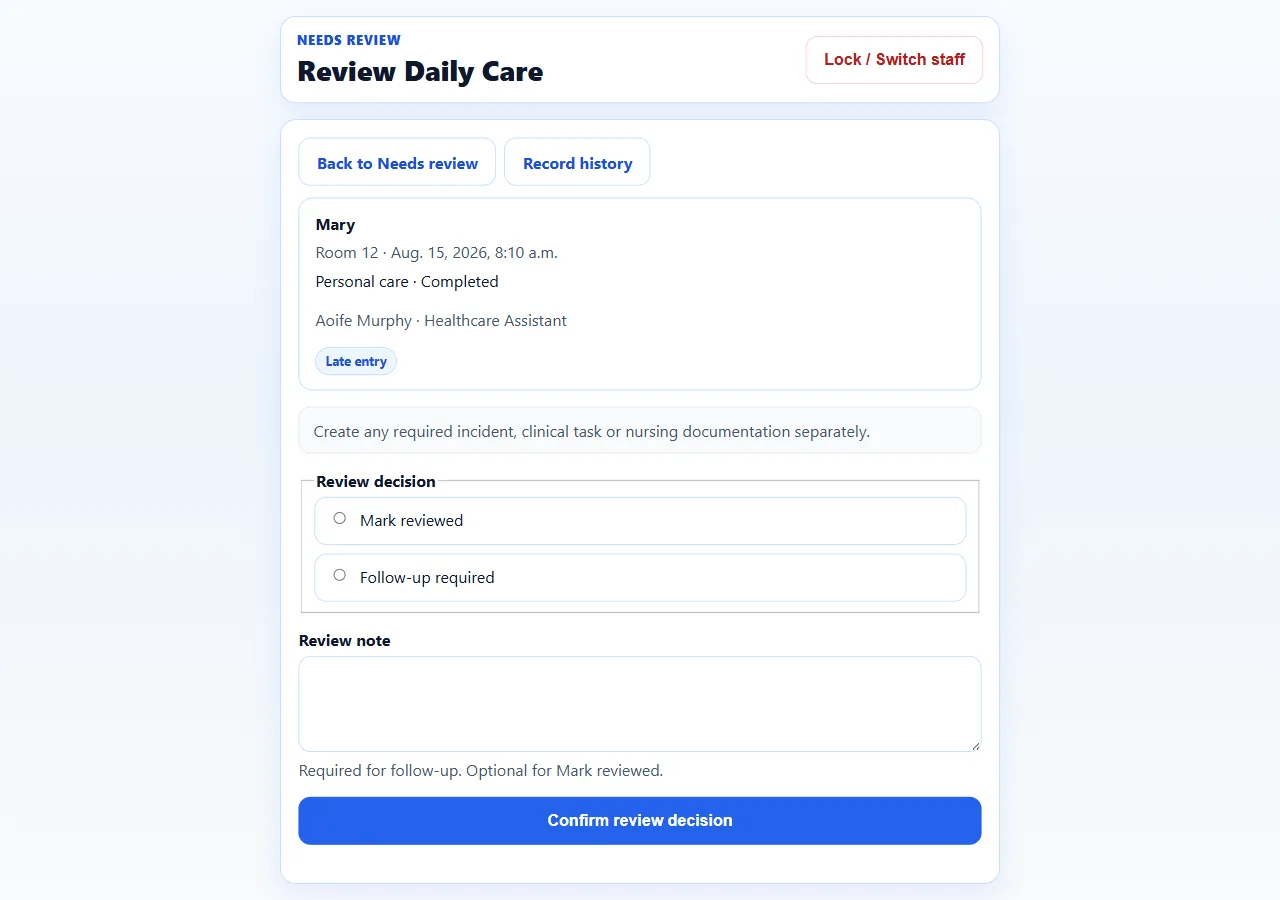
On a shared workplace device, staff confirm they are at the home, select their name and enter their own Care Portal PIN. They then find the resident and record Daily Care. A Nurse can review or follow up another person’s entry. Formal correction approval stays with Clinical governance, not with an ordinary Nurse.
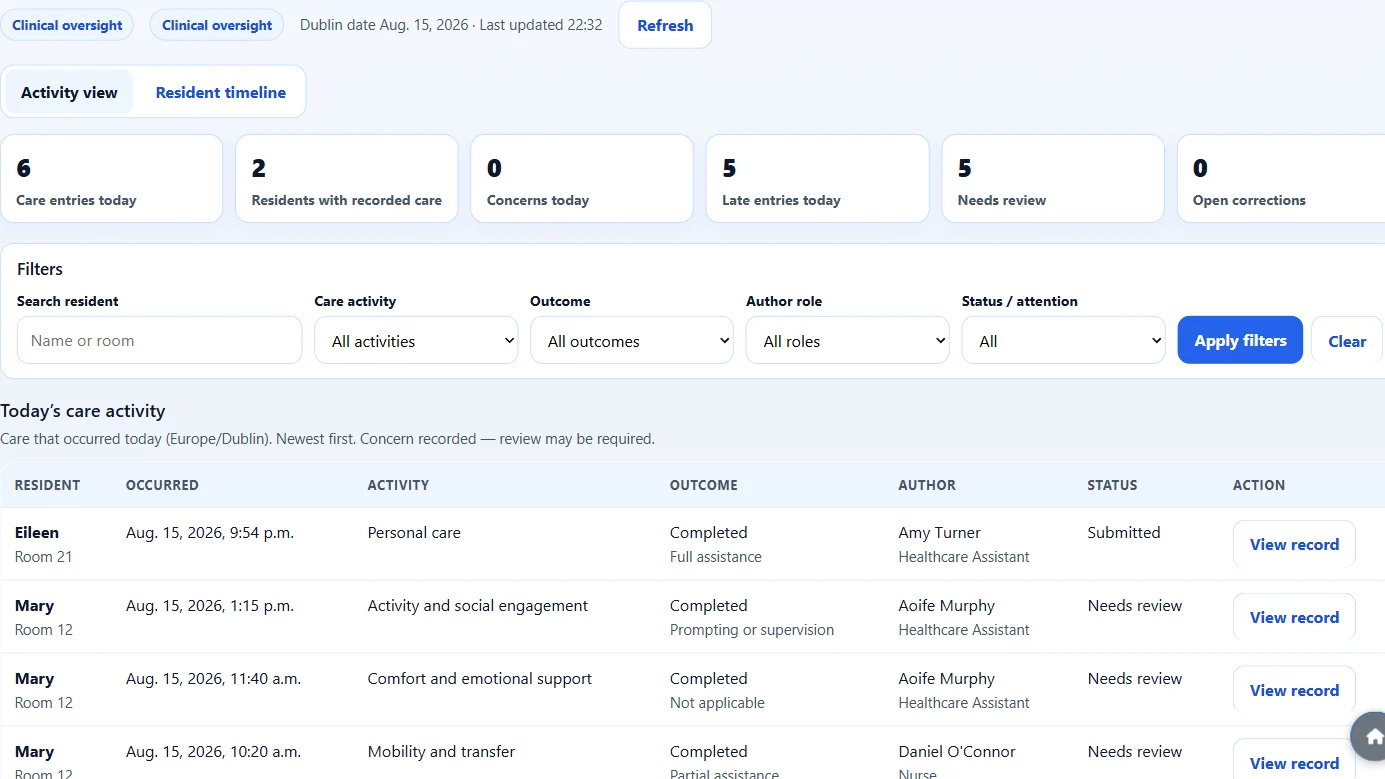
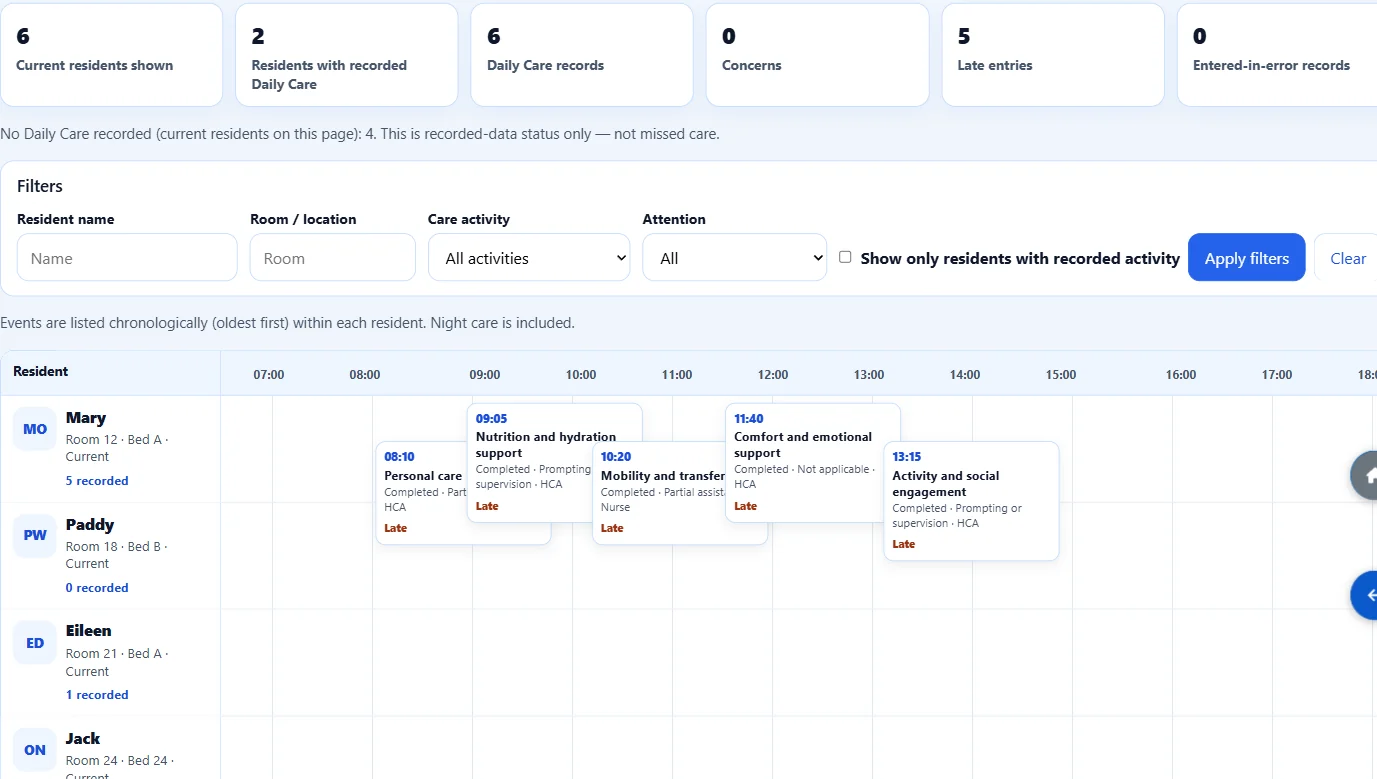
Authorised Clinical management can refresh Today’s Care and the Resident Day Timeline to review submitted care entries and their recorded times. This is not continuous medical monitoring and it does not stream live updates.
From the floor to the office
Healthcare Assistants and Nurses record care during the shift. Authorised DON, ADON and Clinical managers can then review what was submitted, by whom and at what recorded time.
On a workplace tablet or phone. It is a secure web shortcut, not an App Store or Play Store download.
Care Portal checks that the device is at the home before any resident list or PIN pad is shown.
Each authorised Nurse or Healthcare Assistant receives a separate six-digit Care Portal PIN. This is different from the employee’s Time Clock PIN.
Find the person by name or room, then open their Daily Care page.
For example personal care, meals and drinks, mobility or a comfort check — and whether it was completed.
Submitted Daily Care is not silently rewritten. Staff can add a clarification or request a correction.
Authorised Clinical management can refresh Today’s Care and the Resident Day Timeline to review submitted care entries and their recorded times. A recorded concern does not automatically notify someone, so staff must still follow the home’s escalation process.
Resident records
Instead of notes in one folder, assessments in another and care plans somewhere else, the resident workspace keeps the current picture together.
Open a resident and see who they are, their room, and the latest care information without switching tools.
Write clear notes after a shift, a family conversation or a change in how the resident is today.
Keep falls, nutrition, skin, mobility and other reviews with goals, actions and review dates.
Record observations, known risks, incidents and the follow-up work that should happen next.
Keep letters, consents and other resident documents with the same resident file.
Give outstanding work a due date so reviews and follow-ups do not depend on memory alone.
Care Portal
Add the Care Portal shortcut to a shared workplace tablet or phone. Healthcare Assistants and Nurses open it, confirm workplace location, enter their six-digit PIN and record care during the shift.
On the floor
Staff do not need a full office login to record care. They confirm they are at the workplace, enter their PIN, and get on with the round.
Each authorised Nurse or Healthcare Assistant receives a separate six-digit Care Portal PIN. This is different from the employee’s Time Clock PIN.
Records you can trust
Once daily care is submitted, the original record stays. If a detail was wrong, staff add a clarification or ask for a correction.
Staff cannot edit or delete a submitted daily care record. That keeps a clear history of what was written at the time.
If more detail is needed later, staff can add a note that sits with the original record.
If the wrong resident or wrong time was entered, a correction can be requested for a nurse or clinical leader to review.
For managers
DONs, ADONs and authorised Clinical managers open Clinical through their normal ÁitFoirne dashboard. From their office, they can review Today’s Care and the resident day timeline to see what staff recorded during the shift and when it was recorded. Refresh the page to see newly submitted entries. This is not live streaming.
A calm overview of care recorded today, including concerns, late entries and items that still need review.
See one resident’s recorded care through the day, so it is easier to notice gaps or changes.
Inspection preparation
Clinical can export Excel registers from the records already in the home. You use those files in your own inspection preparation. ÁitFoirne does not send reports to HIQA for you.
Export active care plans and reviews that are due, so the office is not copying lists by hand.
Pull together falls risks, skin records, open incidents and follow-up tasks from the resident Clinical file.
Keep preference profiles with the resident file, and see who still needs one.
How it works
Add the resident once. Room, contacts and the care file stay with that person.
Healthcare assistants and nurses open the Care Portal shortcut, confirm they are at the workplace, enter a PIN, and record the care as it happens.
Concerns, late entries and correction requests can be reviewed without changing the original record.
Today’s Care and the resident day timeline show what has been recorded, in one place.
Download the registers you need for your own inspection preparation.
Inside Clinical
Daily Care is one part of the working day. The Clinical dashboard also holds the resident file, assessments, care plans, monitoring, risk, appointments and office exports — so the home is not buying a single-purpose Daily Care tool.
One resident file for identity, room and the current Clinical picture.
Shift notes, family conversations and changes in how the resident is today.
Nursing care records and the follow-up work that belongs with them.
Letters, consents and other resident documents, including expiry checks.
Preference profiles kept with the same resident file.
Healthcare Assistants and Nurses record care on a workplace tablet or phone.
Authorised managers review what was submitted today, by whom and at what time.
One resident’s submitted care through the day, by room, time and role.
Falls, nutrition, skin, mobility and other reviews with due dates.
Active care plans, goals, actions and review tracking.
Vital signs and other clinical observations.
Skin checks, wounds and dressings.
Early-warning records when a resident may be becoming unwell.
Open follow-up and review work with a due date.
Incidents, complaints and concerns, with follow-up kept on the record.
Open risks, including falls and safeguarding, with review dates.
Scheduled, upcoming and external appointments.
Open and urgent clinical referrals.
Procedure records and pending results.
Download registers for your own inspection preparation. ÁitFoirne does not send reports to HIQA.
Grant Healthcare Assistant or Nurse access and a separate Care Portal PIN.
Workplace confirmation and PIN controls for the shared device.
Formal correction review stays with Clinical governance.
In-app guidance for authorised Clinical users.
Clear limits
Honest software is easier to trust. Clinical is a practical records area for Irish nursing homes. It is not a replacement for professional judgement or a guarantee of inspection outcomes.
Book a short online walk-through tailored to how your nursing home runs today.
Book a Demo