Opening the Message Center
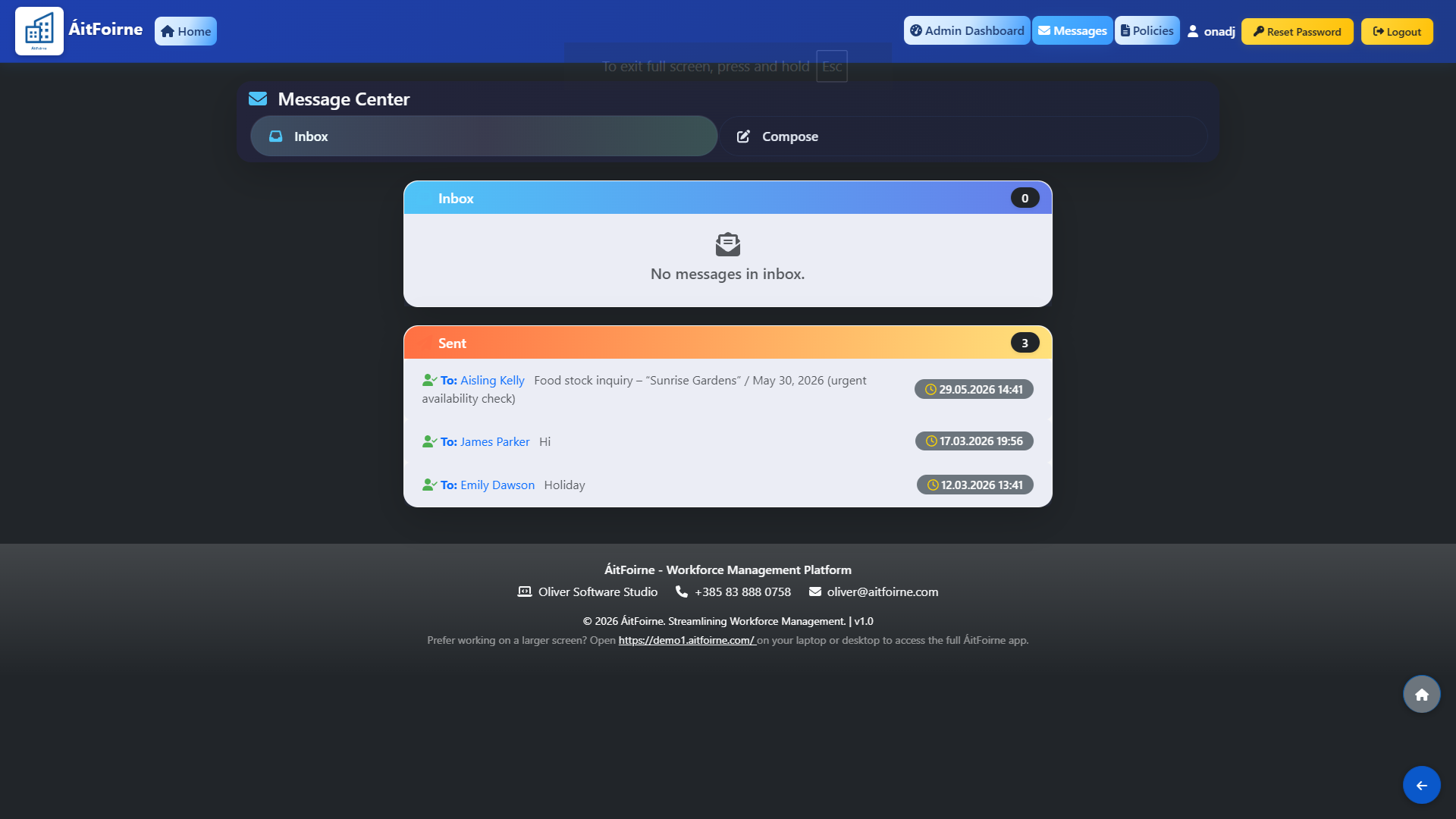
From the main dashboard, open the Communication Hub and click Inbox to view received messages, or click Compose to write a new message. The Inbox shows all messages sent and received within the system, keeping all staff communication in one place.
Composing a Message
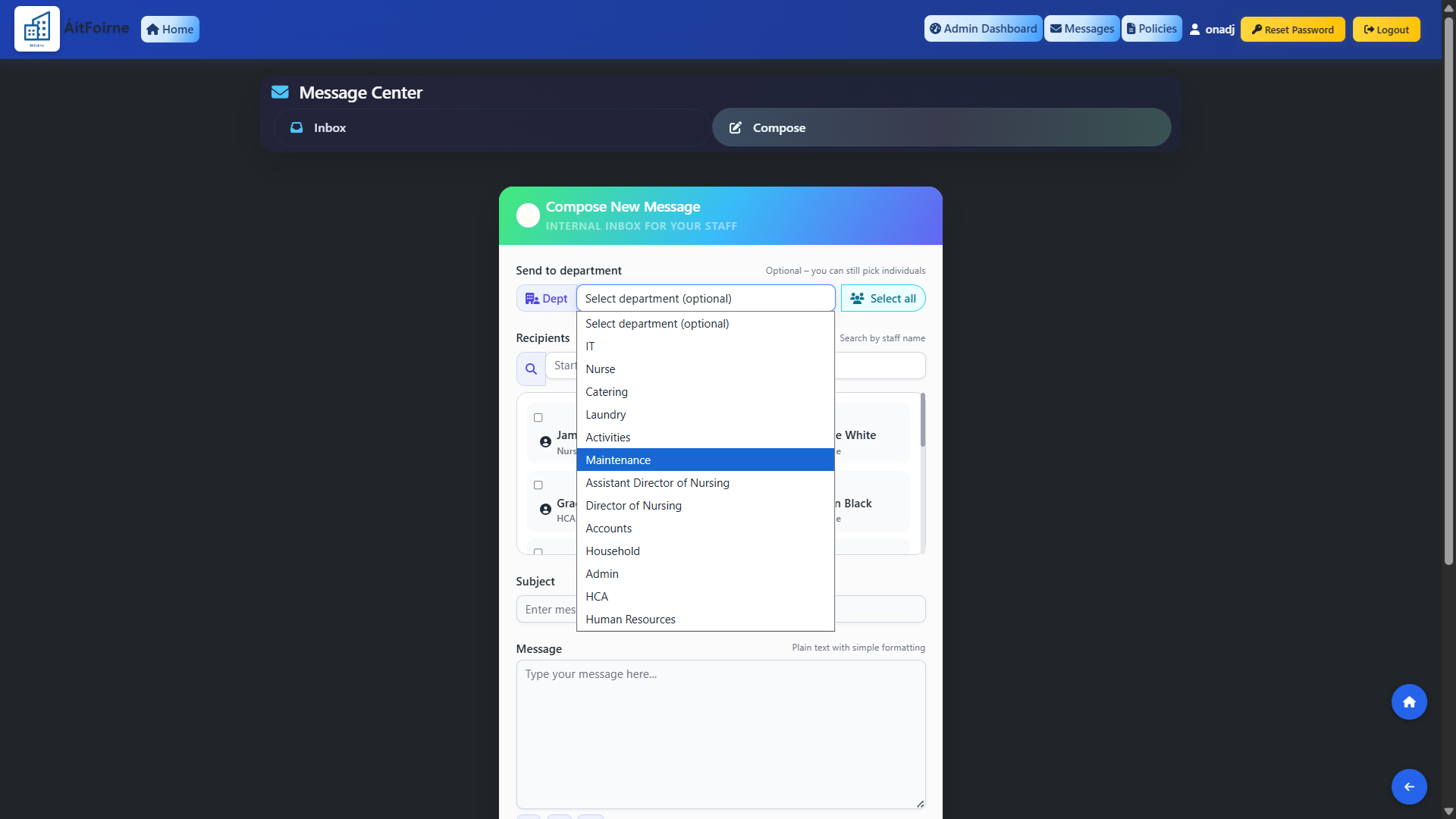
Click Compose to open the new message form. Fill in the following:
- Send to department — optionally select a department to pre-filter the recipient list, or leave blank and select individuals manually. Use Select all to add every employee in the selected department as a recipient in one click.
- Recipients — search by staff name or tick individual employees from the list. You can combine a department selection with individual picks if needed.
- Subject — enter a short subject line for the message.
- Message — type your message. Basic formatting is available including bold, italic and bullet lists.
- Attachment — optionally attach a file such as an image, PDF, Word or Excel document.
Click Send when ready. The message will appear in the inbox of every selected recipient on their employee portal immediately.