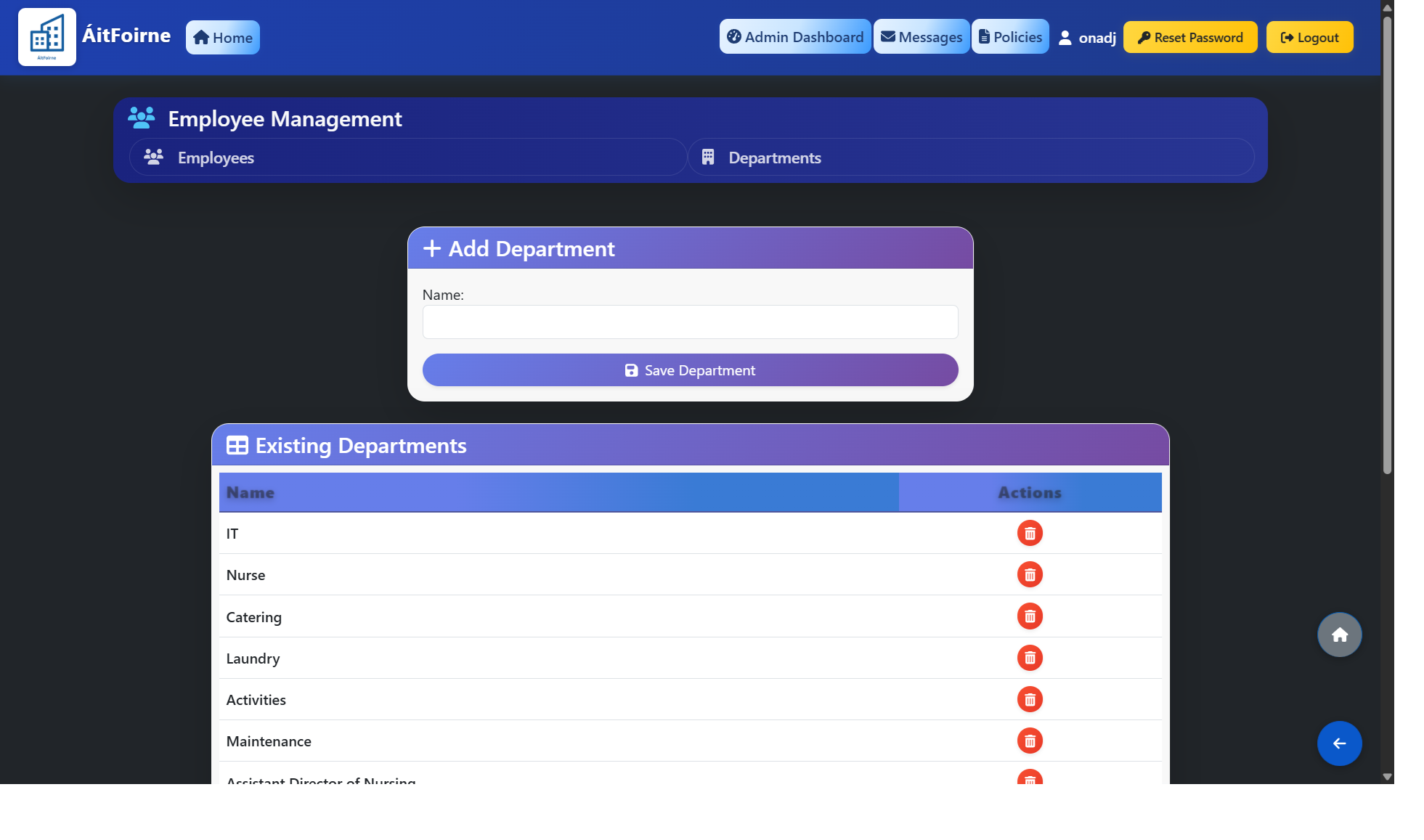
Create a Department
Go to Employee/Department Management→ Departments → Add Department. Enter the department name (e.g. Day Care, Night Care) and Save Department.
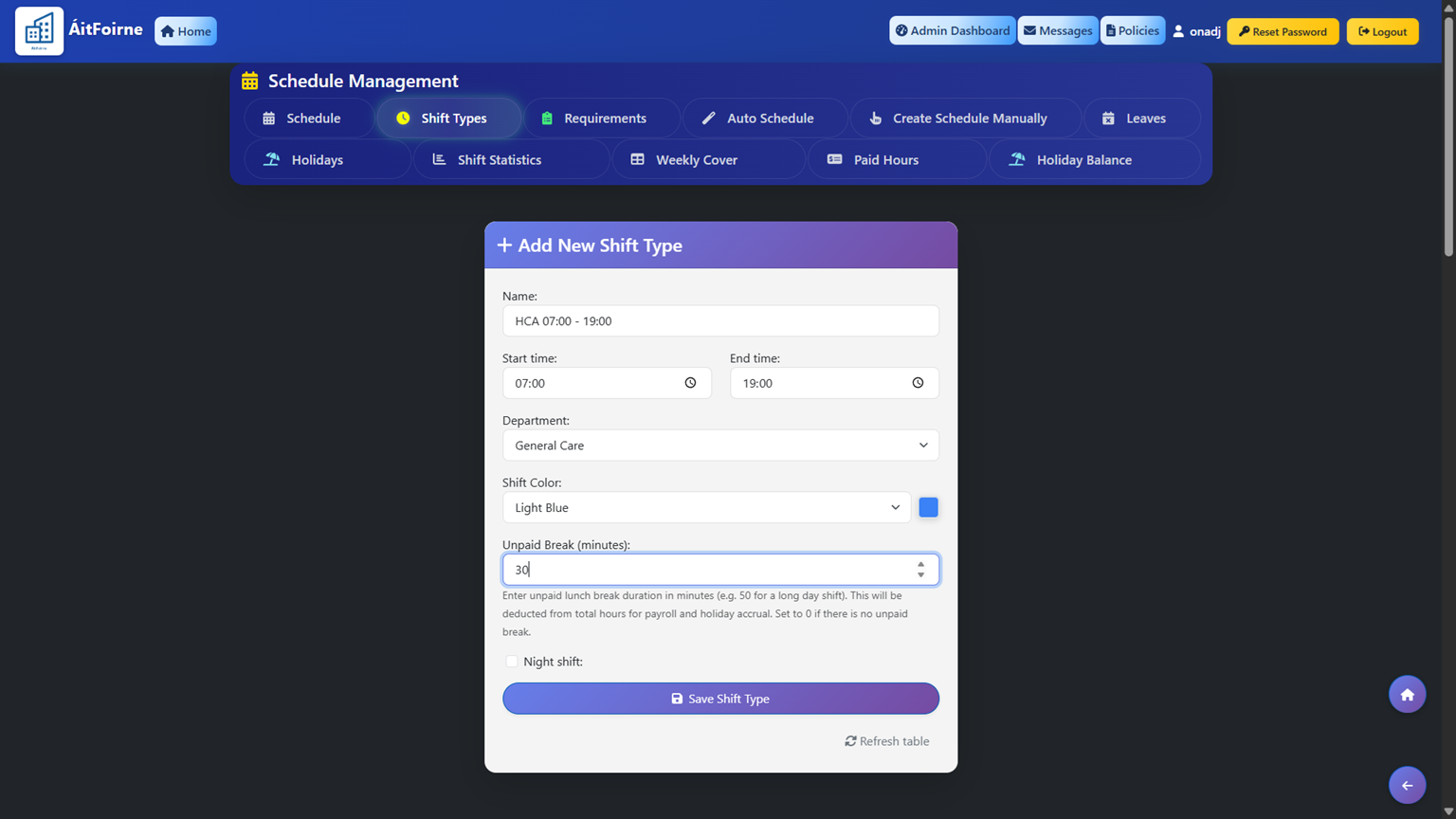
Create a Shift Type
Create a shift type by entering the shift name, start time, end time, department and unpaid break duration. The unpaid break is automatically deducted from the total shift hours, so paid hours are calculated correctly.
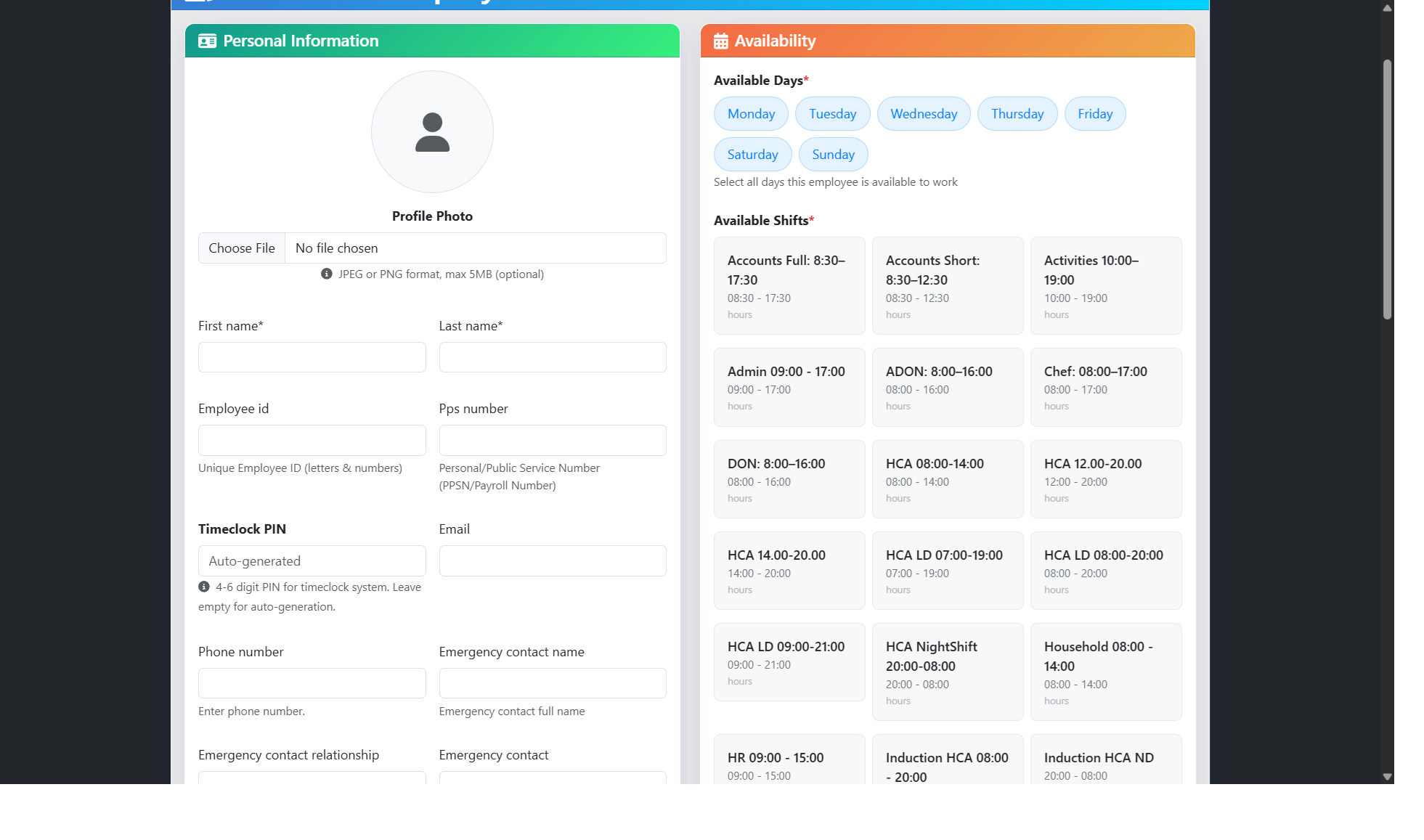
Add a Staff Member
Go to Employee / Department Management → Add New Employee and fill in the following details:
- Full name, role and contact details
- Start date — the date the employee begins work
- Department — assign the employee to their primary department
- Maximum weekly hours — the maximum number of hours they can work per week
- Available days — select which days of the week the employee is available to work
Under Shift Types, select all shift types the employee can cover. For example, an employee can be assigned to Catering, Household, and Healthcare Assistant. This is important for auto-scheduling — ÁitFoirne uses these settings to automatically generate rosters and ensure all shifts are covered by the right staff.
Finally, create the employee's login credentials — set a username and password. The employee will use these to log in to their own staff portal to view their schedule, submit leave requests and more.