How Holiday Limits Work
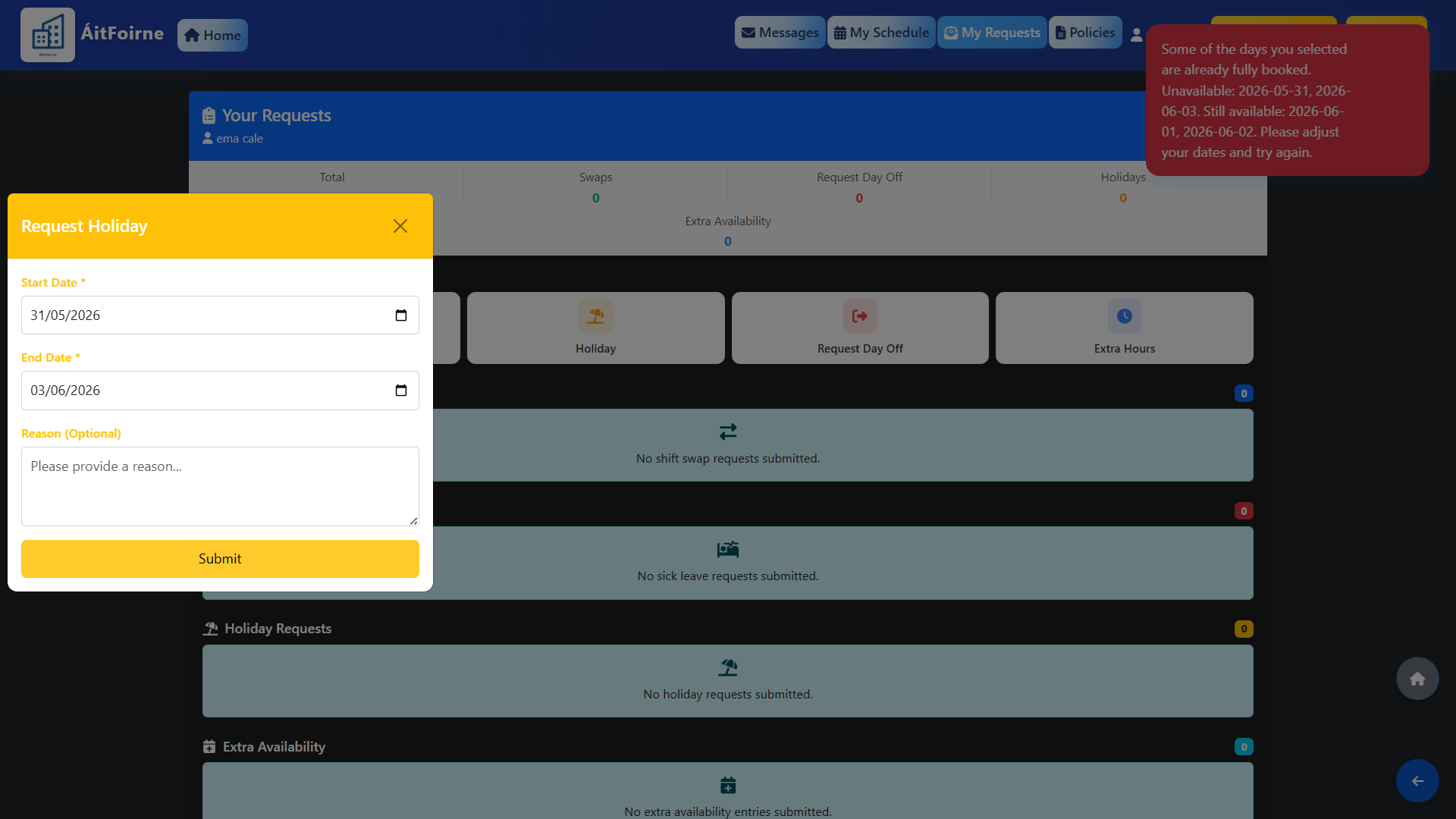
When you set a holiday limit for a department — for example a maximum of 2 employees on leave per day in the HCA department — the system will enforce this limit automatically. If an employee submits a holiday request for dates that are already at capacity, they will receive a notification on their employee portal indicating that the limit for those days has been reached. The notification will also display which dates within their requested period still have availability, so they can adjust their request accordingly.
This prevents overbooking and ensures that each department always maintains sufficient cover, without the manager having to manually check each request.
Using Bulk Set Limits
Rather than setting limits day by day, use Bulk Set Limits to apply holiday limits across an entire date range in one step. This is the recommended approach for planning ahead, for example setting limits for the full year at the start of each year.
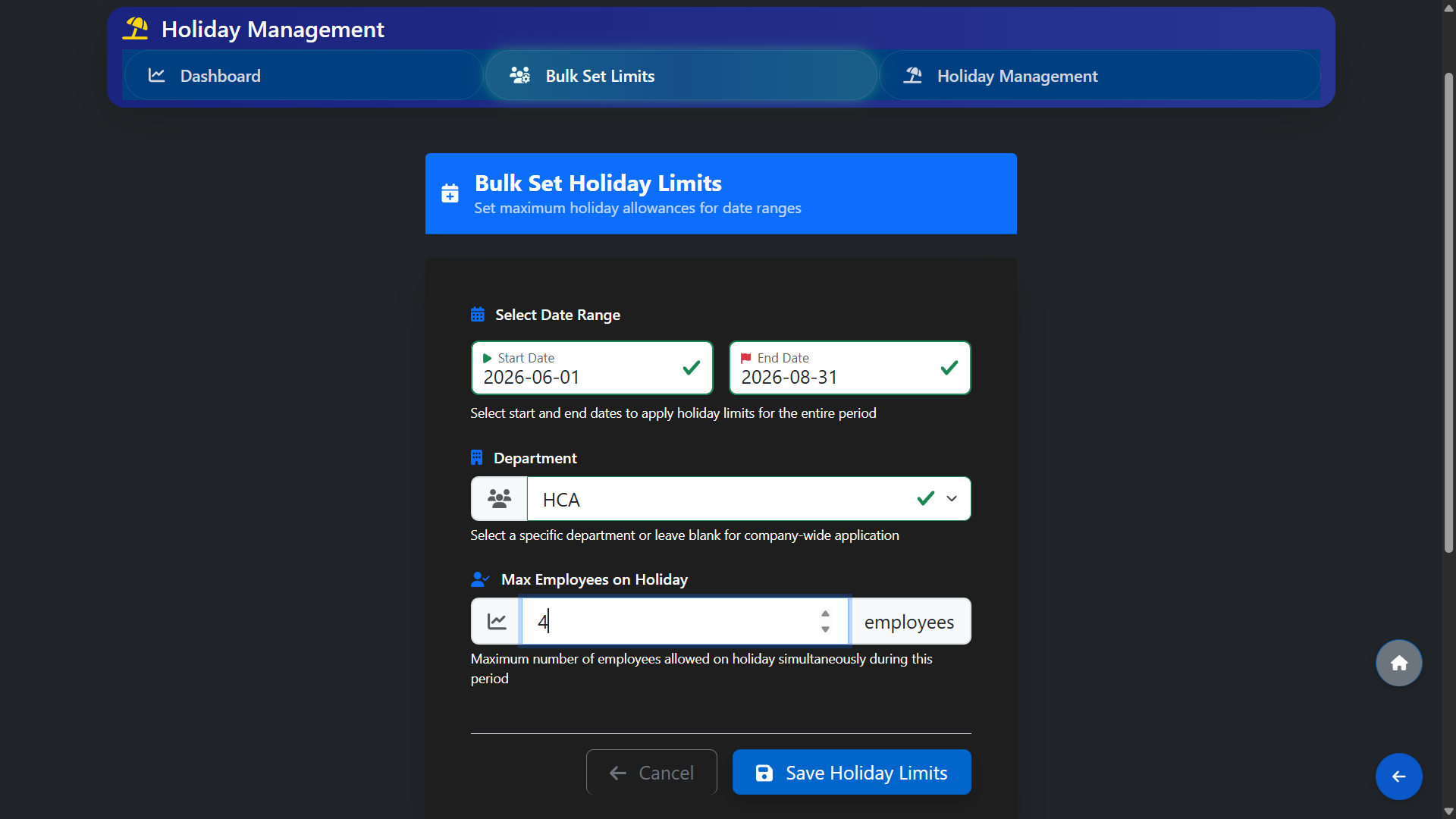
From the Holiday Management section, click Bulk Set Limits and complete the following:
- Select Date Range — choose a start date and an end date. The limit will apply to every day within that range.
- Department — select a specific department or leave as All Departments to apply the limit across the entire facility.
- Max Employees on Holiday — enter the maximum number of employees who can be on leave at the same time on any day within the selected range.
Click Apply to save. The limits will immediately appear in the Holiday Capacity Management calendar and will be enforced for all future holiday requests within that period.
Viewing the Holiday Capacity Calendar
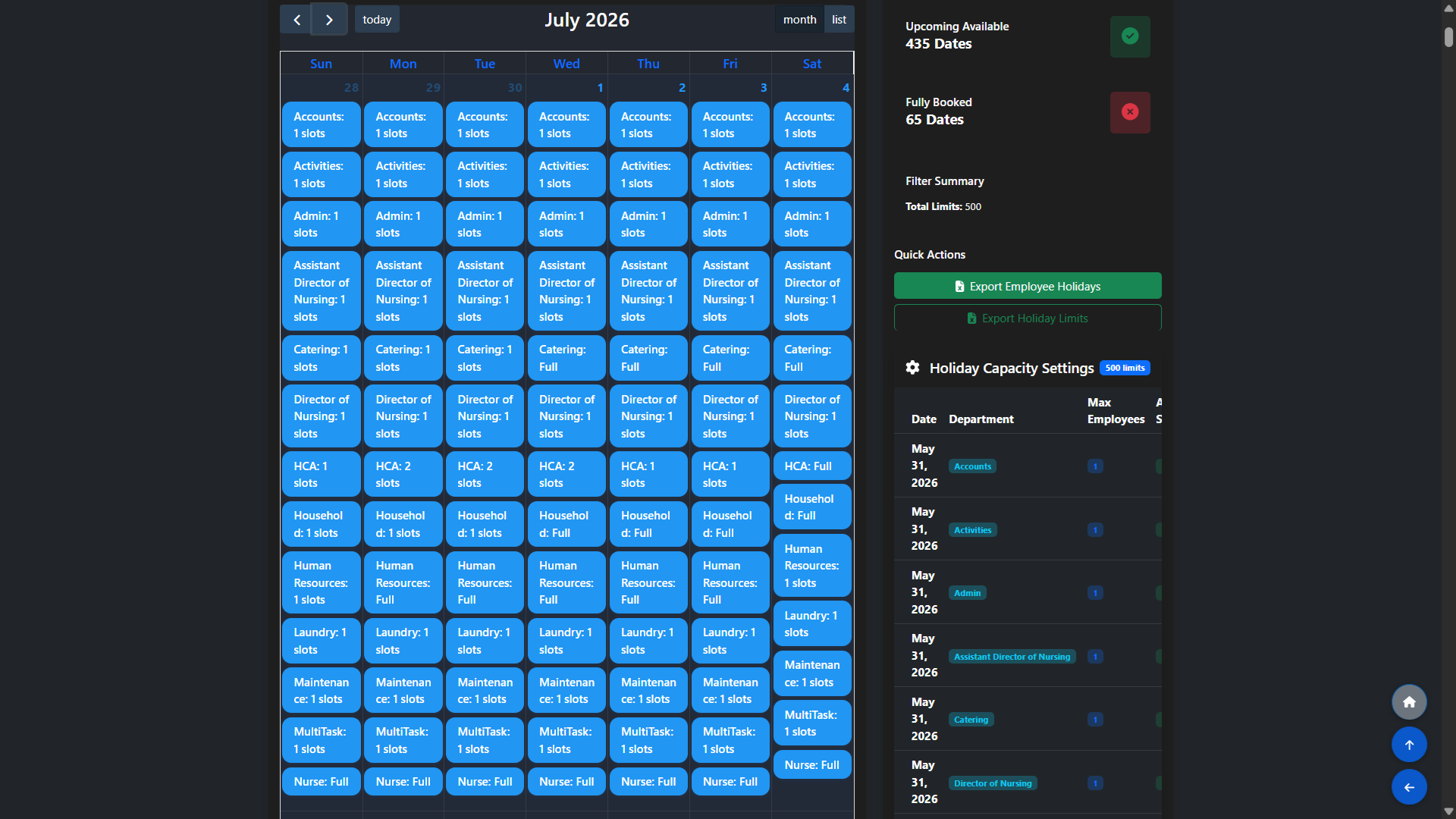
Go to Holiday Management to open the Holiday Capacity Management calendar. Use the Department, Month and Year filters to narrow the view, then click Apply Filters.
The calendar shows all days with holiday limits set and how many slots are available or already filled for each date. The Capacity Overview panel on the right shows a summary of upcoming available dates at a glance.
You can also use the Bulk Add Dates button from this view as an alternative to the Bulk Set Limits form if you need to add capacity for specific individual dates rather than a continuous range.