Navigate to Holidays
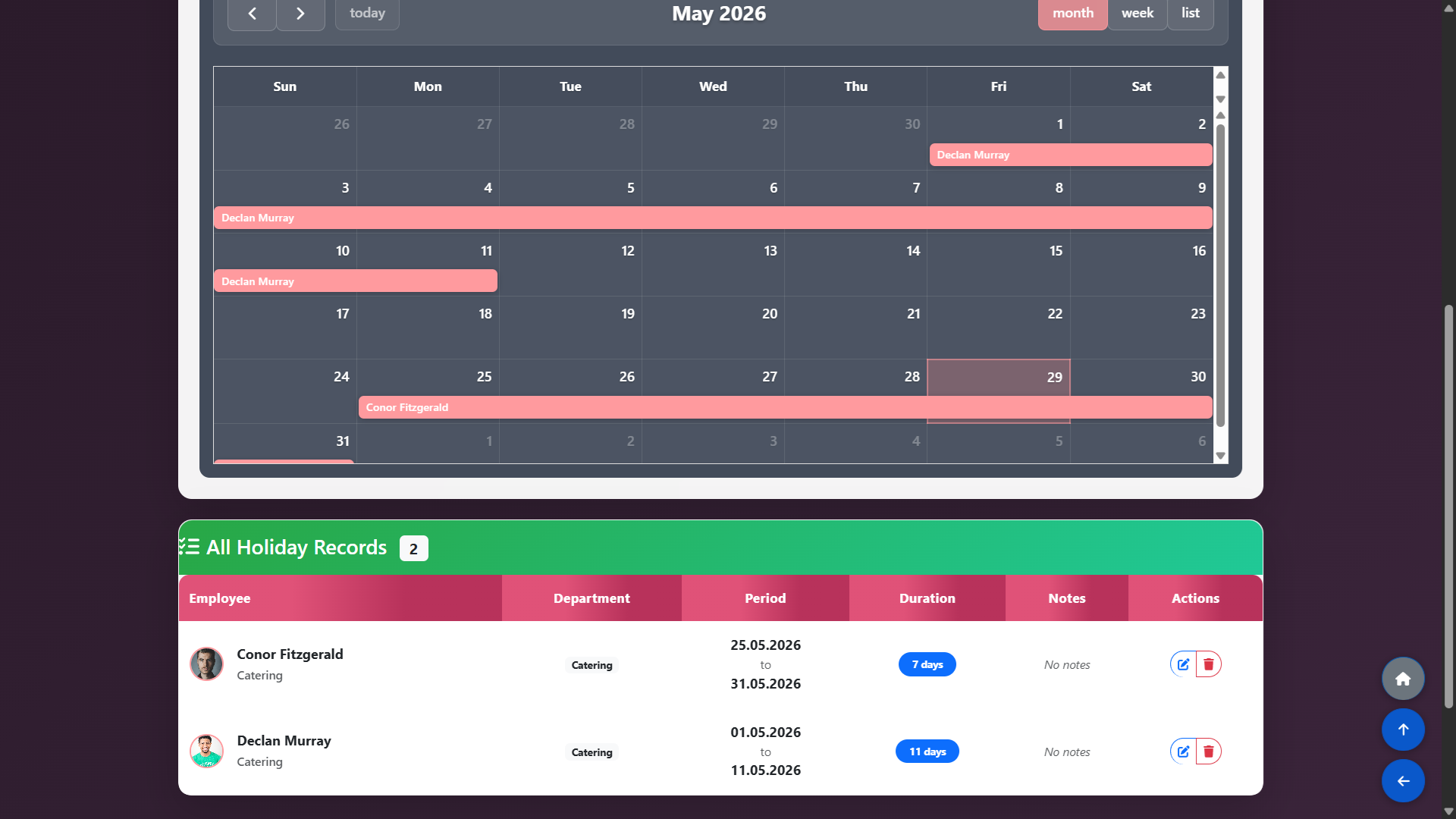
From the main navigation, go to Schedule Management and select Holidays. This page displays all recorded holiday entries for your staff, showing the employee name, dates and any notes. You can add, edit or delete entries from this view.
Add a Holiday and What Happens Next
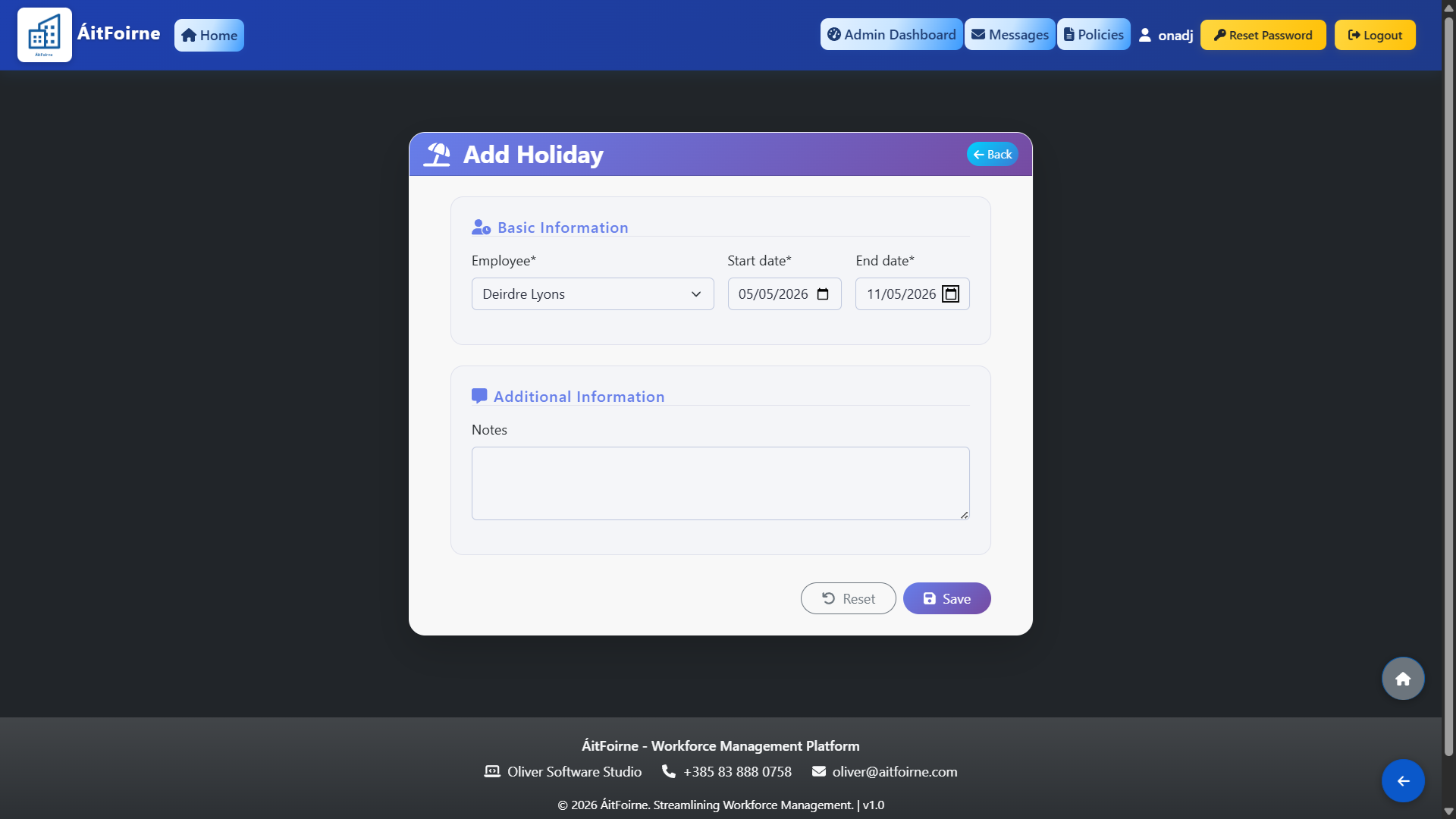
Click Add Holiday, select the employee, set the start and end dates, and save.
The holiday will have the following effects:
Auto-scheduling — the employee will be automatically skipped when generating the roster for any dates that fall within their holiday period.
Published schedule — if the employee was already assigned to shifts in a live published schedule, those shifts will update to show Worker Missing, clearly marking which shifts need a replacement so you can act quickly without reviewing the entire roster.