The Maintenance Dashboard
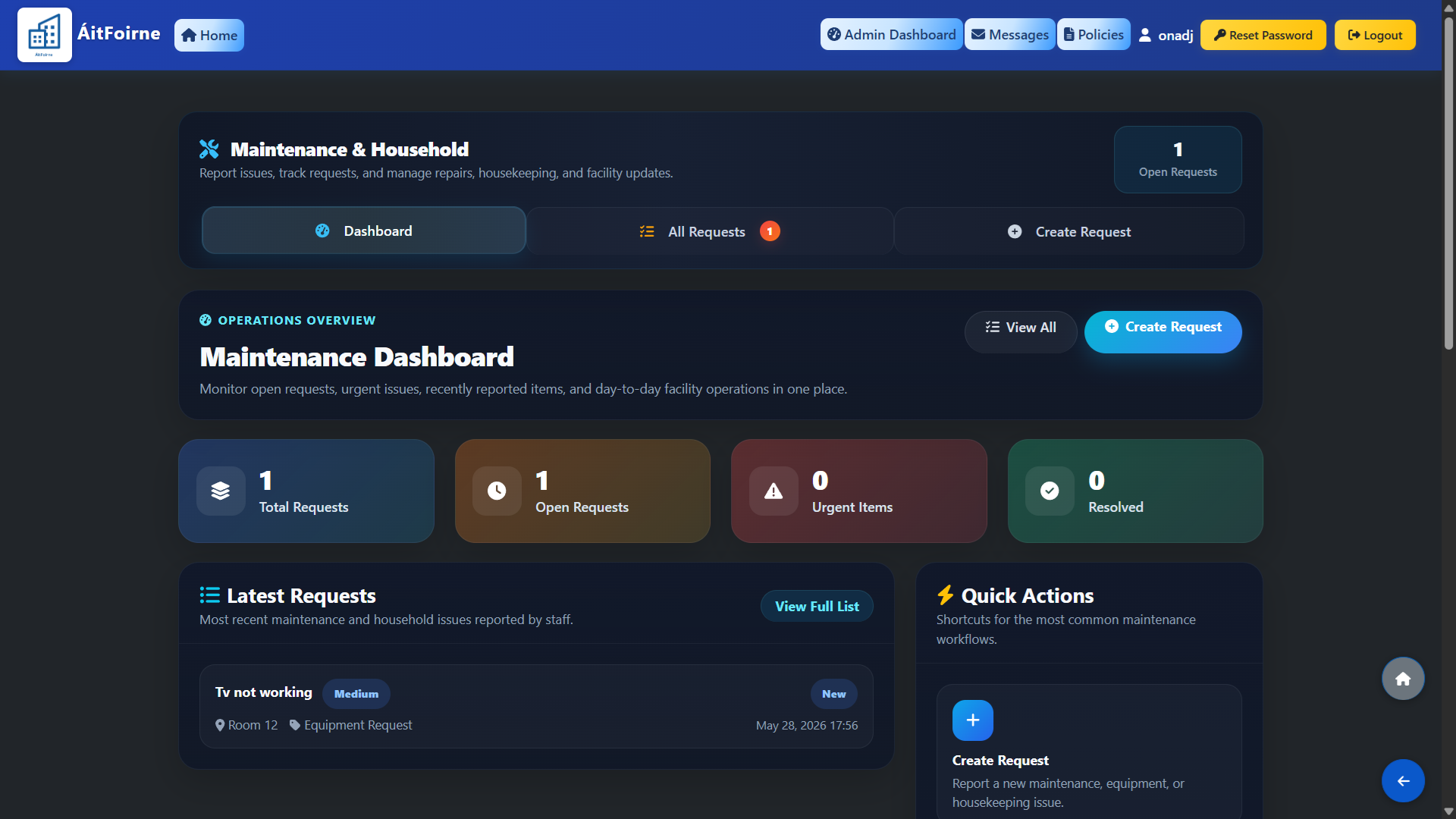
Open Maintenance & Household from the main dashboard. The Operations Overview dashboard gives you a live summary of your facility's maintenance status:
- Total Requests — all requests ever logged in the system.
- Open Requests — requests that have been reported but not yet resolved.
- Urgent Items — requests marked as urgent requiring immediate attention.
- Resolved — requests that have been completed and closed.
The Latest Requests panel below shows the most recently reported items so you can quickly see what has just come in. Quick Actions shortcuts on the right allow you to navigate to the most common maintenance workflows without searching through menus.
Creating and Assigning Requests
Maintenance requests can be created in two ways:
- By employees — staff report faults or issues directly from their employee portal. The request immediately appears in the admin dashboard as an open item.
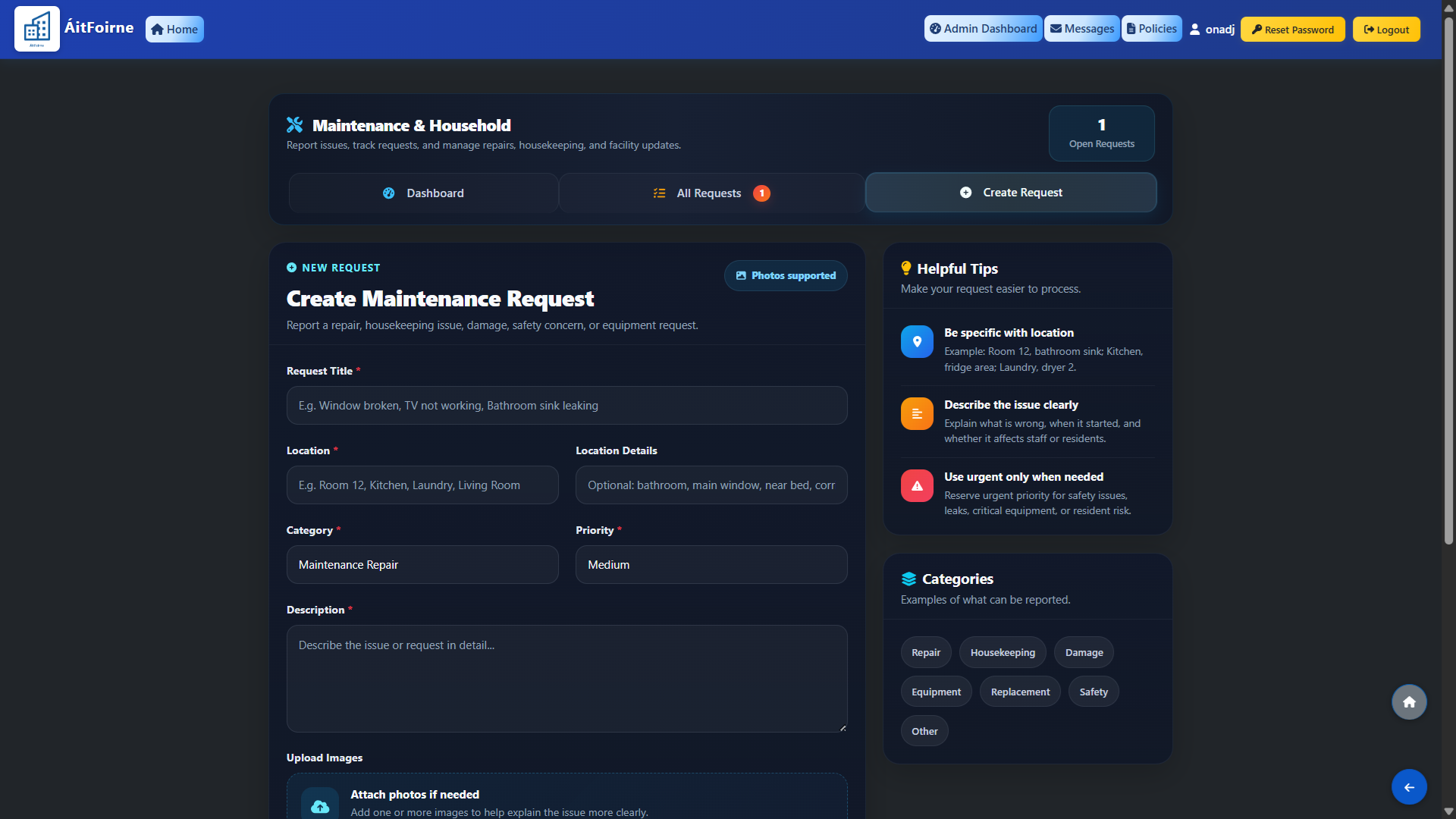
- By the admin — click Create Request to log a new request manually. This is useful when a fault is observed directly by management or needs to be created on behalf of a staff member.
When creating a request, fill in the details of the issue, set the priority level (standard or urgent) and assign it to the responsible staff member. The assigned employee will be notified and can see the task on their portal. Use All Requests to view and filter the full list of requests by status, type or date, and to update the status of any request as work progresses toward resolution.