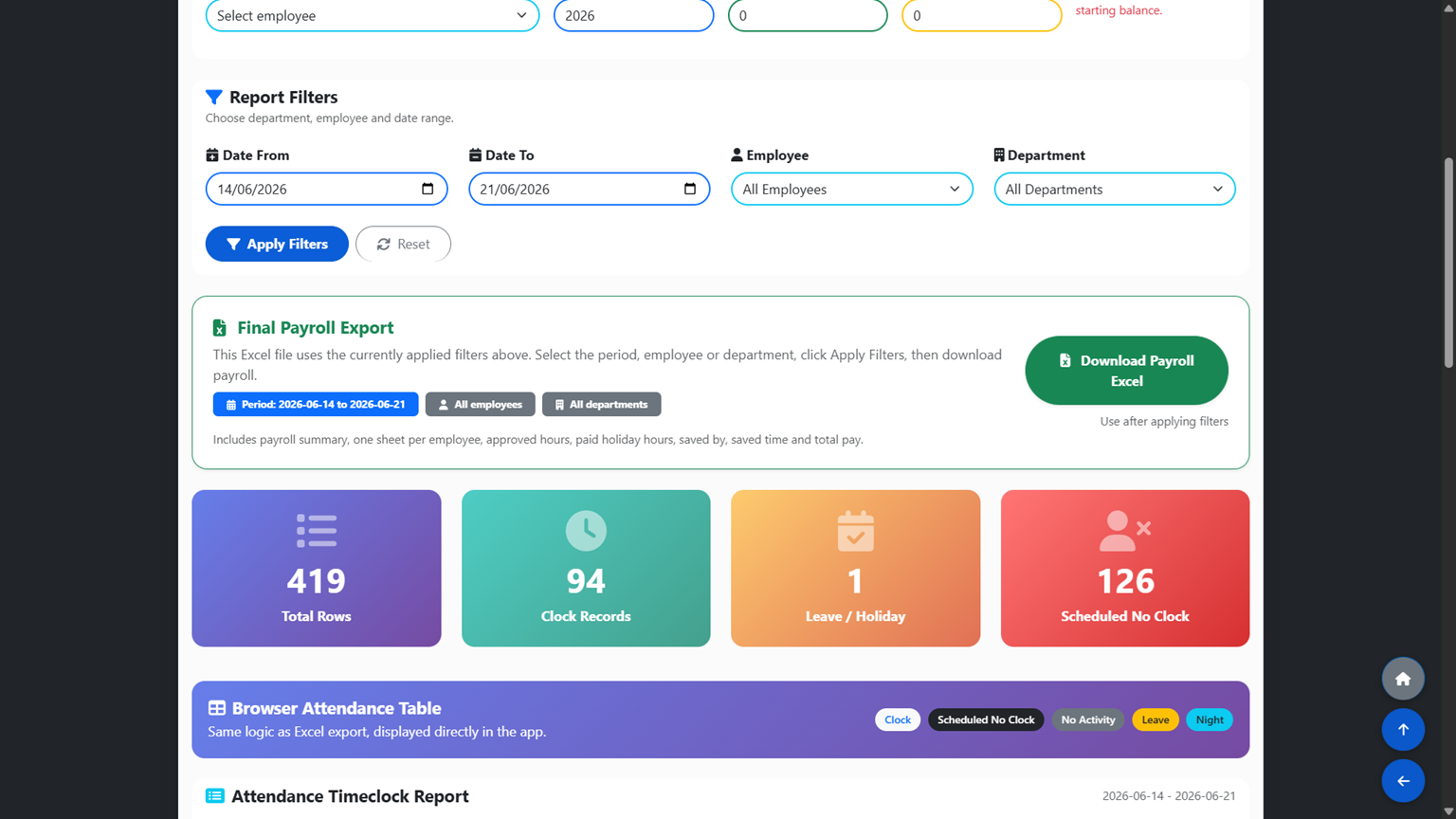
Select the payroll period
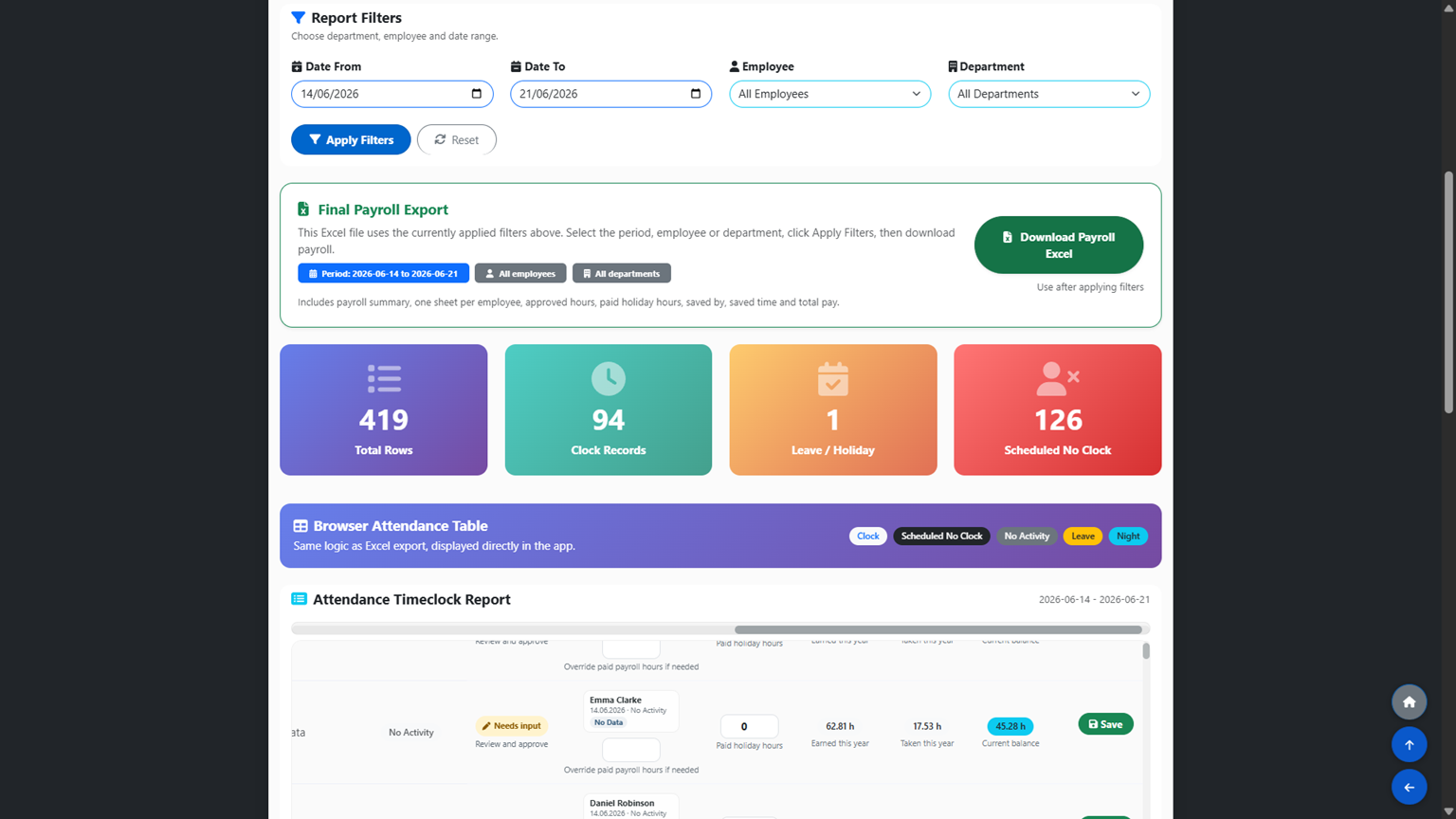
At the top of the Payroll Attendance & Holiday Review page, select the payroll date range you want to review.
For example:
Date From: 08/06/2026 Date To: 21/06/2026
After selecting the dates, click Apply Filters. The page will then show the employee rows for that selected payroll period.
Review each employee row
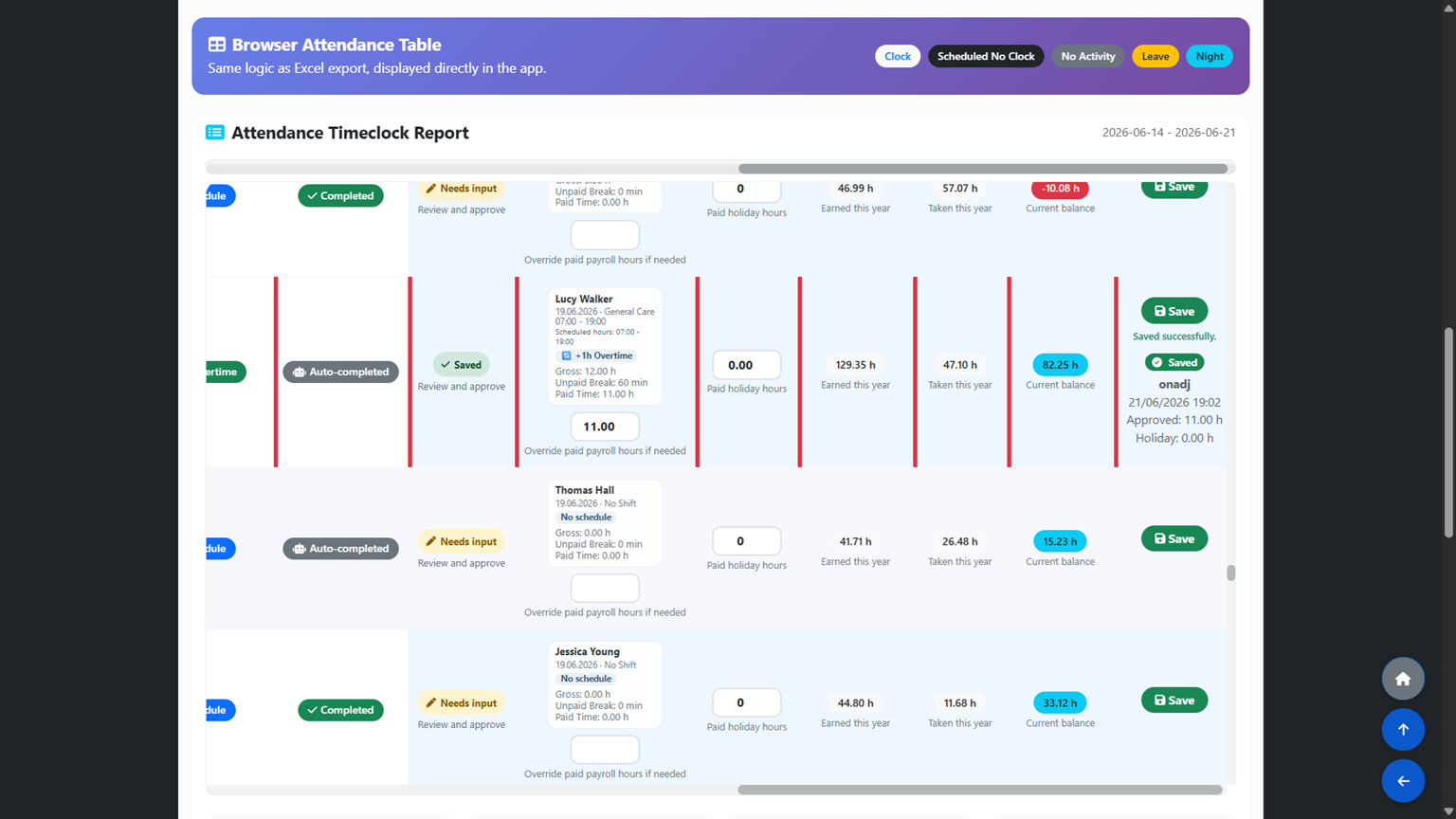
For each employee and date, review the scheduled shift, clock-in time, clock-out time, gross hours, unpaid breaks and paid time.
These figures are shown as a guide to help you check the employee’s attendance and working time before approving payroll hours.
Enter approved paid payroll hours
Enter the approved paid hours in the “Override paid payroll hours if needed” box.
The Final Payroll Export uses the approved paid hours entered in this box.
If no approved hours are entered for a row, the payroll export will show 0.00 approved payable hours for that row. This is intentional, so payroll is based on reviewed and approved hours, not automatically on clock-in and clock-out records.

Enter paid holiday hours if needed
If an employee is being paid holiday hours for the selected payroll period, enter those hours in the “Paid holiday hours” box.
You do not need to enter holiday hours for every single day. One entry is enough for the payroll period if that is how the payroll is being prepared.
For example, if an employee should be paid 65 holiday hours for the payroll period, enter 65 in the Paid holiday hours field on one row within that payroll period.

Click Save
After entering approved paid hours or paid holiday hours, click Save.
After saving, the system shows a small saved badge on the row. This helps you see what has already been saved.
If you leave the page and come back later, select the same dates again. The saved badge will help you see which rows were already completed and which rows still need to be reviewed.
Check the holiday balance update
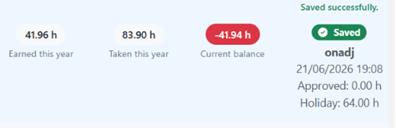
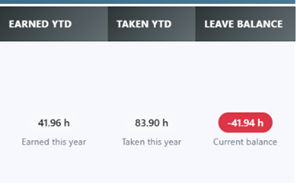
After saving, the employee’s holiday balance updates automatically.
Approved paid hours increase holiday entitlement using the 8% rule.
Paid holiday hours increase holiday taken.
The current holiday balance is calculated from the employee’s earned holiday hours and paid holiday hours.
Download the Final Payroll Export
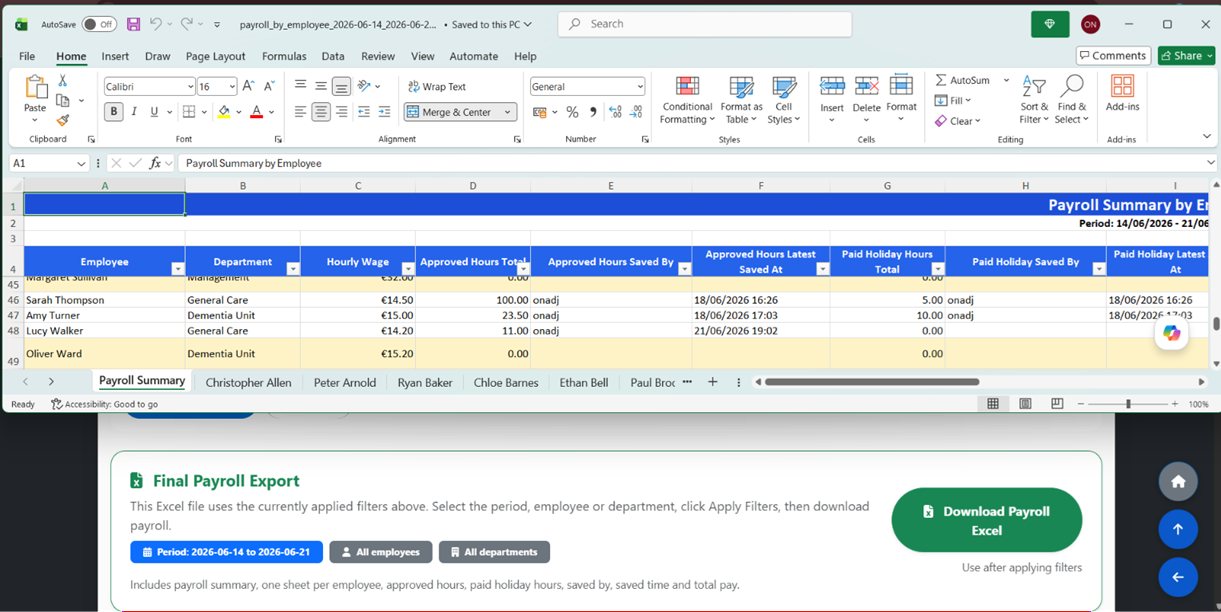
After applying the correct filters and saving the approved hours, click Download Payroll Excel.
The Excel file includes a payroll summary for the selected period and one separate tab for each employee.
The export includes approved hours, paid holiday hours, hourly wage, approved pay, holiday pay, total pay, current holiday earned, taken and balance, who saved the values and the latest saved date and time.
Recommended payroll process
The recommended process is:
- Select the payroll dates.
- Select employee or department if needed.
- Click Apply Filters.
- Review the employee rows.
- Enter approved paid hours where needed.
- Enter paid holiday hours where needed.
- Click Save.
- Click Download Payroll Excel.
This keeps approved hours, paid holiday hours, holiday balance and payroll export in one place.
View the updated holiday balance in the admin portal
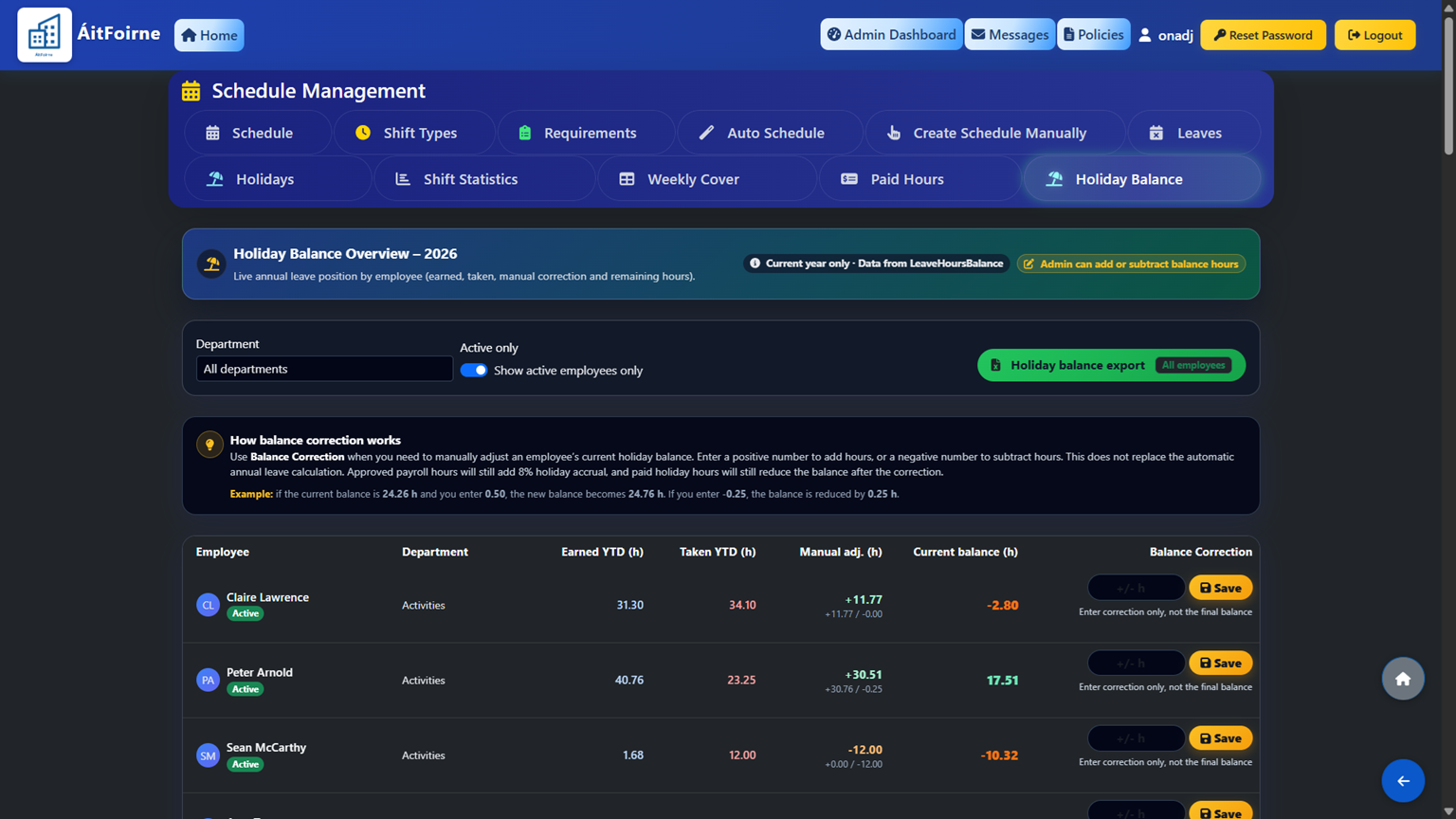
The Holiday Balance section gives managers a live overview of each employee’s annual leave position, including holiday earned, holiday taken, manual adjustments and the current remaining balance.
The system automatically calculates holiday entitlement based on approved payroll hours. In line with the 8% accrual method, approved working hours increase the employee’s holiday entitlement, while paid holiday hours reduce the available balance.
A Balance Correction option is also available for cases where a manager needs to manually adjust an employee’s current balance. This may be required for historic corrections, previous payroll differences, imported balances, rounding issues or any situation where the live balance needs to be brought in line with management records.
To apply a correction, the manager enters only the correction amount, not the final balance. Entering a positive number adds hours to the employee’s balance. Entering a negative number subtracts hours from the employee’s balance.
For example, if the current balance is 24.26 hours:
Entering 0.50 increases the balance to 24.76 hours. Entering -0.25 reduces the balance by 0.25 hours.
This ensures managers have both automatic holiday tracking and controlled manual correction available in one place, reducing the need for spreadsheet calculations and helping keep holiday records accurate and up to date.
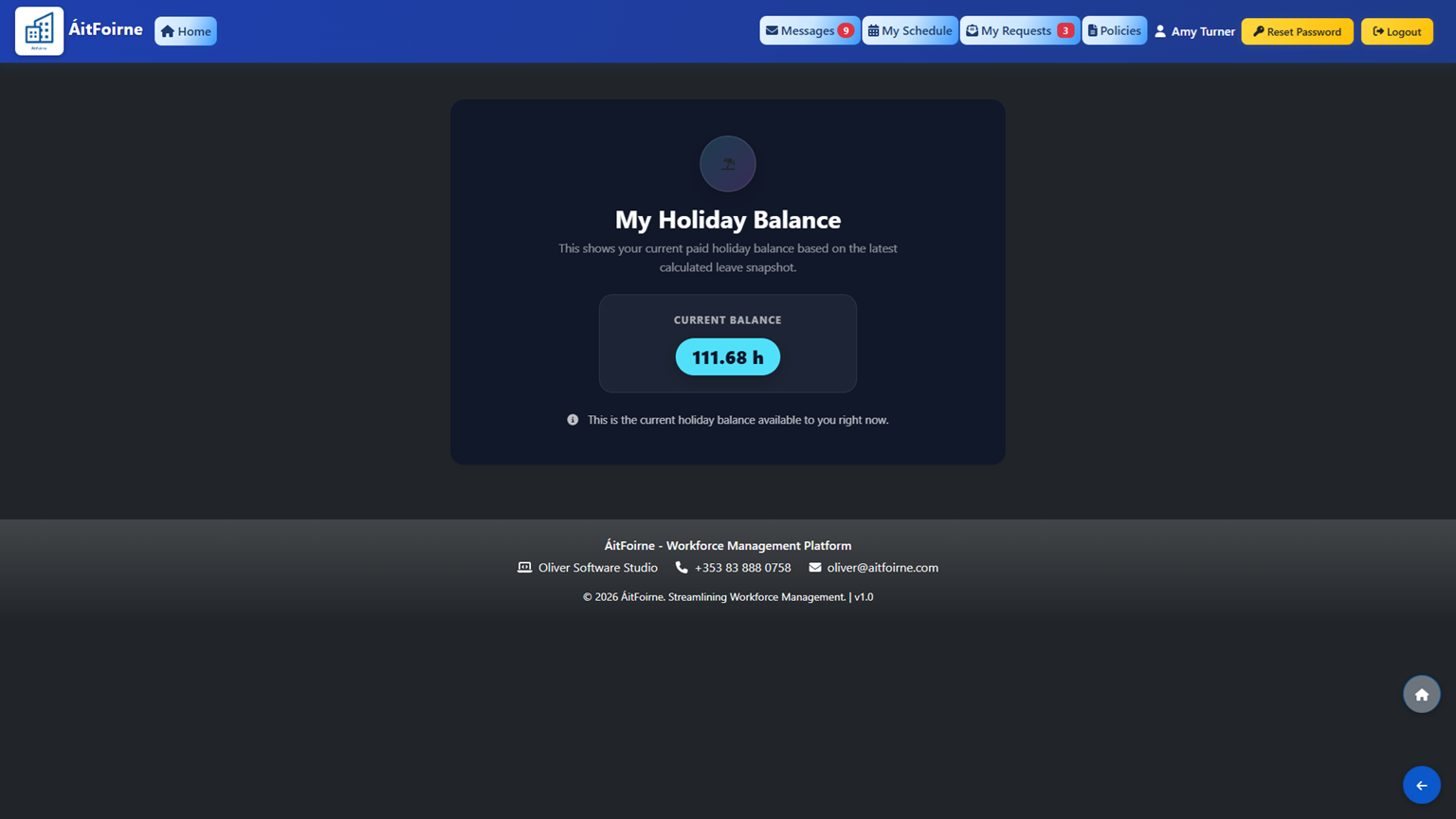
Employees can see their holiday balance in the employee portal
The same holiday balance is also available to employees in their own employee portal.
This helps staff see their current holiday balance without needing to come to the office, send messages, call the manager or wait for payroll to check it manually.
It gives both employees and managers the same up-to-date information, making holiday queries easier to answer and reducing unnecessary back-and-forth communicati