Opening WTE Configuration
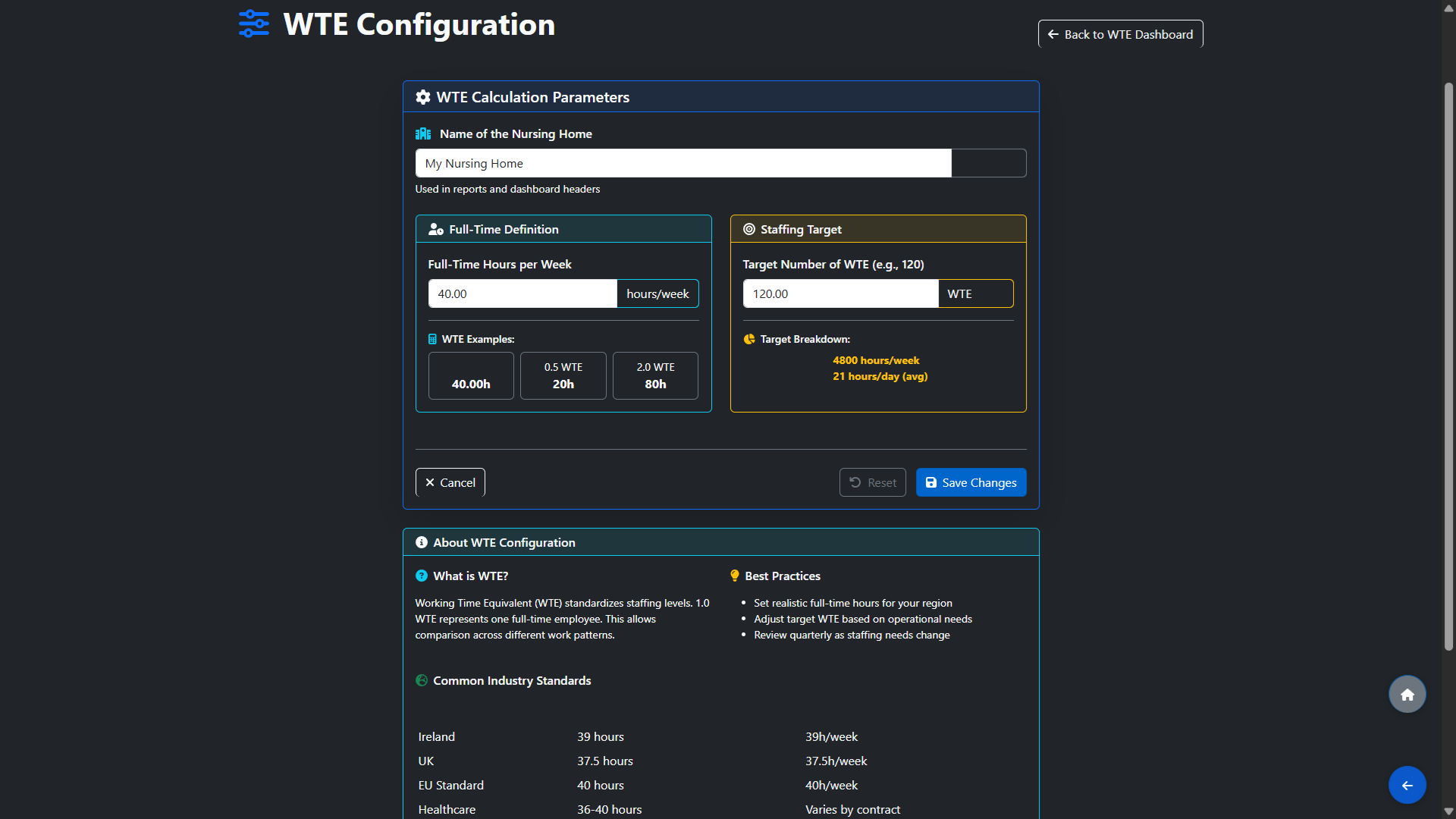
From the WTE dashboard, click Adjust Settings. This opens the WTE Configuration page with two sections:
Full-Time Definition: Set the Full-Time Hours per Week — the number of hours that defines 1.0 WTE at your facility. The system will show you live examples as you type, for example if you set 40 hours: - 1.0 WTE = 40h - 0.5 WTE = 20h - 2.0 WTE = 80h
All WTE calculations across the system are based on this value. Changing it will affect every department and every report.
Staffing Target: Enter your Target Number of WTE — the total WTE your facility aims to maintain. The system will automatically calculate the target breakdown showing the equivalent total hours per week and average hours per day. For example, a target of 120 WTE at 40 hours per week equals 4,800 hours per week and approximately 21 hours per day on average.
The page also includes an About WTE Configuration section with industry standard reference values for Ireland (39h), UK (37.5h), EU Standard (40h) and Healthcare (36-40h) to help you set an appropriate value for your region.
Click Save Changes when done. Use Reset to revert to previously saved values or Cancel to exit without saving.