
Opening My Schedule
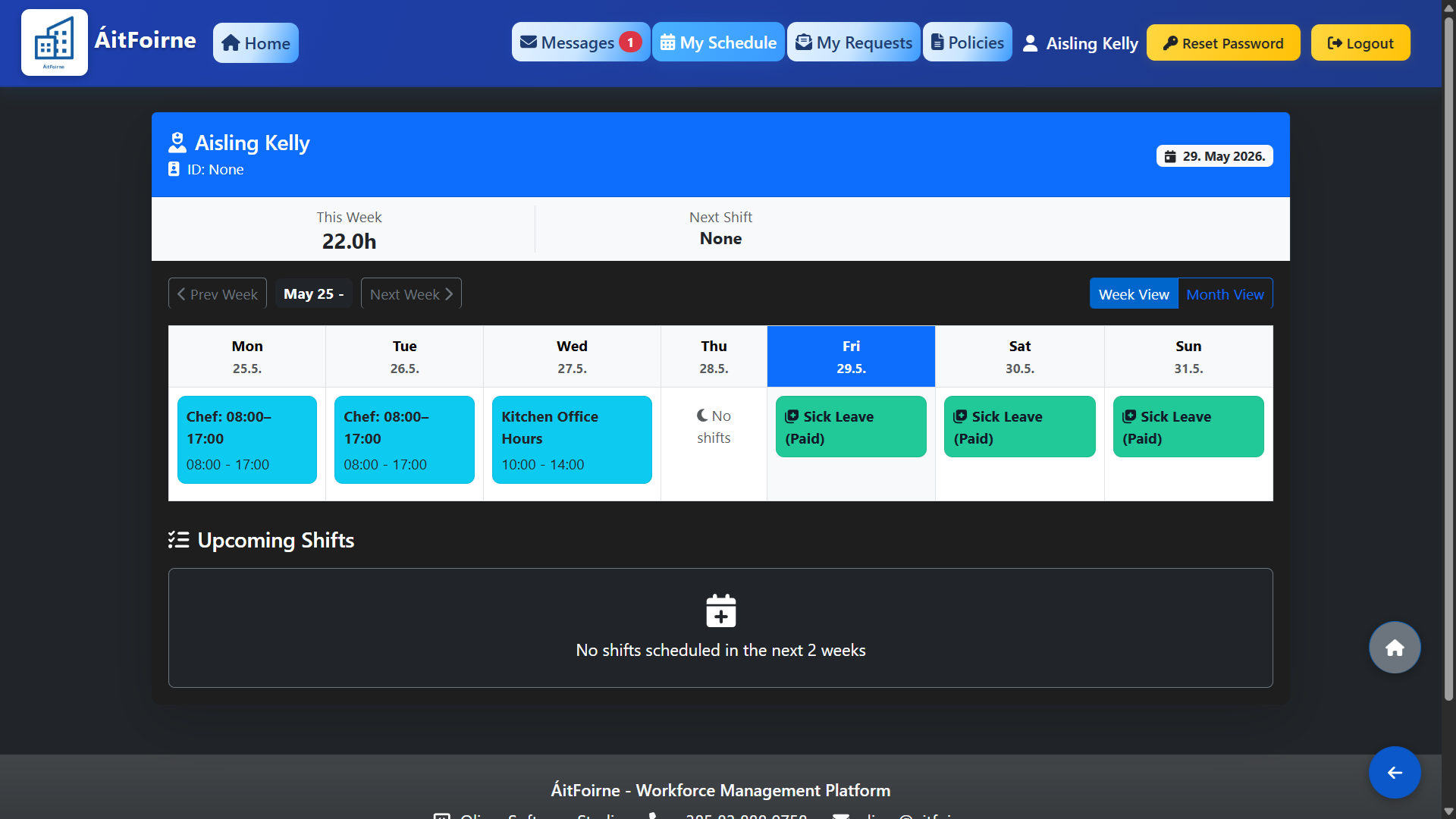
From your Employee Dashboard, click on the My Schedule tile. This will open your personal schedule view showing your assigned shifts for the current week. Use the navigation arrows to move forward or backward between weeks.
Reading Your Schedule
Each shift is displayed as a card showing the following details:
- Date and day of the week
- Shift type and department
- Start time and end time
- Total hours for that shift
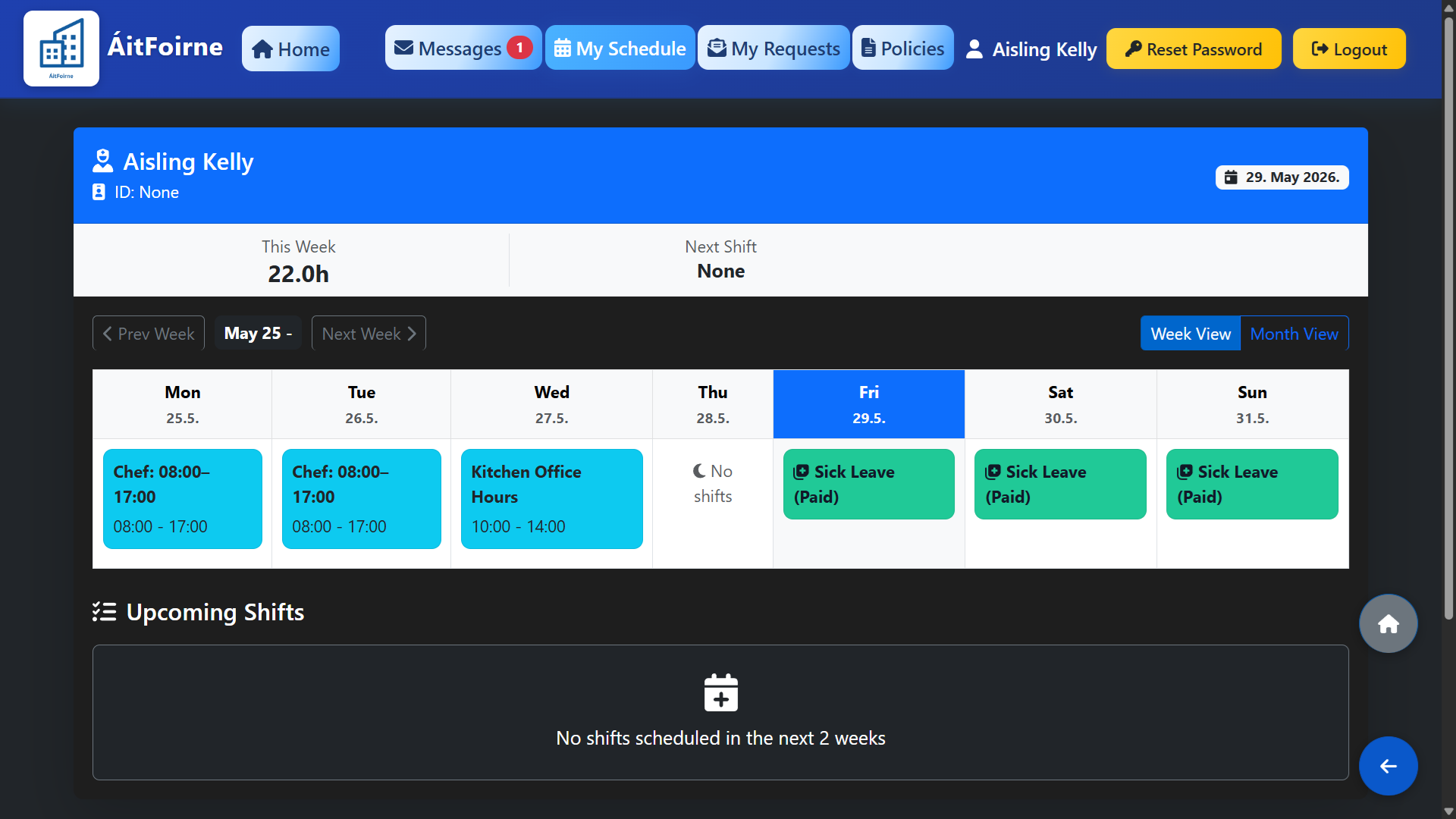
If no shifts are shown for a particular week, it means the schedule for that period has not yet been published by your manager. Published schedules are visible immediately once your manager releases them.
What to Do If Something Looks Wrong
If you notice an incorrect shift, a missing shift or any other issue with your schedule, do not make any changes yourself. Contact your manager or supervisor directly to report the problem. You can also use the Message Center on your dashboard to send a message to your admin team.