
What this area is for
There are two ways to build a week's rota. Auto Schedule fills the week from your staffing requirements and the rules on each employee profile. Create Schedule Manually gives you a week grid where you assign each slot yourself.
Both write to the draft schedule. Nothing reaches staff until you publish.
Before you start
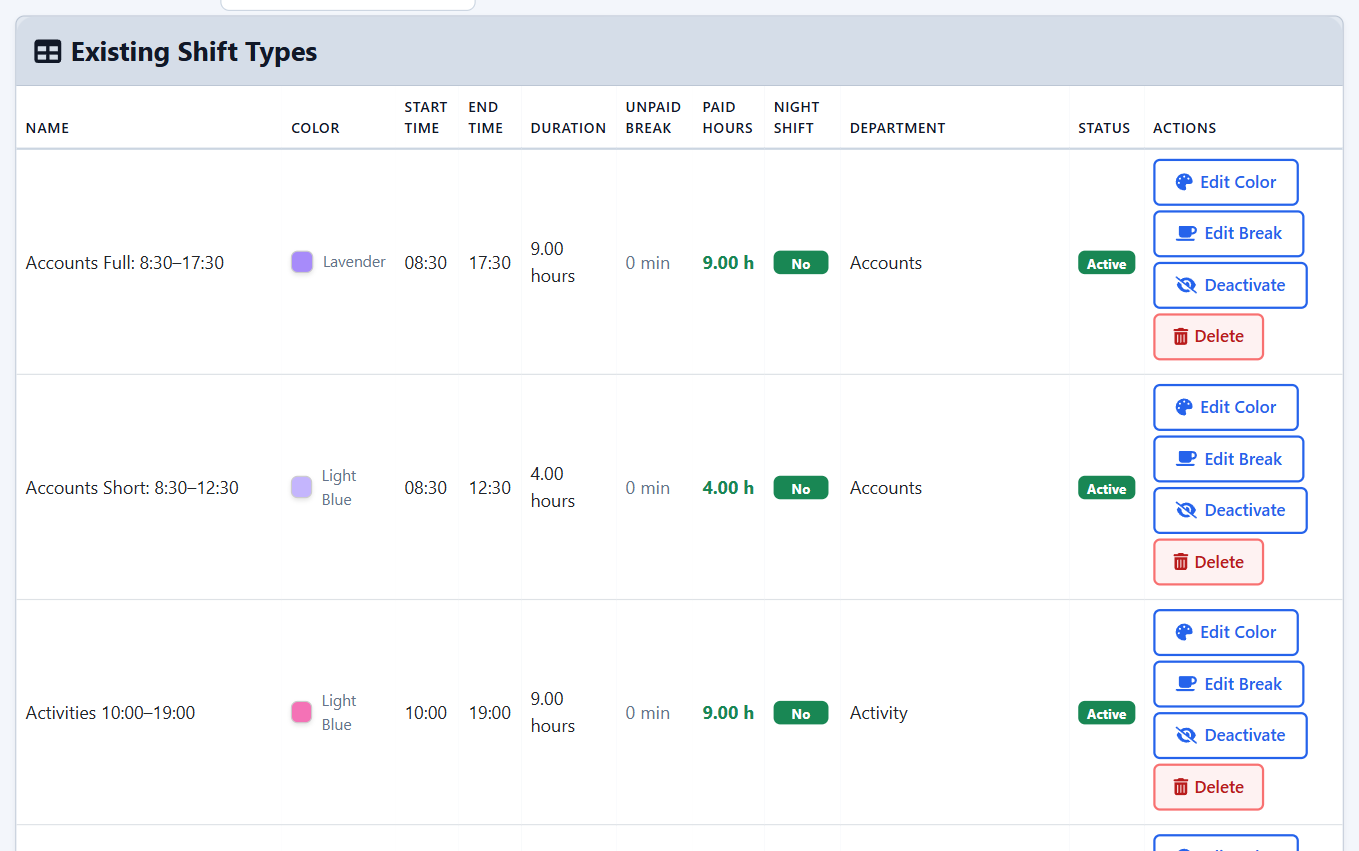
- Create your Shift Types first. Each one holds the start time, end time, unpaid break minutes, paid hours and calendar colour.
- Set Requirements for each department: how many staff each shift type needs on each day from Monday to Sunday. Without requirements, Auto Schedule cannot run.
- Make sure each employee profile has the right allowed shift types, available days and maximum weekly hours.
Step-by-step: Auto Schedule
- Confirm that Shift Types and Requirements are set up.
- Open Auto Schedule.
- Choose the department and the date range.
- Read the warning carefully. Generating deletes all existing live and draft schedules for that period.
- Enter the security PIN and confirm.
- The system writes a new draft only. The live schedule is empty for that period until you publish again.
Generating is not a gentle update. It clears the period and starts fresh in draft, so staff see no shifts for those dates until you publish.
Staff who are on holiday or sick leave are skipped, so gaps may appear in the draft as Worker Missing placeholders.
Step-by-step: build the week manually
- Open Create Schedule Manually, or use Review Draft on the Schedule page, which opens the same editor.
- Select the department and week.
- The grid loads the requirements for each day, showing how many staff each shift needs.
- If the draft is empty but a live schedule already exists for that week, the system copies the live week into the draft so you start from the published rota.
- Select an empty slot to assign an employee. Assigned names appear in filled slots.
- Slots still marked as needing someone can be filled with a real employee, or left as a gap that may become Worker Missing after publishing.
- Publish from this page, or return to the Schedule calendar and publish there.
How the system decides who is available
When you assign a shift, manually or through Auto Schedule, the system checks:
- Whether the employee has that shift type ticked on their profile.
- Whether they are available that day according to their available days.
- Whether they are not on holiday for that date.
- Whether they are not on sick or other leave for that date.
- Whether a live night shift the day before would block a day shift under your rest rules.
- Other limits such as weekly hours and overlapping times.
Department does not block cover. Staff can be scheduled into shifts from other departments as long as the shift type is ticked on their profile.
If someone is missing from the list
Check in this order:
- Is the shift type enabled on their employee profile?
- Is that weekday included in their available days?
- Is there a holiday, sick or leave record on that date?
- Did they work a live night shift the day before?
- Is the employee marked inactive? Inactive staff are excluded from both automatic and manual assignment.
Important notes
- Adding a shift on the calendar adds it to the draft only.
- Removing or changing an existing live shift updates the live schedule straight away.
- Inactive shift types are hidden from new scheduling.
- If requirements are missing, generation stops with a message asking you to set them first.
Questions people ask
Why did all shifts disappear after I generated the week?
Generating removes both the live and draft schedules for the selected period and creates a new draft. Publish the draft to restore what staff can see.
Why is there a PIN on Auto Schedule?
It is a security step so the generator is not run by accident. Only authorised managers should know it. If it is forgotten, contact your system administrator.
The draft overlay on the calendar confuses me. Can I turn it off?
Yes. Turn off Show draft changes on calendar to see only the live schedule, which is what staff see. Turn it back on when you are preparing changes.
An employee says their shift times are wrong. What should I check?
Check the Shift Types entry for the start time, end time and paid hours. Correct the draft and publish. If the shift was already live, some edits apply immediately, so check whether you edited the draft or the live schedule.