
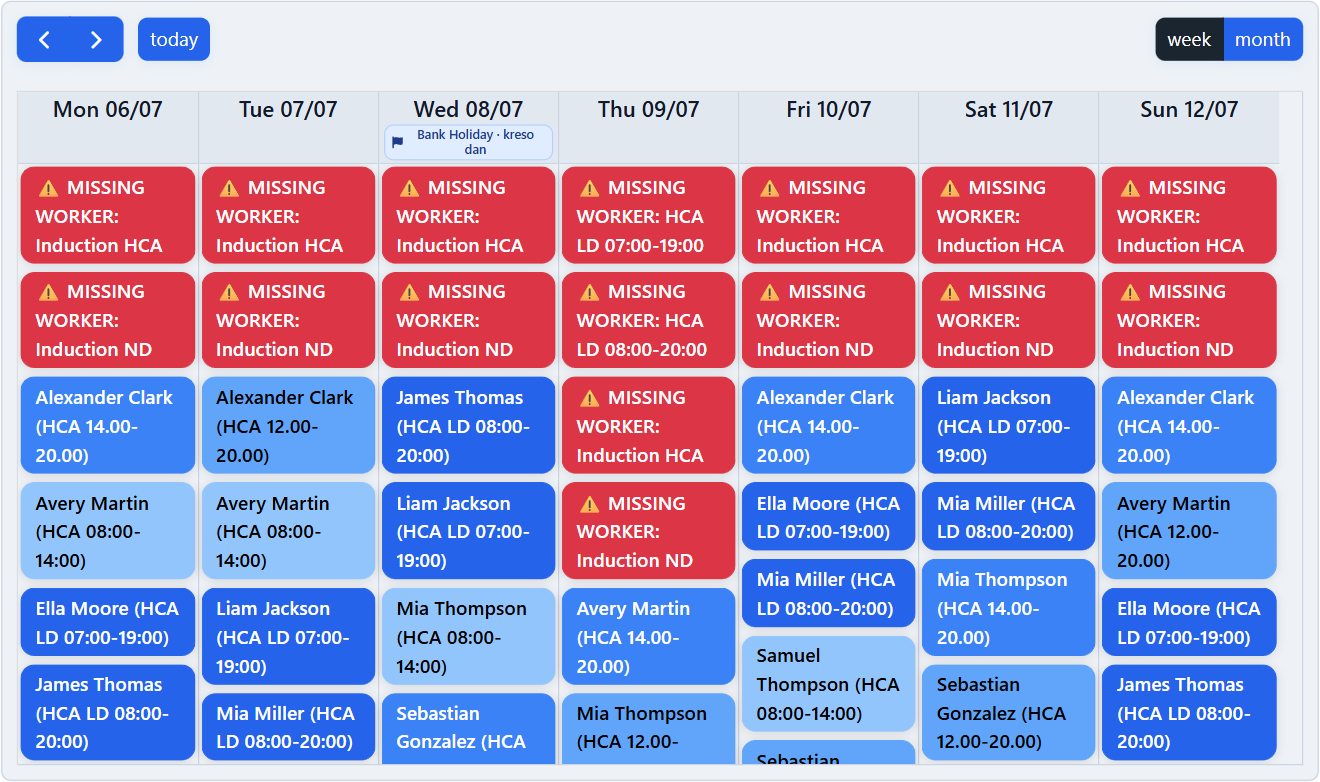
What this area is for
The Schedule area is where you build rotas, publish them so staff can see their shifts, and manage leave, swaps and staffing gaps.
There are two copies of every week's schedule:
- Live schedule — what employees see on My Schedule, and what counts for Worker Missing, Weekly Cover and most reports.
- Draft schedule — your working copy. Changes here are not visible to employees until you Publish.
Think of the draft as your desk copy and the live schedule as the notice board. Employees only see the notice board.
Before you start
- Only administrators and managers with the Schedule permission can open these pages. Ordinary staff use My Schedule to view their own published shifts and submit requests.
- Set up your Shift Types and Requirements first, so the system knows what each shift is and how many people each day needs.
- Check Leaves and Holidays for the week you are about to build, so you are not planning cover for someone who is away.
Step-by-step: publish a week
- Open the Schedule calendar and choose the department and week you want to work on.
- Build or adjust the week. Solid events on the calendar are live; dashed amber events are draft only.
- Review the draft. Weekly Cover can be switched to the Draft source so you see the week as it would look once published.
- Resolve any Worker Missing placeholders you can fill.
- Clear any pending shift swap, leave or holiday requests for that week, because pending requests block a normal publish.
- Open the publish window and choose Publish Current Week for the week and department you are viewing, or Publish All Changes for every week and department that has draft data.
- Confirm, then ask an employee to refresh My Schedule if you want to check the result.
What happens next
Publishing copies your draft into the live schedule for the chosen week and department:
- Existing live rows for that week and department are removed.
- The live schedule is rebuilt from the current draft.
- The draft is kept, so you can keep editing and publish again later.
Once published, staff see the shifts on My Schedule, and Worker Missing and Weekly Cover recalculate from the live schedule.
Reading the publish status panel
Below the calendar, a grid shows each department and week:
- Published — live matches draft; nothing waiting.
- Draft changes — the draft differs from live; publish when you are ready.
- Not published — a draft exists but nothing is live yet for that week.
- No schedule — there is no draft or live schedule for that week.
Selecting a cell takes you to that department and week.
Important notes
- If you publish when the draft has far fewer shifts than the live schedule, a warning appears. Publishing could remove many live shifts, so check the draft first.
- Removing or changing a shift that is already live updates the live schedule immediately, and staff see the change without a publish.
- If there are pending requests you must act on urgently, the publish window offers a force option that expires those pending requests. Use it only in emergencies, and see the requests guides for what staff see afterwards.
- There is no single undo button for a publish. Keep working in the draft and publish again.
Questions people ask
Why can employees not see a shift I added?
Almost always, the shift is still in the draft and has not been published. Check whether the shift shows as solid (live) or dashed amber (draft only), publish the week, then ask the employee to refresh My Schedule.
What happens after I publish a schedule?
The live schedule for that week and department is rebuilt from your draft, staff see the new shifts on My Schedule, and staffing figures such as Worker Missing and Weekly Cover are recalculated. Your draft is kept so you can continue editing.
When should I use Publish All Changes instead of Publish Current Week?
Use Publish Current Week for normal day-to-day work on one department. Use Publish All Changes after building several weeks or departments at once, and review the publish status panel first.
Can I undo a publish?
There is no single undo button. You can correct the draft and publish the week again. Rebuilding the week with the generator clears both live and draft for that period, so treat that as a deliberate decision rather than an undo.