
What this area is for
Reports / HIQA is where authorised managers download Excel files from the home’s own Clinical records.
Use these files when the home is preparing for inspection, a governance review, or a clinical audit.
ÁitFoirne creates the file for your nursing home to use. It does not send the file to HIQA. It does not give a compliance score.
Think of this page as a photocopier for your own registers. You still choose what to print, what to check, and what to bring to a meeting.
Before you start
- Sign in with your own ÁitFoirne management login.
- Select Enter Clinical.
- Use a private office computer, not a shared tablet on the floor.
- Only download what you need. Resident information stays in the file.
Step-by-step: open the reports page
- Select Enter Clinical.
- In the Clinical menu, select Reports / HIQA.
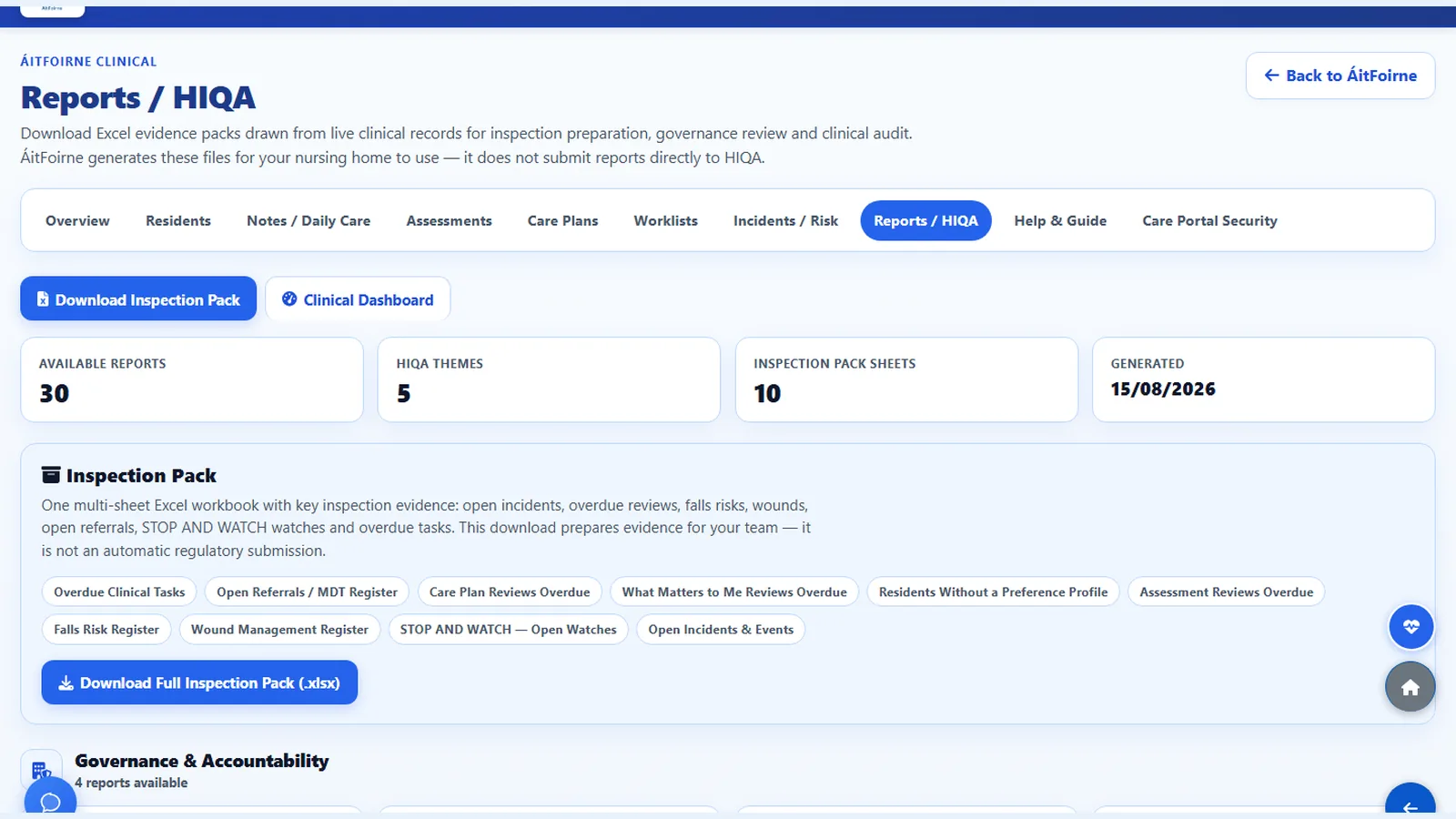
- Read the short explanation at the top of the page. It tells you the files are for the home’s own preparation.
- Look at the summary cards if you need a quick count.
- Choose the pack you need.
Step-by-step: download a pack
- To download the wide pack, select Download Full Inspection Pack (.xlsx) or Download Inspection Pack, whichever button your screen shows.
- Wait for the file to finish downloading. Do not click the button again and again.
- Open the Excel file on the office computer.
- Check you are looking at this home’s records.
- Save it in the home’s usual private folder, if your policy allows that.
- Do not email the file to a personal address.
You can also use Export Excel on a smaller list when you only need one register.
What the file is for
The inspection pack can include evidence the home already holds, such as open incidents and overdue reviews.
Use it to:
- prepare a folder for your own inspection meeting
- see what still needs a review date
- share a register with the people in your home who are allowed to see it
Do not treat a green or empty list as an inspection pass. The file is a copy of your records, not a certificate.
What this page does not do
Reports / HIQA does not:
- submit anything to HIQA
- score the home or mark it as passed
- replace the resident file
- replace speaking to staff about missing records
- change or delete Clinical records
If a register looks empty, go back to the resident file or worklist and check the live record. Then download again.
After you download
- Open the file and check the date.
- Keep it only where the home stores private Clinical files.
- Delete extra copies from Downloads if they are not needed.
- Sign out when you leave the office computer.
Questions people ask
Does ÁitFoirne send this report to HIQA for us?
No. The file stays on your computer. Your home decides what to print, file or show.
The button name says HIQA. Does that mean we are approved?
No. The page name is Reports / HIQA because homes use the files when preparing for inspection. It is not an approval, score or submission.
I cannot see Reports / HIQA.
You need a Clinical management login. Healthcare Assistants and Care Portal PIN users will not see this page. Ask the Clinical Manager.
Can I download Today’s Care as well?
Today’s Care is a screen for reviewing the day. For a file you can keep, use Reports / HIQA and the Excel buttons on that page.