
What this area is for
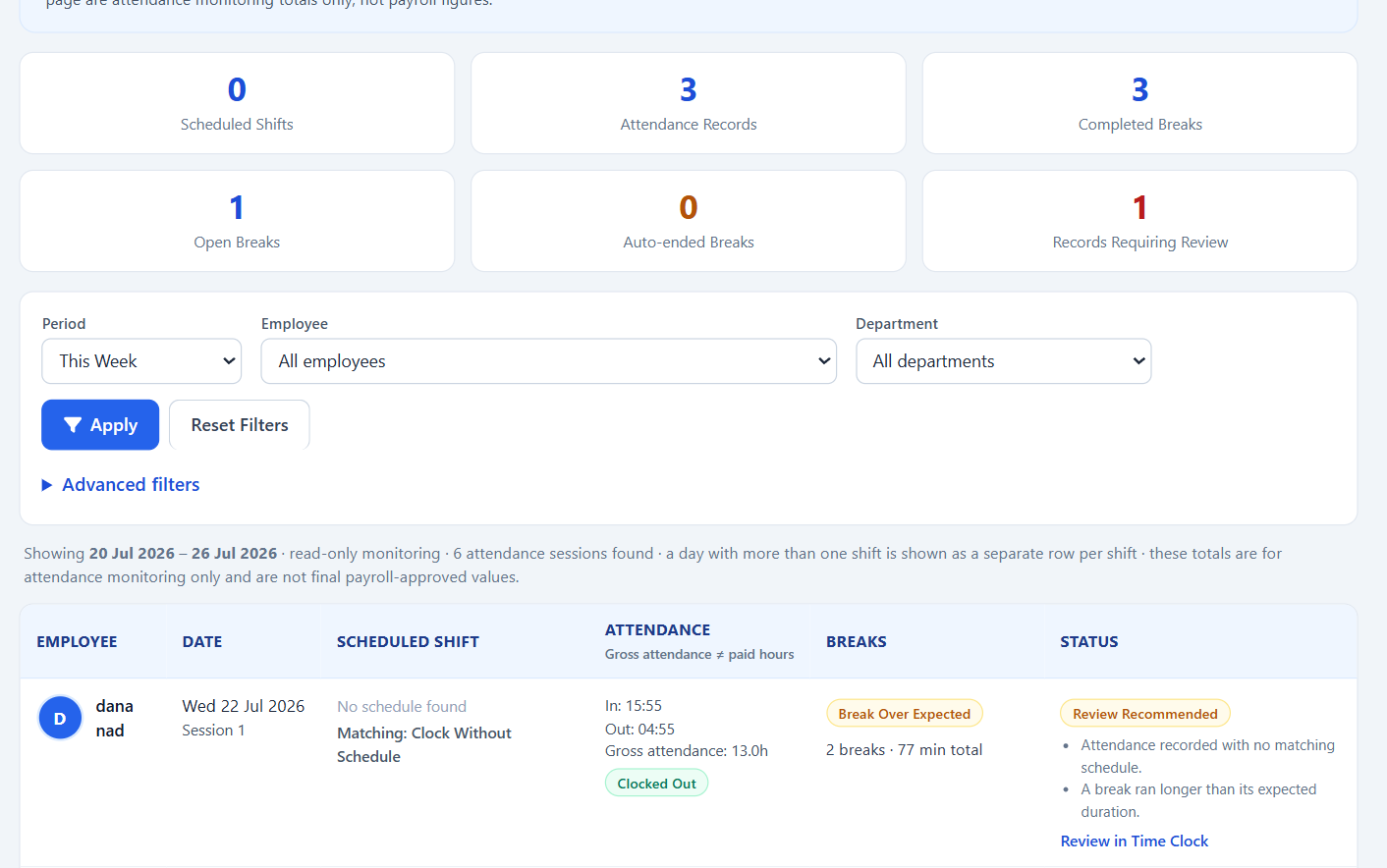
Attendance and Breaks is a read-only monitoring area. It brings together scheduled shifts, clock-in and clock-out records, and employee breaks, so you can see at a glance what is happening and what may need a closer look.
It does not change any record. It is designed for day-to-day monitoring, not to replace payroll approval.
Access uses the Breaks permission, which also covers the history page and the Excel export.
How it differs from time clock review
- Attendance and Breaks is where you *see* scheduled shifts, clock records and breaks, and spot records that may need review. Nothing can be edited here.
- Time clock review is where you *correct* attendance records, resolve missing or unusual clock times, and approve the final hours used for payroll.
When something looks wrong while monitoring, follow the review link to go and fix it in the right place.
The three views
- The live dashboard shows today's picture and refreshes automatically, answering questions such as who is scheduled today, who has clocked in or out, who is on a break, and whether any breaks are still open.
- History shows attendance and break records for any period you choose, with one row for every reliably identified shift.
- Excel export downloads the same information using the same filters, in a workbook with three sheets.
History and the export both default to This Week, and Previous Month gives a one-click look at the whole of last month. A custom range is limited to 366 days.
Attendance statuses
- Scheduled — a shift is scheduled for today or a future date and the employee has not clocked in yet.
- Clocked In — the employee has clocked in and not yet clocked out.
- Clocked Out — the employee has clocked in and clocked out.
- Missing Clock-In — a shift was scheduled on a past day but no clock-in was recorded.
- Missing Clock-Out — the employee clocked in on a past day but never clocked out.
- No Schedule Found — a clock record exists with no matching scheduled shift.
Break statuses
- No Break Recorded — no break was logged for this shift.
- On Break — a break is currently open.
- Break Completed — the break started and finished normally.
- Break Over Expected — the break ran longer than its normal allowance.
- Break Under Expected — the break finished sooner than its normal allowance.
- Break Auto-ended — a historical status only, kept on older records.
New breaks are not ended automatically. If someone forgets to finish a break, it simply stays open until End Break is selected, so an administrator can see it and review it with them.
Review flags
- Review Recommended means the record is worth a quick look but is not necessarily a problem, for example a shift that was scheduled but never clocked in.
- Review Required is stronger. It usually means something needs correcting before payroll is finalised, such as a missing clock-out on a past day or shift and clock records that could not be matched with confidence.
Records marked Review Required always include a short list of reasons and a direct link to resolve them in time clock review.
Multiple shifts and breaks in one day
An employee can legitimately work more than one shift in a day, for example 08:00 to 14:00 and 18:00 to 23:00. These always appear as separate rows, numbered as sessions in the order they happened, and are never combined.
Each break is listed separately with its own start time, finish time and duration. Where a break's timing clearly falls inside one shift, it is attributed to that shift. Where the timing is genuinely unclear on a multi-shift day, the break is shown once, is not added to either shift's total, and the day is flagged for review so nothing is guessed.
Overnight shifts are handled using their full window, so a break taken after midnight is matched to the shift it belongs to.
Important notes
- Gross attendance is simply the time between clock-in and clock-out. It is not the same as paid hours or payroll-approved hours.
- Scheduled unpaid break and scheduled paid hours describe what was planned for that shift type, shown for context only.
- Every page repeats the same message: this is attendance monitoring, not final payroll-approved values. Corrections and approvals are completed in the time clock and annual leave hours and cost areas.
- Worker Missing is a rota placeholder, so it never appears in monitoring figures or exports.
Questions people ask
How do I see who is currently on a break?
Open the live dashboard. It shows today's activity, including who has clocked in, who has clocked out and who is currently on a break, and it refreshes automatically.
Are breaks still ended automatically?
No. A break stays open until it is ended. Older records may still show an auto-ended status from a previous version of the system, and those records remain flagged for review because the true break length was uncertain.
Why do the dashboard and history numbers look different?
The live dashboard shows today only, while history can show any period. Compare the same date range before assuming there is a problem.
A record I fixed still shows as Review Required. Why?
Refresh the page first. If the old status remains, confirm the correction was saved in time clock review.