
What this area is for
Care Portal is how Healthcare Assistants and Nurses record Daily Care during the shift.
Use it after you have helped a resident, not before. Write what really happened. If you are worried about a resident, speak to the nurse first, then record the care.
This screen does not give medicines. It does not send a message to the nurse by itself.
Before you start
- Use the workplace tablet, phone or ward computer.
- Have your own six-digit Care Portal PIN ready. This is not your Time Clock PIN.
- Stand at the nursing home. Care Portal will not open the staff list if the device is away from the workplace.
- Never use another person’s name or PIN.
If you do not have a Care Portal PIN, stop and ask the Clinical Manager. Do not borrow a PIN.
Step-by-step: open Care Portal and sign in
- Tap the Care Portal icon, or open the Care Portal link.
- Select Confirm workplace location.
- Wait until the staff list appears.
- Find your own name. You can type the first few letters if the list is long.
- Tap your name.
- Enter your six-digit Care Portal PIN.
- You should see your first name and your role, Healthcare Assistant or Nurse.
If the PIN is wrong, try again slowly. If you get it wrong too many times, Care Portal waits before you can try again. Ask the Clinical Manager to reset the PIN if you have forgotten it.
Step-by-step: find the resident
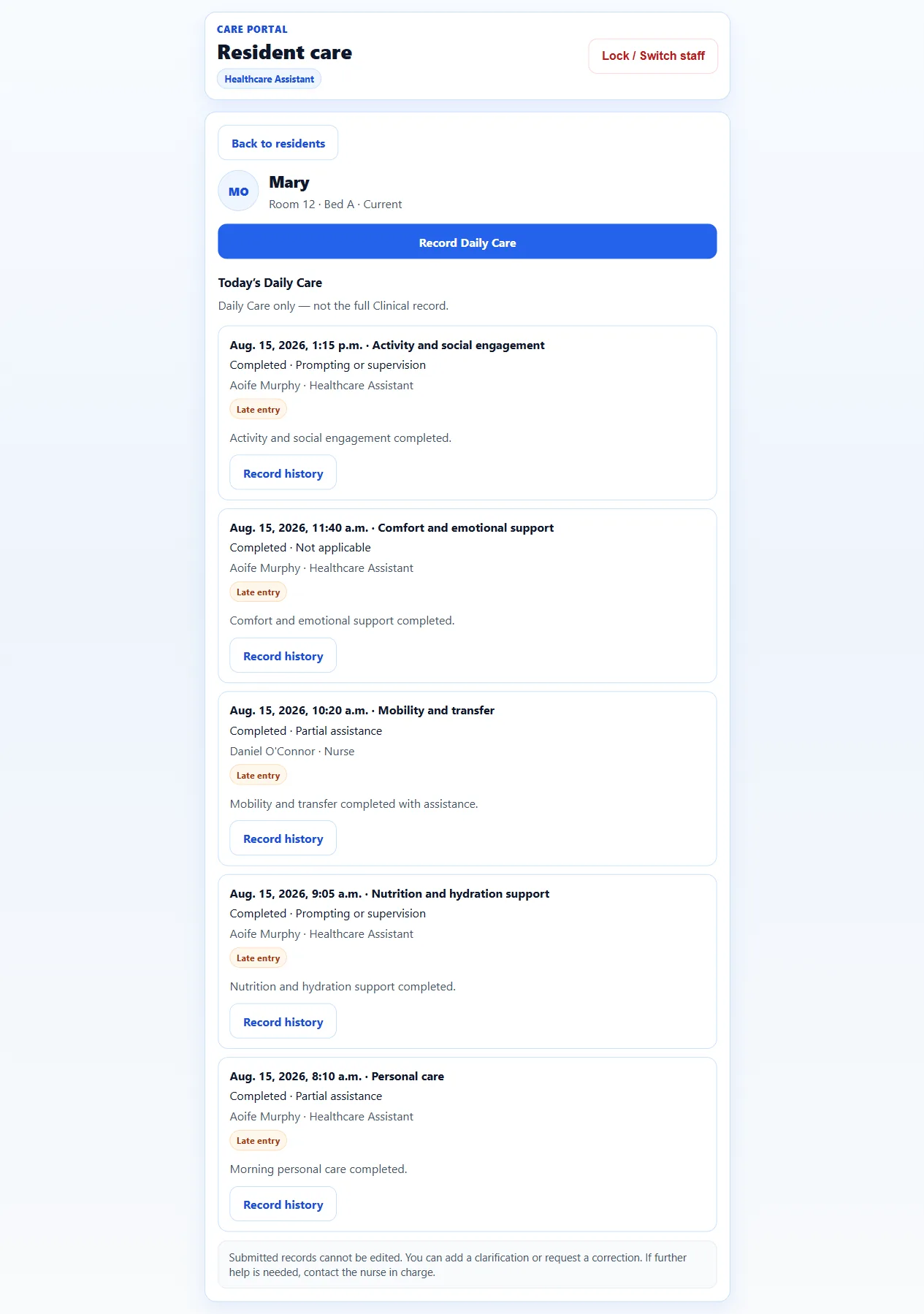
- On the Care Portal home, look at the resident cards.
- Type the resident’s name, or look for the room number.
- Check the name and room carefully. Many names look similar.
- Tap the correct resident.
- Check the name and room one more time at the top of the page.
- Select Record Daily Care.
If a resident is missing, do not invent a record under someone else. Ask the nurse. The resident may be in hospital, on leave, discharged, or not yet added.
Step-by-step: fill in Daily Care
The form asks only a few things. Take your time.
- Care activity — choose what you did, for example Personal care, Nutrition and hydration support, or Mobility and transfer.
- Outcome — choose what happened:
- Completed
- Partially completed
- Declined
- Not completed
- Concern identified
- Assistance level — choose how much help the resident needed, for example Prompting or supervision or Two-person assistance.
- When did this care happen? — check the date and time. Change it if you are recording care that happened a little earlier.
- Care note (optional) — write a short, clear note if it helps. Use ordinary words.
- If the outcome is Concern identified, fill in Concern / escalation note. Write what you saw and that you told the nurse.
- If the care happened some hours ago, fill in Late entry reason. Say why it is late, for example “Recorded after helping another resident”.
- Select Review before submit.
- Read the review screen slowly. Check the resident, the activity, the time and the outcome.
- If something is wrong, go back and change it now. After submit, you cannot edit the record.
- Select Confirm and submit.
- Wait for the success screen. Do not tap the button again.
If you are worried about a resident
- Speak to the nurse on duty straight away.
- Then record the care.
- Choose outcome Concern identified.
- Write the concern note.
- Submit the record.
Recording a concern does not call the nurse, send a text, or create an incident by itself. You still need to speak to the nurse.
When you are finished
- Select Lock / Switch staff.
- The next person must confirm the workplace, choose their own name, and enter their own PIN.
- Never leave the tablet unlocked on a resident page.
If nobody uses Care Portal for a few minutes, it locks itself. That is normal.
What you cannot change later
After Confirm and submit, the record stays as it is.
You cannot:
- edit it
- delete it
- change the resident
- change the time
If you made a mistake, tell the nurse. You may add a clarification, or submit a correction request. A correction request does not change the original record by itself. Formal correction approval stays with Clinical governance.
Questions people ask
I used the wrong resident. What do I do?
Do not try to hide it. Tell the nurse at once. Submit a correction request if the screen offers it, then record the correct care for the right resident. Do not record the same care a second time until you have told the nurse.
The button says Submitting and nothing happens.
Wait a few seconds. Do not keep tapping. If the screen is still stuck, select Lock / Switch staff, sign in again, and check whether the record already appears on the resident’s timeline. If you are not sure, ask the nurse before recording it again.
Can I record care for a colleague who forgot?
No. Each person records their own care with their own PIN. Recording for someone else makes the record untrue.
Why does Care Portal ask me to confirm the workplace every time?
The device must show it is at the nursing home before staff names or residents appear. This protects resident information if a tablet leaves the building.