
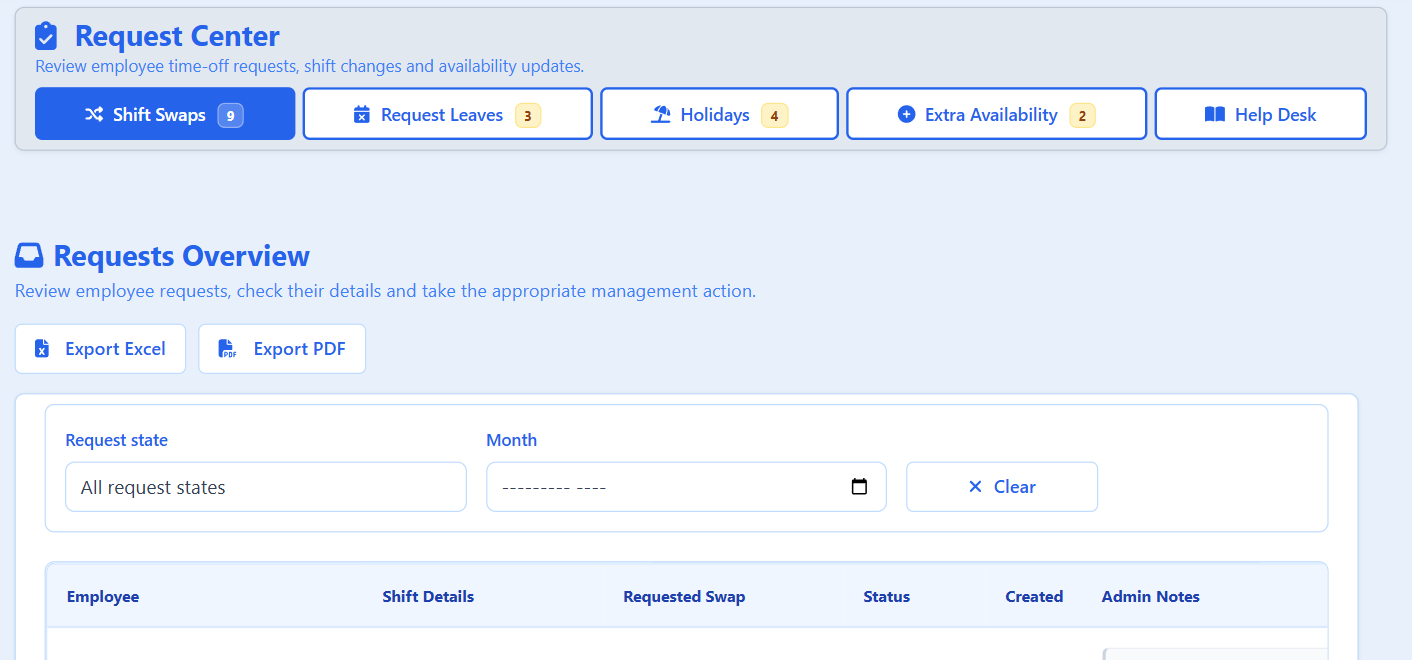
What this area is for
The Request Centre is where managers review employee requests before they affect the roster. Employees submit requests from My Requests in the Employee Portal, and you decide them here.
There are four request types:
- Shift Swap — the employee wants to hand a scheduled shift to a colleague.
- Request Leave or Request Off — time off for dates they choose, separate from annual holiday.
- Holiday — annual leave for a date range.
- Extra Availability — the employee is saying they *can* work extra. It does not add them to the roster.
Approving a shift swap, leave or holiday request can change the live roster immediately. Extra availability only records the offer.
Before you start
- You need administrator access, or the Requests permission. Regular employees only use My Requests.
- Each request type has its own tab, with a small badge showing how many requests still need a decision.
- Each tab has its own filters, so changing a filter on one tab does not change the others.
The four statuses
- Pending — waiting for your decision. The roster has not changed.
- Approved — you accepted it. For swaps, leave and holidays, the live roster may already be updated.
- Rejected — you declined it. The roster is unchanged and the employee can see your note.
- Expired — the schedule was force-republished while the request was still pending. It was not applied and cannot be approved.
Read the status word rather than relying on the colour of the badge.
Step-by-step: decide a request
- Open View Details on the request row.
- Confirm the correct employee.
- Check the date or date range.
- Open the live roster for that period.
- Check for conflicts and staffing requirements.
- For a shift swap, confirm a named colleague who can work that shift type.
- For a holiday, confirm that daily holiday capacity allows those dates.
- Select Approve only when everything is correct, or Reject with a clear note.
- After approving leave or a holiday, review the schedule for new Worker Missing gaps.
Approval takes effect immediately for shift swaps, leave and holidays. You do not need to republish the week for the decision to apply.
What View Details shows
- Employee name and department.
- Date or date range.
- Reason, notes and any supporting document.
- The original shift and chosen colleague, for swaps.
- Current status.
- Processed by and Processed on once a manager has approved or rejected it.
- For expired requests, an explanation and whether the employee has seen the expiry message.
Reject or delete
- Reject keeps the request in history, shows the employee your note, and leaves the roster unchanged.
- Delete removes the row permanently. The employee does not see a decision.
Prefer Reject whenever the employee should see that a decision was made. Use Delete only for duplicates or entries that should not remain.
Filters and exports
- Request state filters by pending, approved, rejected or expired.
- Month filters by the month the request was created, not the shift date.
- Clear Filters resets the filters on that tab.
- Export Excel produces a spreadsheet with separate sheets for each request type, and Export PDF gives a printable summary. Exports may contain personal information, so store them securely.
If no requests appear, check the request state and month filters, clear them, and check the other request tabs.
Recommended daily routine
- Review the pending counter on each tab.
- Open each request type in turn.
- Filter to pending requests.
- Open View Details for each new request.
- Check the live roster.
- Approve or reject with clear notes.
- Review Worker Missing after any leave or holiday approval.
- Contact employees directly when confirmation matters.
Questions people ask
Why does a request still show as pending?
Nobody has approved or rejected it yet. Pending requests do not change the roster, but pending swap, leave and holiday requests do block a normal publish for that week until they are resolved.
I approved extra availability but no shift appeared. Is that a fault?
No. Approving extra availability records that the employee is available. It does not add a shift, does not change Worker Missing and does not assign anyone automatically.
The employee says they were not notified. What should I tell them?
There is no email, push notification or separate alert for these decisions. Employees see the outcome when they open My Requests.
Can an expired request be approved?
No. An expired request was never applied, and the employee needs to submit a new one if they still need the change.