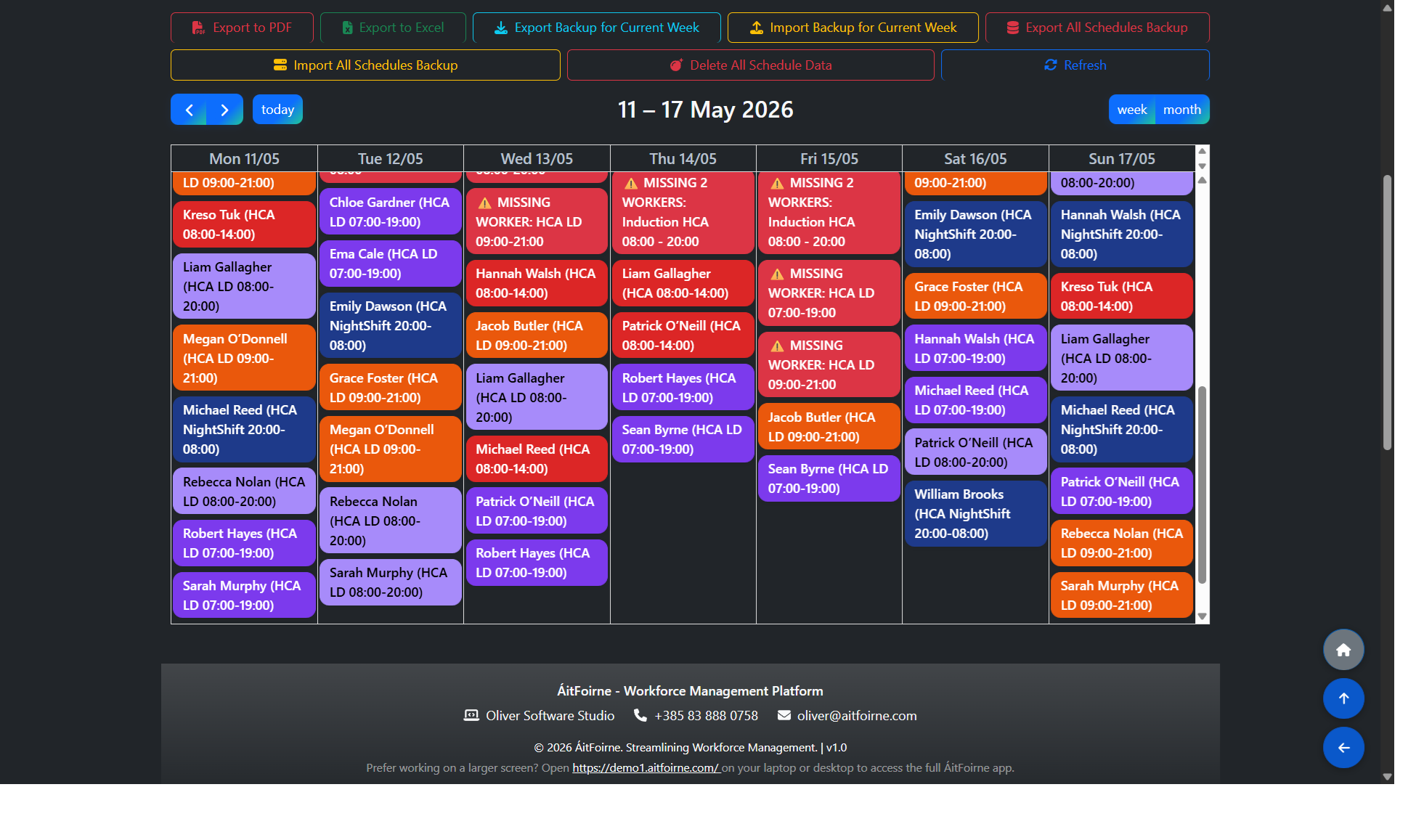
Define Daily Shift Requirements
Go to Manage Schedule → Requirements. Here you define how many staff members are needed per department, per shift type, per day.
For each requirement, select:
Department (e.g. Healthcare, Catering, Household)
Shift Type (e.g. Morning, Evening, Night)
Day of the week
Number of staff required
To save time, use Bulk Add — select a shift type and a date range and ÁitFoirne will create requirements for each day automatically, instead of entering them one by one.
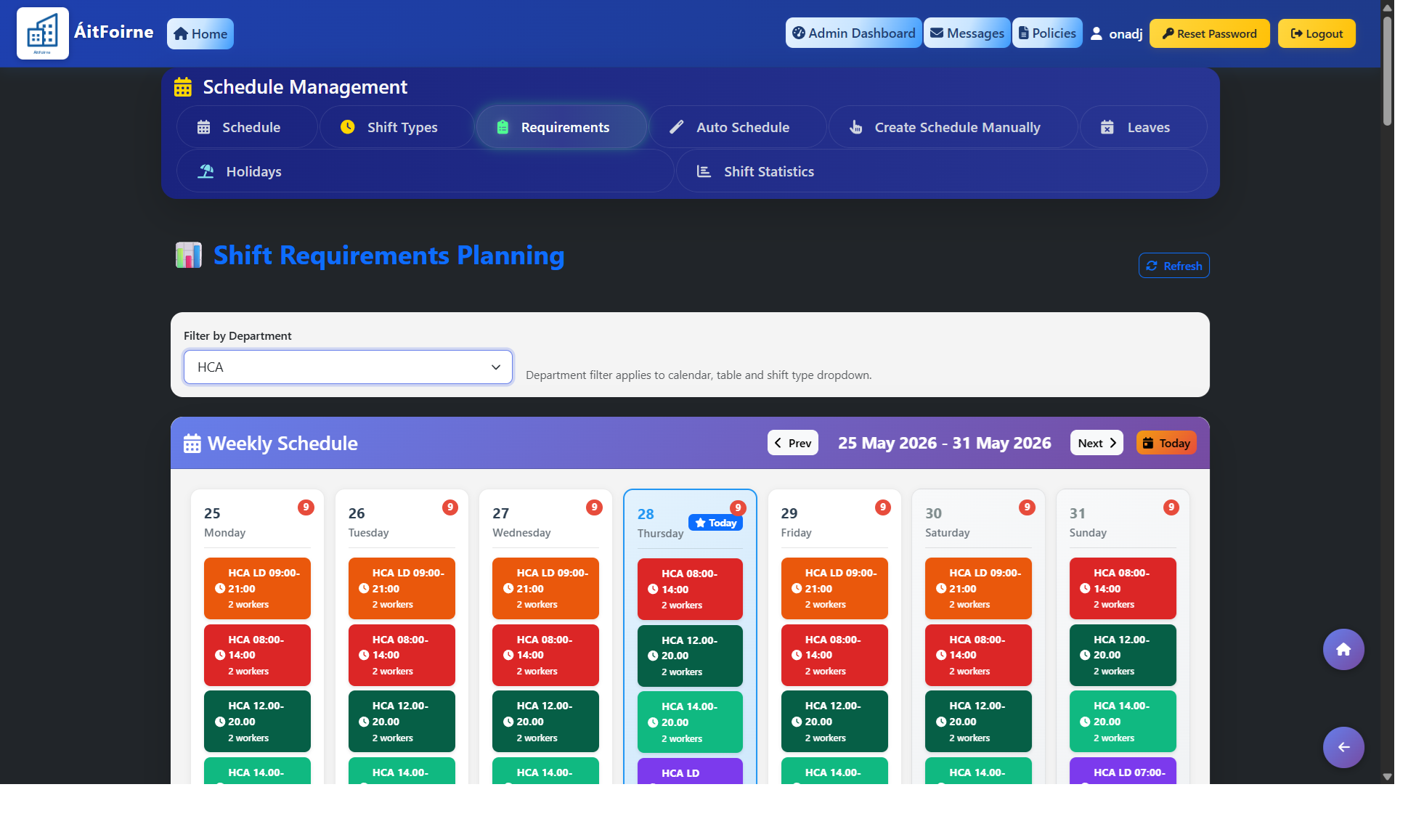
Run Auto-Schedule
Go to Manage Schedule → Auto Schedule. You can generate the roster for all departments at once, or select a specific department.
The auto-scheduler respects all employee settings:
Maximum weekly hours
Available days of the week
Approved leave and days off requests are automatically skipped
Assigned shift types per employee
Once generated, any shift that could not be filled will appear as Worker Missing, showing the department and shift type that needs attention.
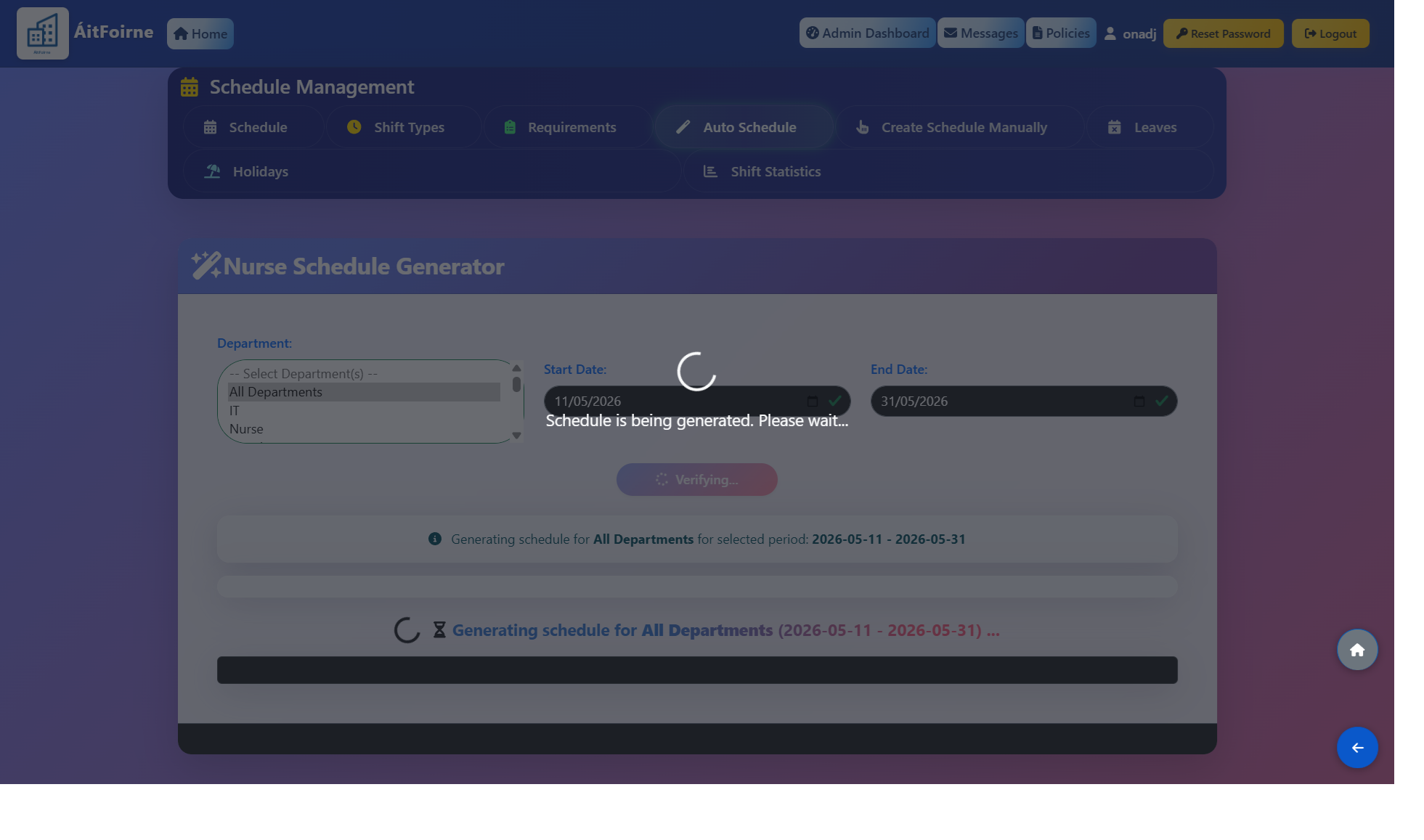
Understanding Worker Missing
Worker Missing is a built-in system placeholder in ÁitFoirne. It is automatically assigned to any shift that the scheduler could not fill with a real employee.
Worker Missing is configured with:
Maximum 999 weekly hours
Available all days of the week
Assigned to all departments and shift types
This ensures the roster is always complete and no shift is left blank — uncovered slots are clearly visible so managers can arrange cover manually.
⚠️ Important: If you create a new Shift Type, remember to go to the Worker Missing employee profile and add the new shift type to their allowed shifts. Otherwise the scheduler cannot use Worker Missing as a fallback for that shift.
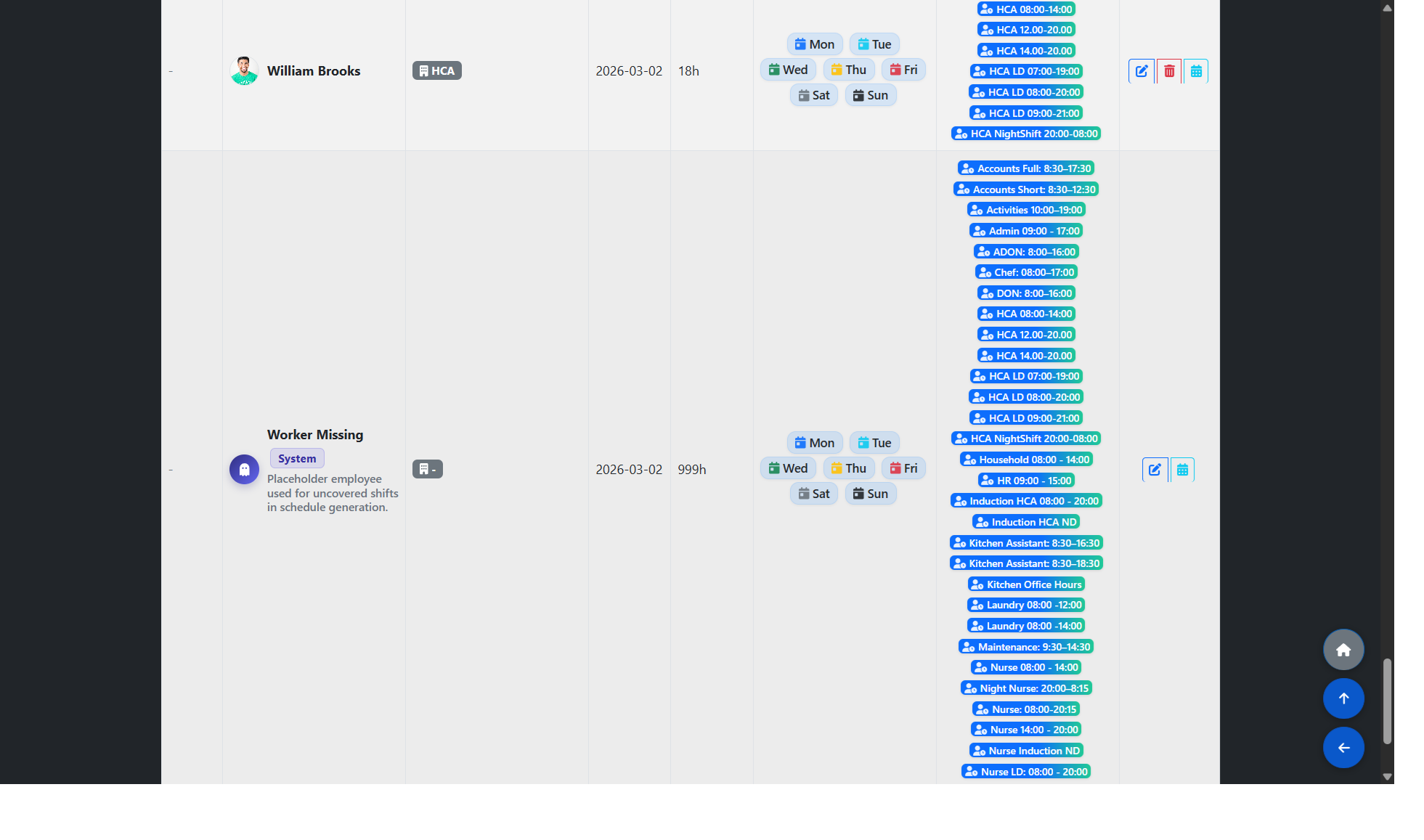
Finding Uncovered Shifts in the Calendar - Worker Missing
Once the roster is generated, go to Manage Schedule → Schedule. The calendar view displays all shifts across departments for the selected week.
Any shift assigned to Worker Missing is clearly highlighted — managers can see the week at a glance and instantly spot which departments and shift types still need cover.
This makes it easy to manually complete the roster after auto-generation, without having to search through each day individually.