Navigate to Schedule
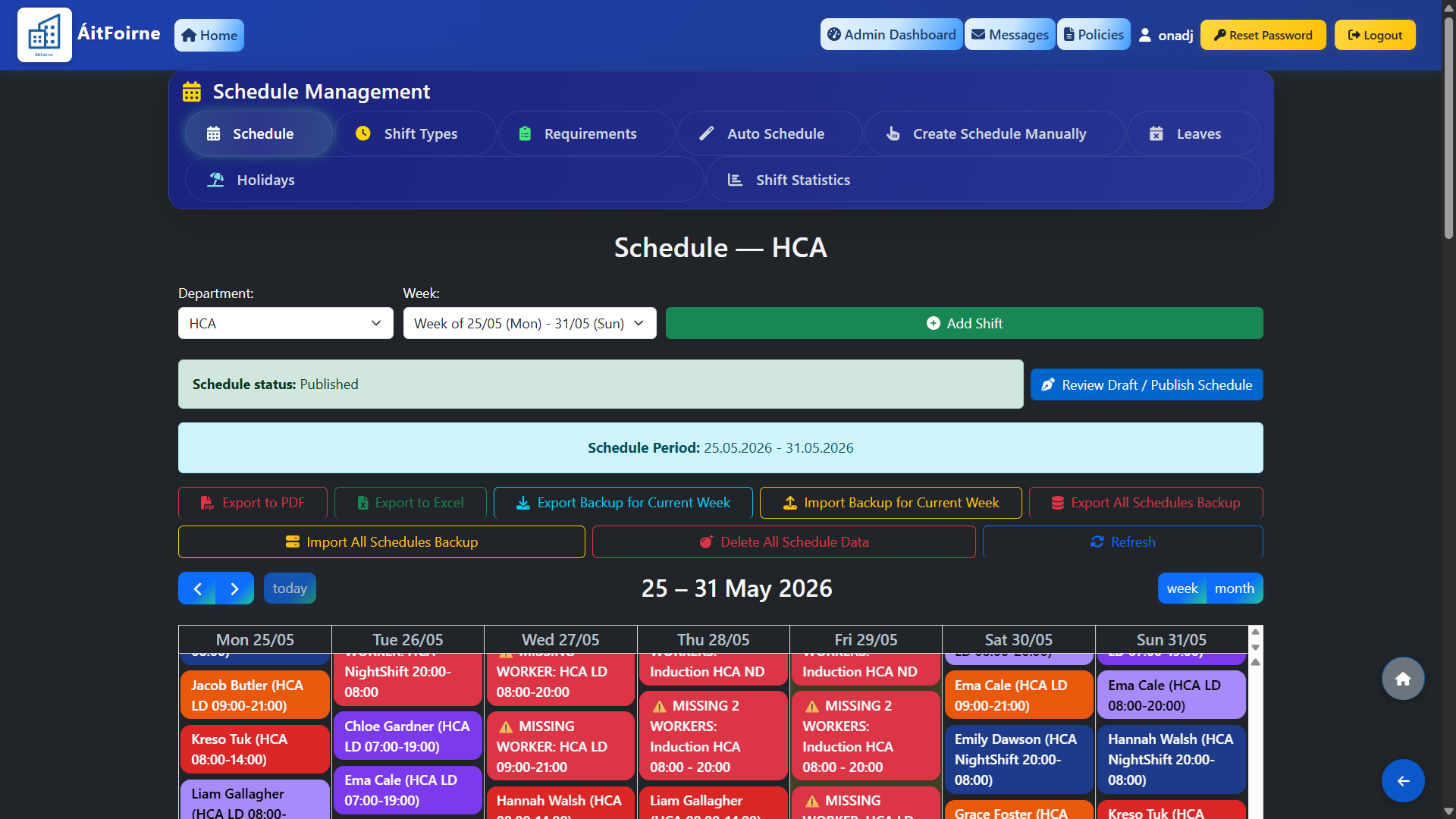
From the main navigation, click on Schedule. The calendar opens automatically on the current week. You can navigate to previous or future weeks using the arrow buttons, or jump back to the present at any time by clicking Today. A week view and a month view are available in the top right corner.
Confirm the Schedule is Published
At the top of the schedule you can see the current status of the roster for the selected week, for example Status: Published. A published schedule is visible to all staff members. If the status shows as unpublished, staff will not be able to see their shifts yet — return to Create Schedule Manually to review and publish.
Export, Print and Backup Options
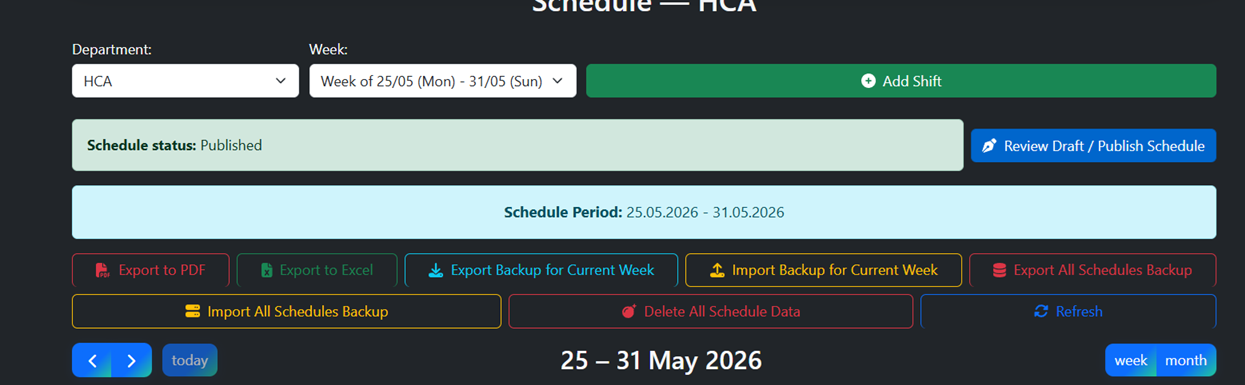
A full set of export and backup tools is available at the top of the Schedule page:
Export & Print:
Export to PDF — generates a printable version of the current week's roster, ideal for sharing with staff in paper format.
Export to Excel — downloads the schedule as a spreadsheet for further editing or record-keeping.
Backup — Current Week:
Export Backup for Current Week — saves a backup file of the currently selected week's schedule data.
Import Backup for Current Week — restores a previously exported backup for the current week. Use this if you need to recover a schedule that was accidentally changed or deleted.
Backup — All Schedules:
Export All Schedules Backup — exports a full backup of all schedule data across all weeks and departments. Recommended before making large changes.
Import All Schedules Backup — restores a full backup of all schedules. Use with caution as this will overwrite all existing schedule data.
Other:
Delete All Schedule Data — permanently removes all schedule data. This action cannot be undone. Only use this if you intend to start the scheduling process completely from scratch.
Refresh — reloads the schedule view to reflect any recent changes made by other users.

Edit, Swap or Mark Leave on Any Shift
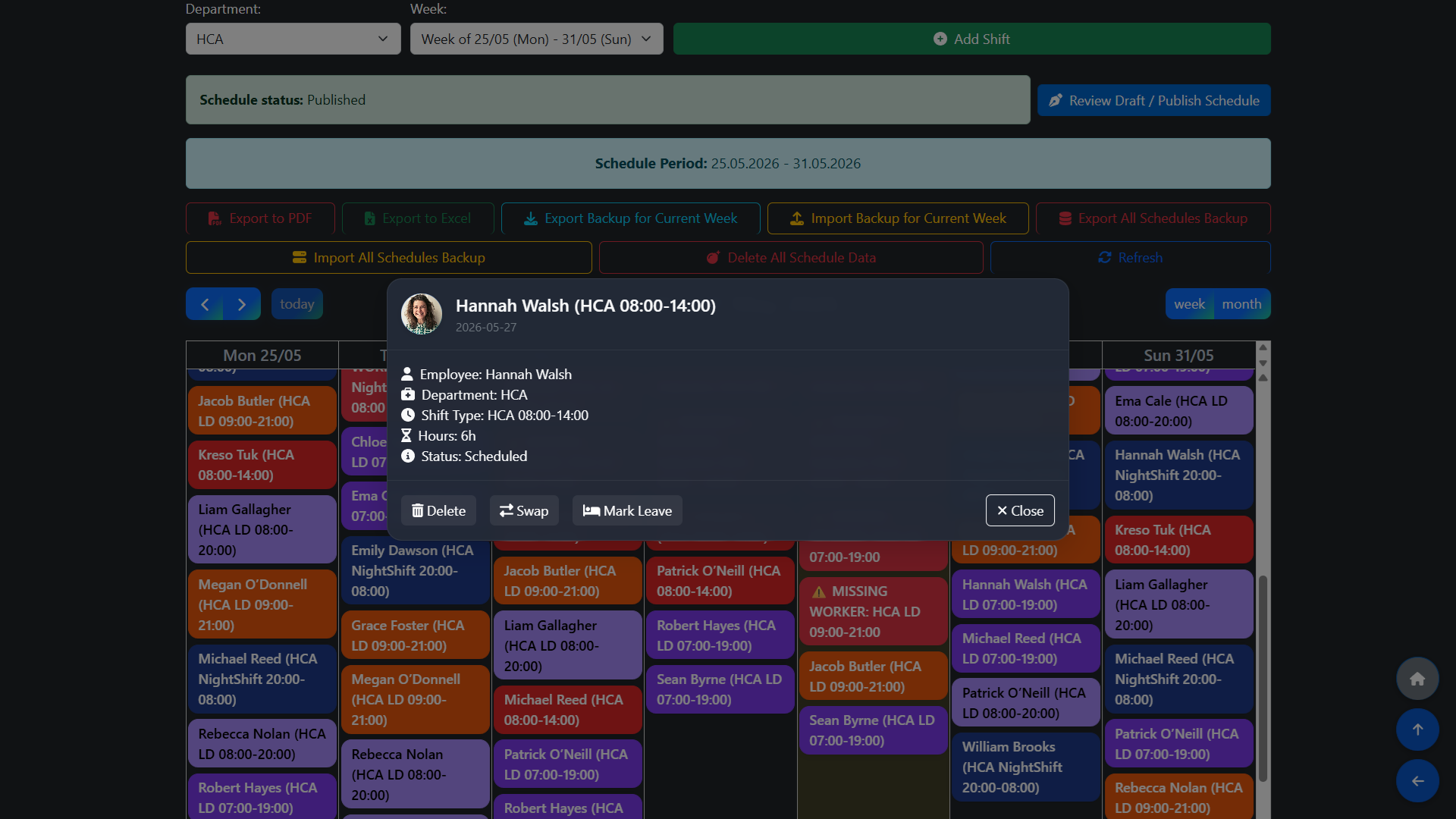
Click on any shift card in the calendar to open the shift detail panel. This panel shows the employee name, department, shift type, hours, and current status. From here you can make the following changes in real time:
Delete — removes the shift assignment. The shift slot will return to unassigned.
Swap — reassigns the shift to a different employee without having to go back to the schedule builder.
Mark Leave — marks the employee as on leave for that shift (e.g. sick day, emergency absence).
All changes take effect immediately and are reflected in the live schedule visible to staff.