
What this area is for
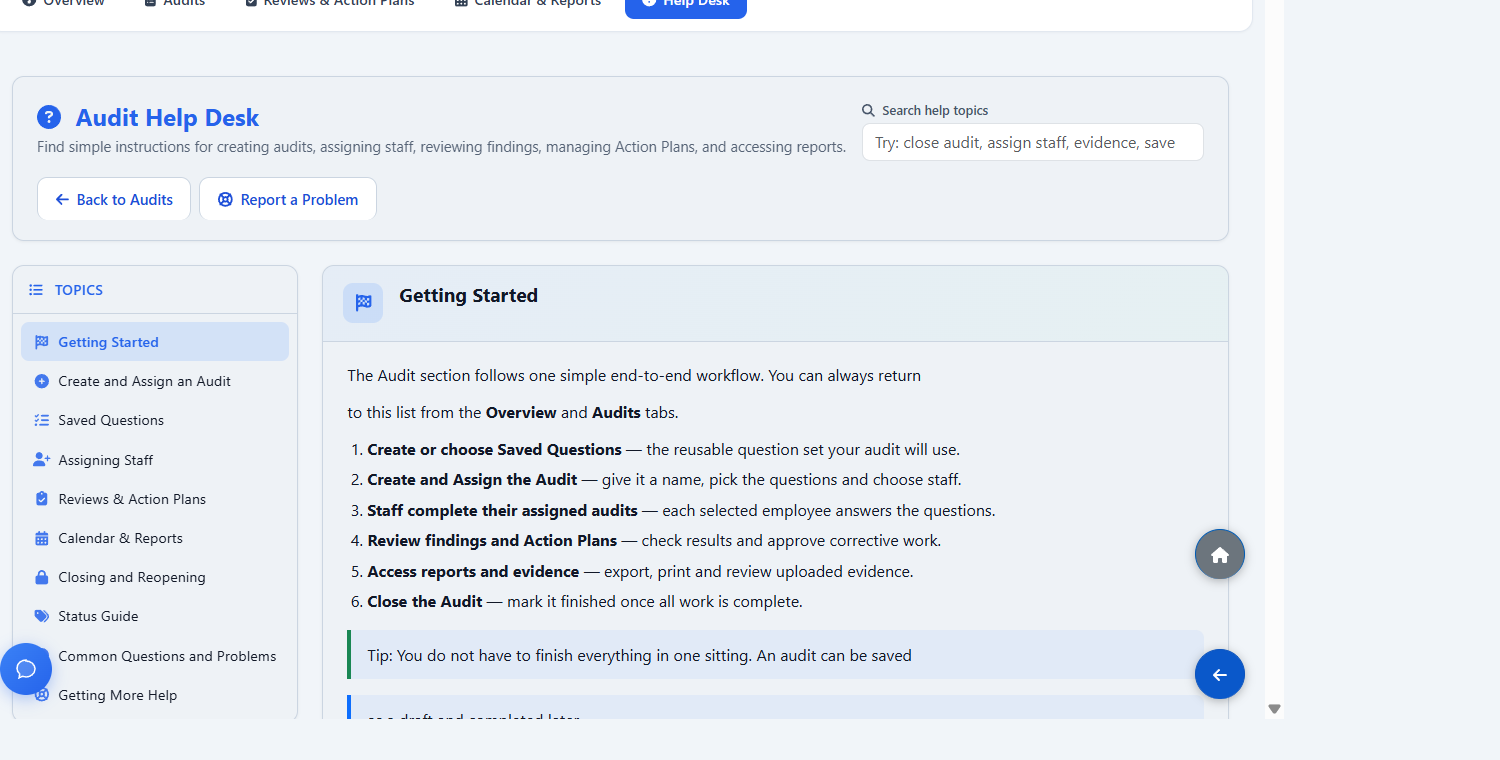
The Audit section follows one end-to-end workflow for running compliance and quality audits with your staff.
- Create or choose Saved Questions — the reusable question set your audit will use.
- Create and Assign the audit — give it a name, pick the questions and choose staff.
- Staff complete their assigned audits — each selected employee answers the questions.
- Review findings and Action Plans — check results and approve corrective work.
- Access reports and evidence — export, print and review uploaded evidence.
- Close the audit — mark it finished once all work is complete.
You do not have to finish everything in one sitting. An audit can be saved as a draft and completed later.
Step-by-step: create and assign an audit
Use Audits → Create and Assign to build a new audit:
- Audit Details — give the audit a clear name, an optional description and an optional due date.
- Saved Questions — reuse an existing question set, or create a new one for this audit.
- Creating questions — add each question, choose its type and mark the expected answer where relevant.
- Assign Staff — select the active employees who should complete the audit.
- Review & Create — check everything on one screen before you commit.
You have two ways to finish:
- Save as Draft — keeps the audit private and unassigned so you can return later.
- Create and Assign — makes the audit active and notifies the selected staff.
Saved Questions
Saved Questions are reusable sets of questions. Building a set once means you can run the same audit again without retyping it.
- Use an existing set when creating an audit.
- Create a new set from scratch when needed.
- Yes/No questions can be scored automatically; free-text questions capture written notes and are not scored.
- Mark a question as required so it cannot be skipped.
- Highlight critical findings where a wrong answer matters most.
- Where available, import from Excel to create a question set quickly.
Editing a saved set does not change audits that were already completed. Historical answers and scores are always preserved.
Assigning staff
- One assignment is created per selected employee — each person gets their own copy to complete.
- Only active employees can be selected.
- You can assign more staff later with Add More Staff.
- Duplicate assignments are prevented — assigning the same person twice will not create a second copy.
Calendar and reports
The Calendar & Reports tab brings planning, reporting and evidence together:
- calendar planning for which audits should run in each month;
- upcoming and overdue audits;
- Excel export of audit results;
- printable employee audit report;
- evidence and history;
- completed staff audit records with filters.
Closing and reopening
An audit can be closed only when:
- all assignments are Completed or Locked;
- no Action Plan is still unresolved;
- no manager review is still pending.
Closing preserves all data — answers, scores, evidence and history remain available. Reopening returns the audit to active administrator tracking; it does not unlock employee submissions or change Action Plan statuses.
If the Close Audit button is unavailable, open the audit's Audit Status panel — it lists exactly what still needs to be finished.
Status guide
Audit
- Draft — created but not yet assigned to staff.
- Open — active and being worked on.
- Closed — finished and recorded; all data preserved.
Assigned staff audit
- Not Started — the employee has not begun.
- In Progress — the employee has started answering.
- Completed — the employee has finished.
- Locked — finished and locked so it can no longer be edited.
Questions people ask
Why can I not close an audit?
Something is still outstanding. Open the audit's Audit Status panel for the exact blocking items: unfinished assignments, unresolved Action Plans or a pending review.
Why is an employee missing from the assignment list?
Only active employees can be assigned. Check that their staff record is active.
Why are there two completed records for one audit?
Each assigned employee has their own record, so one audit can have several completed staff records — one per person.
Does reopening let an employee edit a completed audit?
No. Reopening only returns the audit to active administrator tracking. Completed and locked employee submissions stay exactly as they were.