
What this area is for
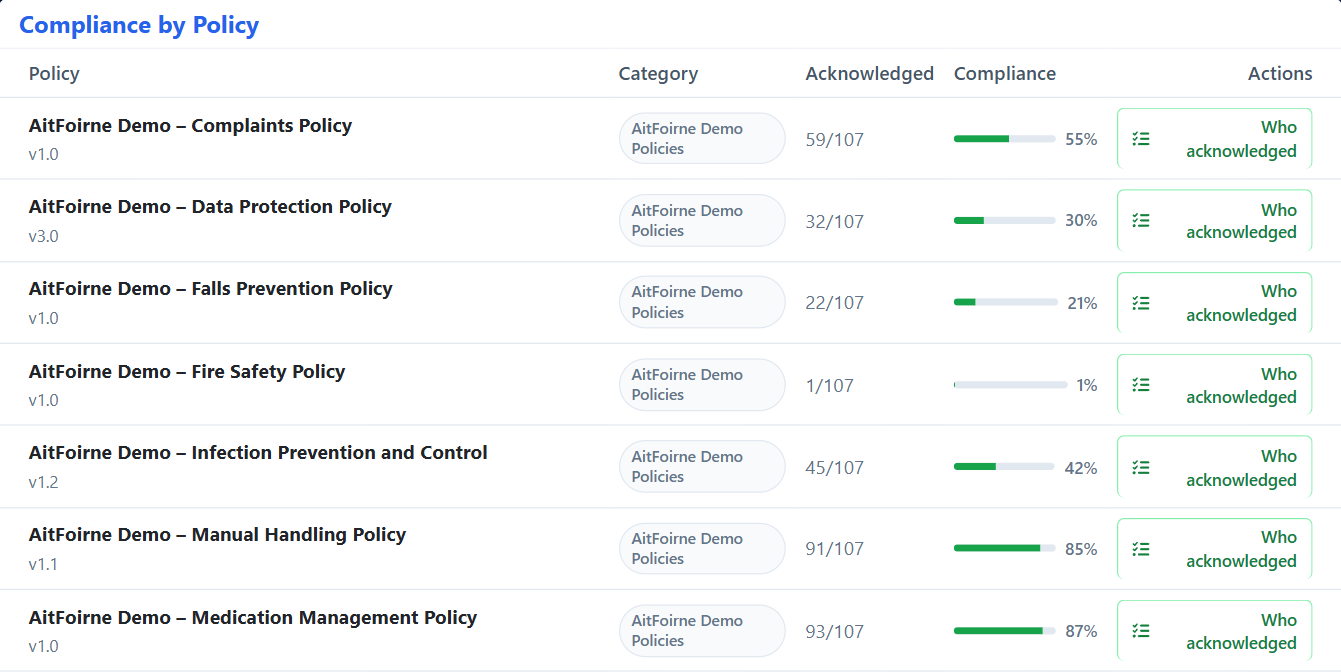
Once a policy is published, managers need to see who has confirmed they have read it. Employees acknowledge policies in the Employee Portal. Managers follow up from Compliance, Outstanding, Who acknowledged and Still to acknowledge.
Employee Portal workflow
- See how many policies still need acknowledgement on the dashboard, if any are outstanding.
- Open Policies.
- Read the policy title and open the PDF document in a new browser tab.
- Return and select Acknowledge to confirm they have read and understood the policy.
- The policy moves to their acknowledged list and the dashboard counter decreases.
Employees cannot upload, archive or delete policies. They can only read and acknowledge active policies shown to them.
What acknowledgement means
When an employee acknowledges a policy, the system records that this employee confirmed they have read and understood the policy at that date and time.
Acknowledgement creates a permanent record linked to:
- the employee;
- the policy;
- the date and time of acknowledgement.
Acknowledgement is not a digital signature and not a legally binding e-signature. It is an internal compliance record showing that the employee pressed Acknowledge after being given access to the policy document.
If an employee acknowledges the same policy again, the system does not create a duplicate. The original acknowledgement remains.
Reading the summary cards
At the top of the Policies tab:
- Total Policies — how many policy records exist that are not deleted, including archived ones.
- Outstanding acknowledgements — how many policy–employee pairs are still missing. One employee missing three policies adds three to Outstanding.
- Average acknowledgement rate — the mean of each active policy’s acknowledgement percentage.
- Most Recent — when the newest policy was uploaded.
Who is included in counts
Live compliance figures use:
- active employees only;
- Worker Missing excluded — the scheduling placeholder is never required to acknowledge policies;
- active policies only — not archived and not deleted.
Inactive employees are excluded from live percentages and outstanding counts. Department filters help you follow up by team; they do not change the headline percentages, which use the full eligible workforce.
Step-by-step: follow up on outstanding items
- Open Outstanding to see employees who still owe acknowledgements and which policies they have not yet acknowledged.
- Use department and policy filters to focus on a team or a specific document.
- Open Who acknowledged for a policy to see names, departments and acknowledgement date and time.
- Open Still to acknowledge for the companion list of people who have not yet confirmed that policy.
- Export the Excel compliance matrix, PDF snapshot or CSV from Export Data for your compliance file.
Recommended monthly review
- Open Policies and read the four summary cards.
- Open Outstanding and identify employees and departments needing follow-up.
- Open Compliance and check policies below 100%.
- Export Excel for your compliance file.
- Archive policies that are no longer in force.
- Upload any new or revised policies promptly.
Questions people ask
How can I see which policies employees still need to read?
Open the Outstanding tab. It lists people and the policies they still owe. You can also open Still to acknowledge for one policy at a time.
Why does Outstanding look higher than the number of people?
Outstanding counts pairs, not people. One person missing three policies adds three to the total.
Why did the percentage drop after a new hire?
New active employees increase the denominator until they acknowledge each active policy.
Why can an employee not see Policies?
They need a signed-in Employee Portal account. Active policies appear for eligible active employees; archived and deleted policies are not shown.